
































Password Managers Explained: How They Work, Which One to Choose in 2026, and Where Passkeys Fit
A password manager remembers every login so you only have to remember one strong passphrase. This guide explains how password managers work, why reusing passwords is the real risk, which managers lead in 2026 — including 1Password, Bitwarden, Proton Pass and NordPass — and how passkeys fit into the picture.

Password Managers Explained: How They Work, Which One to Choose in 2026, and Where Passkeys Fit
Most people have more than a hundred online accounts, and no human memory was built to hold a hundred different, complicated passwords. So people do the natural thing: they reuse a handful of passwords everywhere. That habit is exactly what attackers count on. A password manager exists to break it. You remember one strong passphrase, and the manager creates, stores and fills in a different long, random password for every site you use.
This guide explains what a password manager actually does, how the technology works, which managers are worth your money in 2026, and how the newer idea of passkeys fits in — because the honest answer in 2026 is that you probably need both.
Why one reused password is the whole problem
When a website is breached, attackers do not just get that site's data. They take the leaked email-and-password pairs and try them on every other service they can think of — your email, your bank, your cloud storage. This is called credential stuffing, and it works because so many people reuse logins. A weak password on a throwaway forum is not the danger. The danger is the same password protecting the accounts that matter.
A unique password on every site ends that chain. A breach at one service tells an attacker nothing about your account anywhere else. A password manager enforces that uniqueness automatically, which is why security experts have recommended one for years: it turns a discipline problem into a solved problem.
What a password manager is, and how it works
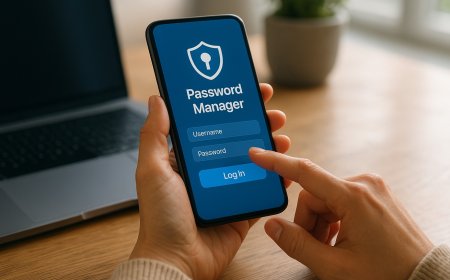
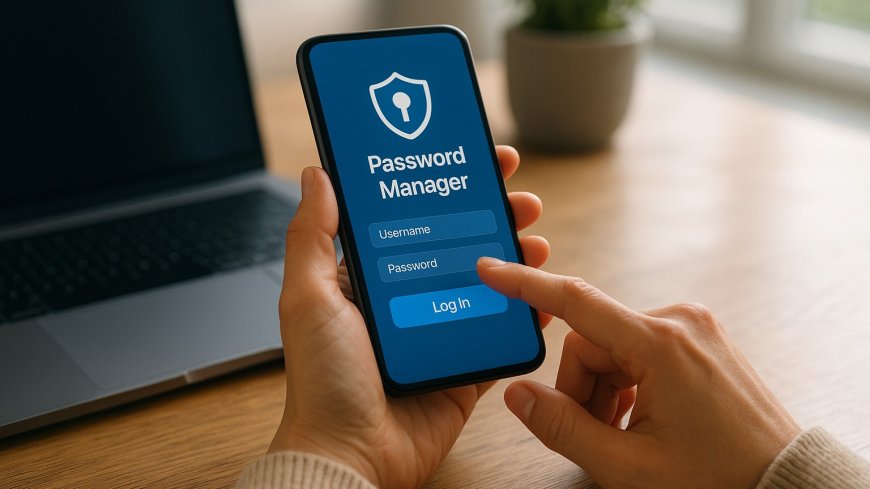
A password manager is an encrypted vault for your logins. You create one strong master password — ideally a passphrase of four to six random, unrelated words, which is easier to remember than a jumble of symbols and far harder to guess — and the app handles everything else. When you sign up for a new site, it generates a long, random password for that site alone. When you return, it fills the login in for you. Your credentials sync across your phone, laptop and tablet, so the same vault is available everywhere.
The encryption matters more than the brand name. Good managers use zero-knowledge architecture: your vault is encrypted on your device with a key derived from your master password, and the company itself cannot read what is inside. Even if the provider's servers were stolen, the data would be unreadable without your key. That is also why there is no "forgot master password" button in the usual sense — if you lose it, the vault stays locked. Most managers now offer a recovery route, such as emergency access for a trusted person or a printed recovery key, and setting that up is the single most important step after installing one.
A good manager does more than store passwords. It flags weak and reused ones, warns you when a saved account appears in a known data breach, and will only fill your credentials on the real web address — so a lookalike phishing page gets nothing. That last detail is a quiet superpower: the manager checks the domain before it types, which humans rarely do.
How long should a password be?
The US National Institute of Standards and Technology (NIST) updated its digital identity guidance in 2025: a password used on its own should be at least 15 characters long. Length beats complexity — a long passphrase of random words is both stronger and more memorable than a short password padded with symbols. With a manager, length is free: you never type the password yourself, so a 20- or 30-character random string costs you nothing.
Password managers vs passkeys
Passkeys are the newer idea, and they attack the problem from a different angle: they remove the shared secret entirely. When you create a passkey for a site, your device generates a cryptographic key pair for that site alone, using the FIDO2 and WebAuthn standards. The site keeps only the public key, which is useless to a thief. The private key stays on your device and never leaves it. To sign in, you unlock your device with a fingerprint, face scan or PIN, and the device proves it holds the private key. Nothing reusable ever crosses the network, so a passkey cannot be phished, guessed or leaked in a database breach.
The momentum is real. The FIDO Alliance's 2026 World Passkey Day report puts passkey use at 5 billion worldwide, with 75 percent of people having enabled one on at least one account. Google, Apple and Microsoft all support them, and most major services now offer passkey sign-in.
But passkeys have not replaced passwords yet. Many smaller sites will never support them, and a passkey still has to live somewhere — usually synced through your platform account or a third-party manager. That is where the two tools meet: use passkeys wherever a service offers them, especially for your email, bank and cloud accounts, and let a password manager hold the passwords for everything else. Modern managers store passkeys too, so one app can manage both kinds of sign-in.
The best password managers in 2026
Testing from independent reviewers this year keeps returning to the same handful of names, though they disagree on the order. All About Cookies, after testing 28 password managers, picked 1Password as the best password manager of 2026 for its reliable autofill, intuitive interface and flexible sharing. Other comparisons put Bitwarden first for value and Proton Pass first for privacy. Prices below are reported 2026 figures — always check the vendor's own checkout before buying, because introductory deals and renewal prices change often.
1Password — best overall
1Password remains the most polished option, and the easiest family rollout: five family members with separate vaults, shared vaults and family recovery controls. It uses AES-256 encryption plus a Secret Key, and extras such as Watchtower breach alerts and Travel Mode. It has no free plan, only a 14-day trial. Individual plans now cost $47.88 a year after a price rise in March 2026, up from $35.88 — a 33 percent increase that frustrated long-time users and is worth knowing before you commit.
Bitwarden — best free and best value
Bitwarden is open source, which means its code can be inspected, and its free tier is the most generous available: unlimited passwords on unlimited devices, plus sharing with one other user. Its paid Premium tier costs $19.80 a year and adds emergency access and extra features, while a Families plan covers six people for $47.88 a year. The interface is more utilitarian than 1Password's, but for most individuals the free tier alone is enough.
Proton Pass — best for privacy
Proton Pass, from the Swiss company behind Proton Mail, is the privacy-first pick: a permanent free plan with unlimited logins and devices, 10 email aliases and passkey support, with paid plans adding more aliases and emergency access. It is a younger product than the leaders, so it has fewer years of workflow polish, but for anyone already in the Proton ecosystem it is the natural choice.
NordPass — best balance of price and simplicity
NordPass, from the makers of NordVPN, uses modern XChaCha20 encryption with Argon2id key derivation and offers the simplest onboarding of the group. Premium plans start from about $23.88 a year on current deals, and there is a free tier, though it allows only one active device session. Watch the renewal price: promotional pricing can hide what the second year costs.
Dashlane — the all-in-one, now paid-only
Dashlane bundles phishing and scam alerts with a VPN, and its Friends and Family plan covers ten people. But its free plan was discontinued in September 2025, and at around $59.88 a year for a personal plan it is now the priciest of the leading options. It suits people who want one security app rather than several, but the value case is weaker than it used to be.
Built-in options are also worth a mention: Apple Passwords is the best choice if you live entirely inside Apple's ecosystem, and Google Password Manager covers the basics for Chrome and Android users. They are convenient, but they tie you to one company's devices — a dedicated manager follows you across platforms.
How to choose a password manager
Start with how you actually live. If you use Windows, a Mac, an iPhone and an Android tablet in the same week, you need a manager that works well on all of them. If cost is the deciding factor, Bitwarden's free tier or Proton Pass's free plan will cover you without a subscription. If you are setting up a household, compare family plans and recovery options — the manager that lets a partner or parent recover access when you cannot is worth more than one with a prettier interface.
Check three things before paying: that the manager supports passkeys, that it has been independently audited, and that its renewal price — not just the first-year offer — is one you would happily pay again. Avoid any manager that cannot explain its encryption, and never pick one solely because it was bundled with something else.
Switching to a password manager in an afternoon
Moving over is less painful than it sounds. Install the manager on your phone and computer, create your master passphrase and write down the recovery key somewhere safe — on paper, in a drawer, not in a note on your phone. Import your saved passwords from your browser, then let the manager's security report find the reused and weak ones. Change the important accounts first: email, banking, cloud storage and social media. Your email matters most, because it is the key to resetting everything else. Then turn on passkeys where they are offered, and set up two-factor authentication on the accounts that support it — our guide to two-factor authentication explains how that works.
Do not try to change a hundred passwords in one sitting. Fix the five accounts that would hurt most if they were stolen, then work through the rest over the following week as you sign in to them.
What a password manager cannot do
A manager is not a cure-all. It will not stop you handing your credentials to a convincing phishing message, though its refusal to autofill on a fake domain helps. It does not protect a device that is already infected with malware, and it does not make a weak master password strong — your one passphrase is the key to everything, so make it long and unique. Keep your devices updated, turn on two-factor authentication where it is available, and read our guide on protecting yourself from phishing alongside this one.
The point of a password manager is not perfection. It is that a single habit — one strong passphrase, unique passwords everywhere else — removes the most common way accounts get stolen. In 2026, with passkeys arriving for your most important accounts and managers handling the rest, there has never been a better time to make the switch.
Sources
- All About Cookies — "The Best Password Managers of 2026" — https://allaboutcookies.org/best-password-managers
- Antivirus Review — "Best Password Manager 2026: 7 Secure Picks Compared" — https://antivirus-review.com/blog/best-password-manager
- AI Tech Journal — "Best Password Managers 2026: Pricing, Security, Top Picks" — https://staging.aitechjournal.org/best-password-managers-2026-pricing-security/
- Axis Intelligence — "Best Password Managers 2026: 12 Tools Tested and Independently Compared" — https://axis-intelligence.com/best-password-managers-2026-12-tools-tested/
- Dev.to — "Password Manager vs. Passkey: What You Should Actually Use in 2026" — https://dev.to/scofieldidehen/password-manager-vs-passkey-what-you-should-actually-use-in-2026-1l7o
- Hunt Browser blog — "Passwords, password managers and passkeys, explained simply" — https://blog.huntbrowser.com/passwords-and-passkeys
What's Your Reaction?
 Like
0
 Dislike
0
 Love
0
 Funny
0
 Angry
0
 Sad
0
 Wow
0