

































How to Choose the Right Laptop in 2026: A Practical Buying Guide
Buying a laptop in 2026? This practical guide explains what actually matters — processor, RAM, storage, screen, battery and weight — and how to pick the right laptop for work, study or gaming without overspending.
How to Choose the Right Laptop in 2026: A Practical Buying Guide
Buying a laptop in 2026? This practical guide explains what actually matters — processor, RAM, storage, screen, battery and weight — and how to pick the right laptop for work, study or gaming without overspending.
Laptop shopping is confusing because every model lists a dozen specs. The good news is that only a few of them actually matter for most people. Start with what you will use the laptop for, then match the specs to that — not the other way around.
Step 1: Decide what you will use it for
A student writing essays and watching videos needs a very different laptop from a video editor or a gamer. Office work, browsing and streaming need the least power. Photo and video editing, programming and gaming need much more. Be honest about your real use — buying a gaming laptop for email is a waste of money and battery life.
Step 2: Processor — the brain
The processor (CPU) determines how fast the laptop feels. In 2026, look for at least an Intel Core i5 or AMD Ryzen 5 for everyday work; Core i7 or Ryzen 7 for heavy multitasking, editing or programming; and Core i9, Ryzen 9 or Apple M-series chips for professional work. Avoid older or entry-level chips (like Celeron or Pentium) unless the laptop is only for very light use — they will feel slow within a year.
Step 3: RAM — 16GB is the sweet spot
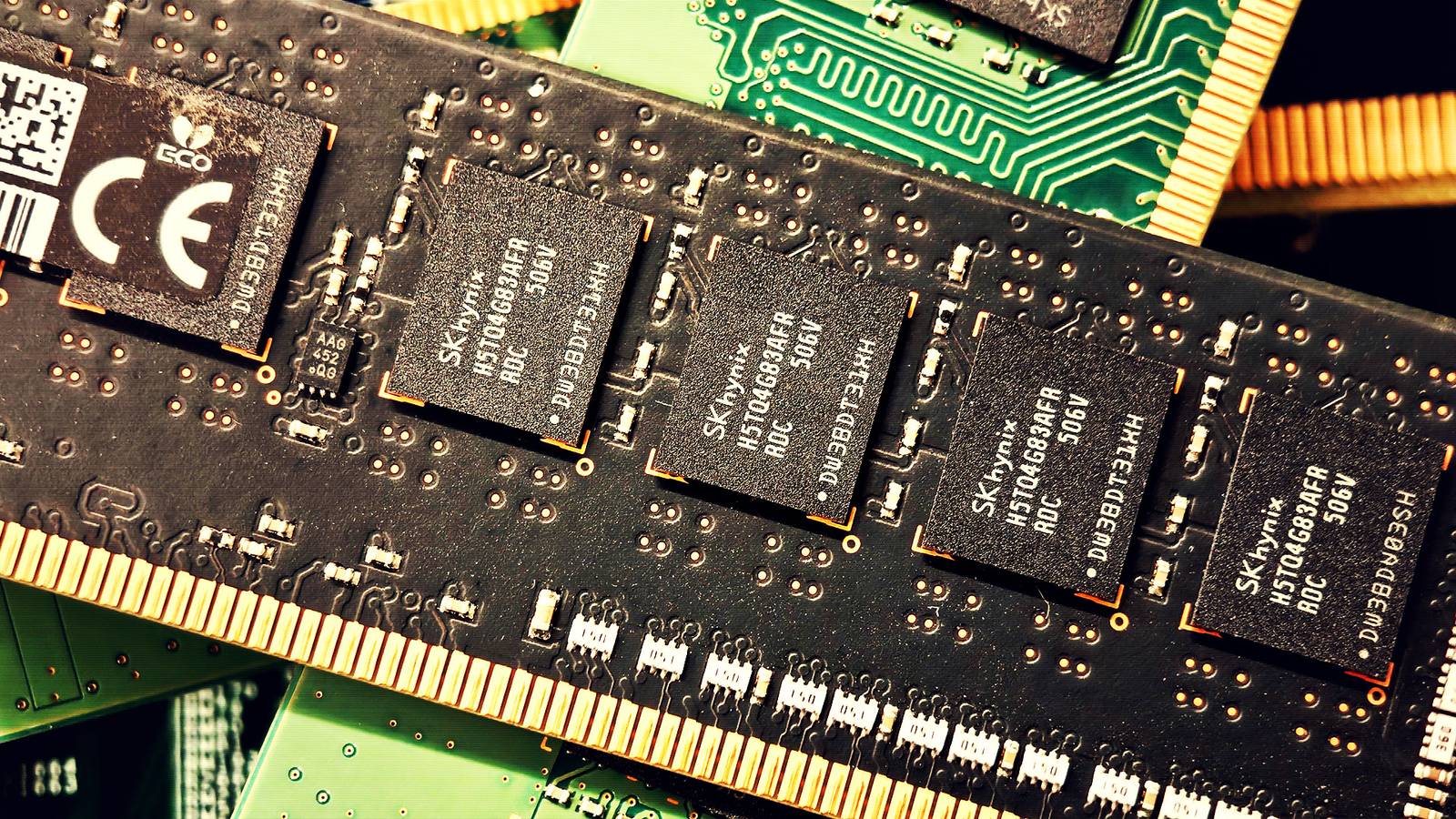
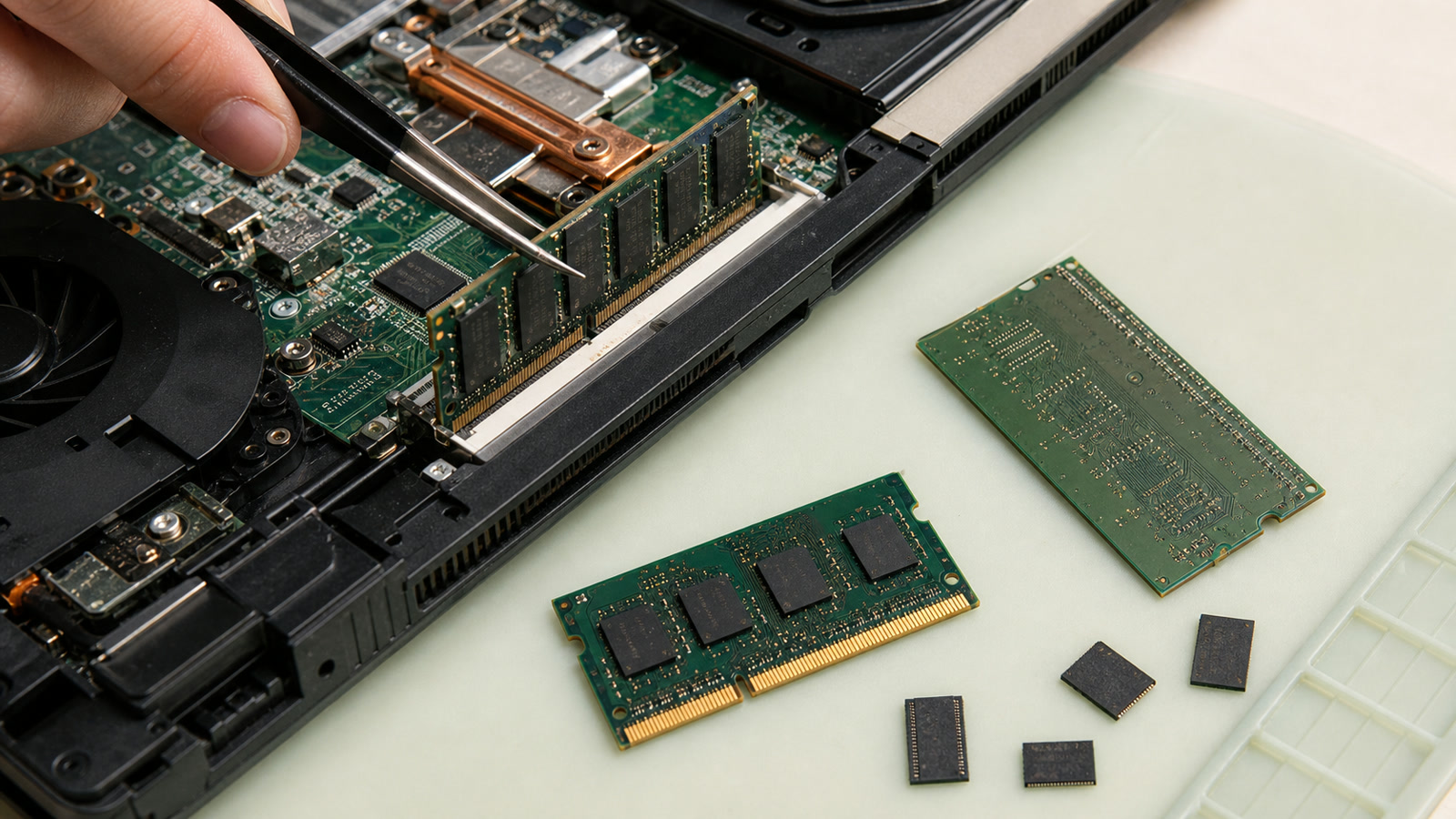
8GB of RAM is the minimum in 2026, but 16GB is the amount to buy if you want the laptop to stay fast for years — browsers and apps keep getting heavier. Choose 32GB if you edit video, run virtual machines or use AI tools locally. Note that many thin laptops have RAM soldered to the board, so you cannot upgrade later — choose correctly at purchase.
Step 4: Storage — always pick an SSD
Never buy a laptop with a mechanical hard drive in 2026. A solid-state drive (SSD) makes the laptop boot in seconds and open apps instantly. 256GB is workable, but 512GB is the comfortable choice for most people — Windows, apps and files fill 256GB faster than you expect. NVMe SSDs are faster than SATA SSDs, but both are fine for everyday use.
Step 5: Screen — size, resolution and quality
13 to 14 inches is best for carrying around; 15 to 16 inches is better for working at a desk. Full HD (1920x1080) is the minimum resolution; higher resolutions look sharper but use more battery. If you can, check the screen in person: brightness matters more than resolution, and a dim screen is miserable outdoors. A 120Hz display feels smoother, but it is a nice-to-have, not a must.
Step 6: Battery life and weight
Manufacturers' battery claims are optimistic — expect roughly two-thirds of the advertised life in real use. If you carry the laptop all day, look for something under 1.5 kg with at least 8 hours of real-world battery life. Gaming laptops are powerful but heavy, hot and short-lived on battery — fine for a desk, bad for a backpack.
Step 7: Ports, keyboard and build
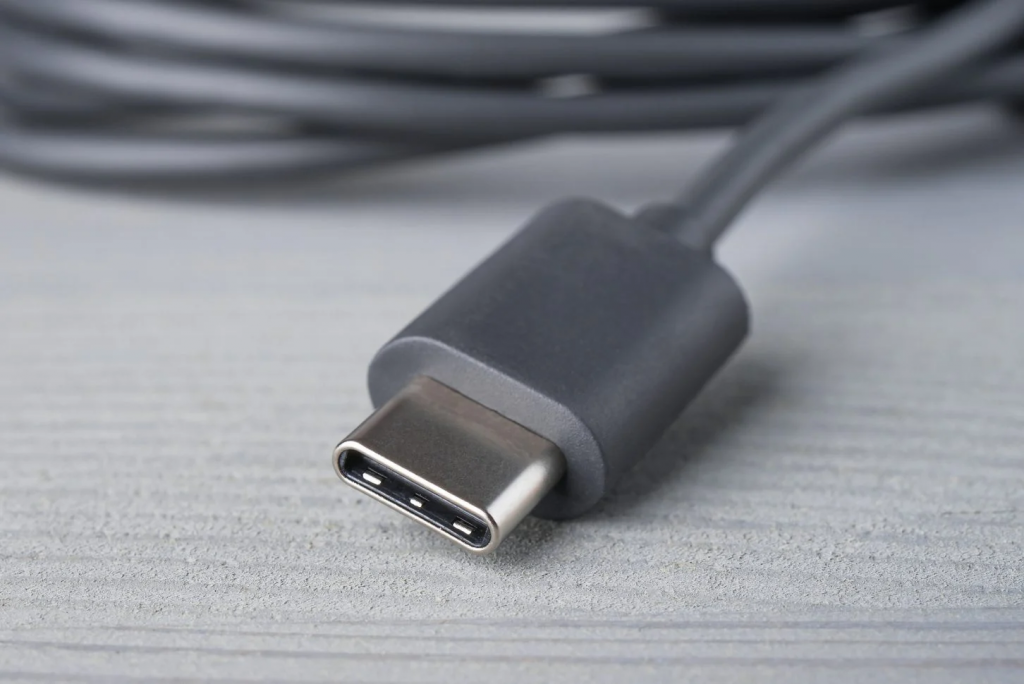
Check that the laptop has the ports you need: USB-C for charging and modern accessories, USB-A for older devices, and HDMI if you connect to a TV or monitor. Try the keyboard and trackpad if possible — you will use them every day. A metal body lasts longer than plastic, and a good warranty matters more than a slightly lower price.
What about MacBook vs Windows?
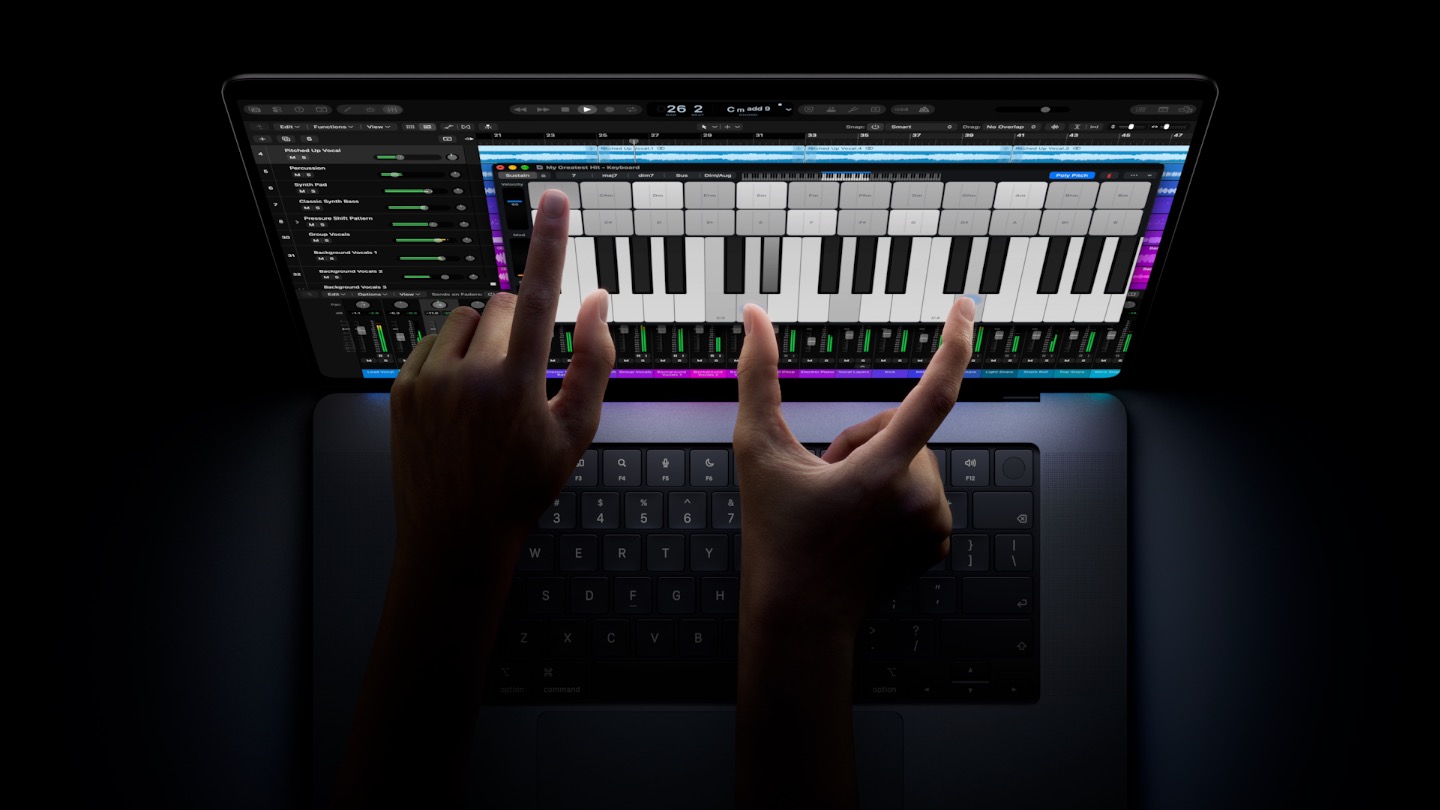
MacBooks with Apple silicon (M-series chips) offer excellent battery life, quiet operation and great screens, and are ideal if you already use an iPhone. Windows laptops offer more choice, more ports, better gaming and usually lower prices. There is no wrong answer — pick the system you are comfortable with and that runs the software you need.
Sources
What's Your Reaction?
 Like
0
 Dislike
0
 Love
0
 Funny
0
 Angry
0
 Sad
0
 Wow
0