
































How to Fix Common Windows 11 Problems: A Step-by-Step Guide
Fix common Windows 11 problems with safe, step-by-step help for updates, Wi‑Fi, slow PCs, apps, search, printers, storage and startup errors.
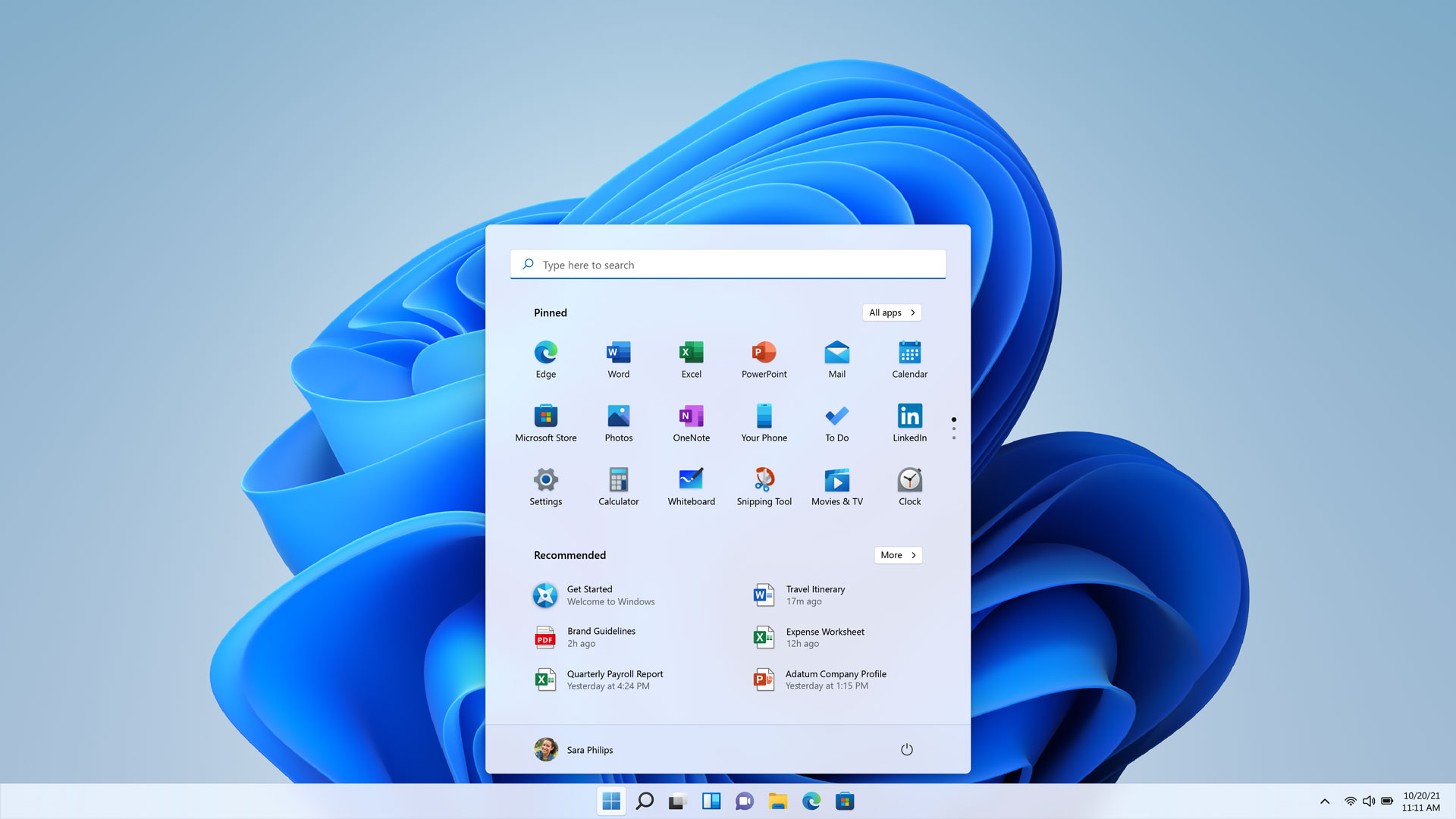
Windows 11 problems can look unrelated—an update stuck at 0%, a laptop that suddenly feels slow, missing Wi‑Fi, a printer that will not appear, or an app that keeps crashing. In practice, the cause is often one of four things: a pending update, a driver or app conflict, damaged system files, or a shortage of storage and memory.
This guide is a safe troubleshooting path for Windows 11 PCs in the US, UK and Europe. It starts with low-risk checks, then moves to repair commands and recovery options. Menu names can vary slightly by Windows build and language. Microsoft’s release-health dashboard currently lists Windows 11 versions including 26H2, 26H1 and 25H2, so check the dashboard for a known issue before forcing a repair or reinstall. [1]
Before you change anything: protect your data
- Save open work and back up important files—especially Desktop, Documents and Pictures—to an external drive or a trusted cloud backup.
- Connect a laptop to power. Do not interrupt a BIOS, firmware or Windows update.
- Note the exact symptom and any error code. “Wi‑Fi drops every 10 minutes” is more useful than “the internet is broken.”
- Disconnect non-essential USB drives, docks and accessories while troubleshooting updates or startup problems. Microsoft specifically recommends removing external hardware when an update fails. [2]
- If a work or school PC is managed by IT, stop before changing security, VPN or policy settings.
If the PC is hot, smells burnt, has a swollen battery, makes unusual mechanical noises, or shows signs of liquid damage, shut it down and seek professional help instead of repeatedly restarting it.
1. Windows 11 is slow, freezing or using too much memory
Start with the simplest explanation: too many startup apps, low free storage, a runaway process, or a driver/app conflict.
Work through these checks
- Press Ctrl + Shift + Esc to open Task Manager. On Processes, sort by CPU, Memory and Disk. Close only an app you recognise and are not using; do not end Windows processes at random.
- In Task Manager, open Startup apps and disable non-essential launchers. Leave security software, touchpad utilities and hardware drivers enabled unless the manufacturer or IT administrator says otherwise.
- Open Settings > System > Storage. Use Cleanup recommendations and Storage Sense to remove temporary files. Review Downloads before deleting anything.
- Install pending Windows and driver updates, then restart. For graphics, Wi‑Fi and chipset drivers, prefer Windows Update or the PC maker’s support page rather than random driver-download sites.
- If freezing began after a particular app or driver was installed, uninstall or roll it back and test again.
Do not promise that a registry cleaner or “PC booster” will fix performance. Those utilities can add risk without addressing the cause. If Windows remains unstable after these checks, use the repair sequence below before considering a reset.
2. Windows Update is stuck, fails or shows an error
Windows 11’s first-line option is the automated Windows Update troubleshooter in the Get Help app. Microsoft also documents the Settings route: Settings > System > Troubleshoot > Other troubleshooters > Windows Update > Run. [2]
Before retrying, confirm that the PC is plugged in, online, has administrator access and has enough free storage. Temporarily disconnect a VPN if it is interfering with the connection. Avoid disabling antivirus permanently; if your organisation permits it, pause third-party security only for a controlled test and turn it back on immediately.
If the update cache appears damaged:
- Press Win + R, type
services.msc, and press Enter. - Stop Windows Update.
- Open
C:\Windows\SoftwareDistributionand delete its contents—not the folder itself. - Return to Services and start Windows Update.
- Restart the PC and check for updates again.
For recurring errors, record the code before searching it. Microsoft’s current guidance links several codes to common causes: 0x800f0922 can involve insufficient space or a VPN; 0xC1900101 often points to an incompatible driver; and 0x8007000d may involve corrupted update files. [2] A code is a clue, not proof, so do not delete drivers or system folders without a backup.
If a specific update is listed as a known issue or safeguard hold on Microsoft’s release-health page, waiting for a corrected update is safer than forcing an upgrade. [1]
3. Wi‑Fi keeps disconnecting or will not connect
First determine whether the problem affects every device or only this PC. If phones and other computers also fail, restart the router and check your broadband provider’s status. If only Windows 11 is affected, continue here.
- Go to Settings > Network & internet > Wi‑Fi and confirm Wi‑Fi is on and Airplane mode is off.
- Forget the network, then reconnect with the password. Check whether the PC is connecting to the correct 2.4 GHz or 5 GHz network.
- Restart the PC and router. Keep the router away from obvious sources of interference and test near it.
- In Device Manager, expand Network adapters. Update the adapter driver from Windows Update or the computer maker. If the issue started immediately after an update, Properties > Driver > Roll Back Driver may be appropriate.
- As a last network step, use Settings > Network & internet > Advanced network settings > Network reset. This removes and reinstalls network adapters and may require you to reconnect to VPNs and saved networks.
Never share your Wi‑Fi password with a support site or install a “network fixer” that asks for unnecessary remote access.
4. A Windows 11 app crashes, will not open or shows a blank window
Update the app from its publisher or Microsoft Store, then restart Windows. For a Store app, open Settings > Apps > Installed apps, select the three-dot menu beside the app, choose Advanced options, and try Repair. If Repair does not help, use Reset—but understand that Reset can remove the app’s local settings or sign-in state.
For a traditional desktop app, uninstall it through Settings > Apps > Installed apps, restart, and reinstall only from the publisher’s official site. If several unrelated apps crash, suspect Windows files, memory, storage or a recent driver rather than reinstalling every app.
5. Search cannot find files or apps
After a major update or when many files have been added, indexing can take time. Check Settings > Privacy & security > Searching Windows and make sure the relevant folders are not excluded. Then open Advanced indexing options, choose Advanced, and select Rebuild. Results may be incomplete while the index is rebuilt.
For a single missing file, search directly in File Explorer and check the file’s actual folder, spelling and extension. Rebuilding the index will not recover a deleted or encrypted file.
6. Windows 11 cannot find a printer
Confirm the printer is powered on and that the PC and printer are on the same network if it is a network model. For a USB printer, try a different port and remove unnecessary hubs.
Go to Settings > Bluetooth & devices > Printers & scanners > Add device. If Windows finds it but jobs stay paused, open the printer queue, cancel stuck jobs and restart the Print Spooler service from services.msc. Install the current driver from the printer manufacturer, matching your Windows architecture and model. Avoid drivers for a similar-looking model.
If the printer is shared by another computer, that host must be awake and connected. Business printers may require an administrator to install a signed driver or configure a print server.
7. Windows starts to a black screen, loops or crashes
Disconnect external drives and accessories, then restart. If the desktop appears, install pending updates and check display-driver changes. Press Win + Ctrl + Shift + B once to reset the graphics driver; you may hear a beep and see the screen refresh.
If Windows will not start normally, interrupt startup two or three times to enter Windows Recovery Environment, then try Troubleshoot > Advanced options > Startup Repair. System Restore can return system files and settings to an earlier restore point without intentionally deleting personal files, but availability depends on whether restore points exist.
Use Safe Mode only to remove a recently installed driver or app, not as a permanent operating mode. If recovery tools cannot start the PC, back up files from another environment if possible and contact the manufacturer or a qualified technician.
8. Repair damaged Windows system files
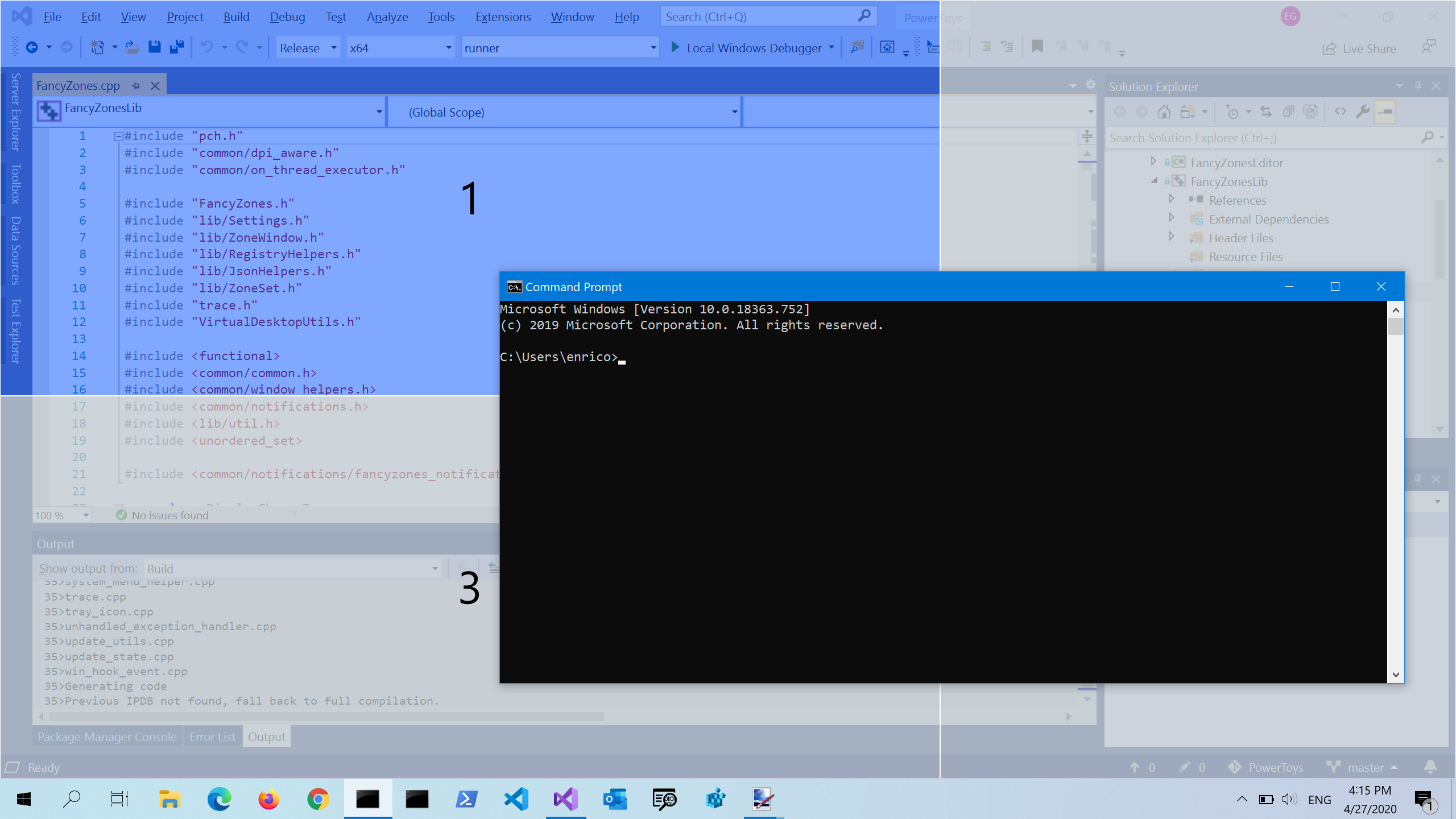
Run these commands only in an elevated Terminal or Command Prompt, and allow each command to finish. Right-click Start, choose Terminal (Admin), then run:
DISM /Online /Cleanup-Image /RestoreHealth
sfc /scannow
DISM repairs the Windows component image; System File Checker then checks protected system files. Restart and retest. Microsoft includes SFC and Windows-image repair in its Windows Update troubleshooting guidance. [2]
If either command reports that it could not complete, copy the exact message. Do not download a replacement DLL from an unofficial website.
9. When resetting or reinstalling Windows is justified
A reset is a major step, not a routine speed boost. Use it when Windows remains unreliable after updates, driver checks and system-file repair, or when you need to remove persistent software problems. Back up files, export browser data and confirm you have product keys or sign-in details before starting.
Settings > System > Recovery > Reset this PC offers options such as keeping personal files or removing everything. “Keep my files” still removes apps and settings, so make a reinstall list first. A clean installation is more disruptive and should be reserved for severe corruption, a carefully planned rebuild or a PC that is being handed to another person. Microsoft’s Windows 11 requirements include a compatible 1 GHz two-core processor, 4 GB RAM, 64 GB storage, UEFI/Secure Boot capability, TPM 2.0 and a DirectX 12-compatible graphics device; use PC Health Check before an upgrade or reinstall. [3]
Quick decision tree
- One app fails: update, Repair/Reset, then reinstall from the official publisher.
- The whole PC is slow: check Task Manager, storage, startup apps, updates and drivers.
- Only Wi‑Fi fails on this PC: forget/reconnect, update the adapter and consider Network reset.
- An update fails: back up, run Get Help/Windows Update troubleshooter, check space and known issues.
- Windows will not boot: remove peripherals, enter Recovery Environment and try Startup Repair.
- Nothing works after repair: back up and plan a reset or professional support; do not keep repeating risky commands.
Frequently asked questions
Should I force-install Windows 11 on unsupported hardware?
No. Microsoft’s stated requirements are a useful compatibility and security boundary. Unsupported workarounds can create update, driver and support uncertainty. Check PC Health Check and the current release-health notices first. [1] [3]
Will Windows Update delete my personal files?
A normal update is designed to preserve personal files, but backups are still essential. A reset or clean installation has different consequences; read each option carefully before confirming.
Why did a Windows 11 fix stop working after an update?
Windows builds, drivers and app versions change. Recheck the exact build and known-issue notices, then use the least destructive applicable step rather than repeating an old command blindly.
When should I ask for professional help?
Ask for help when the PC contains irreplaceable data, is managed by an employer, has hardware symptoms, repeatedly loses power, or cannot complete recovery. A technician can test hardware without risking an unnecessary clean install.
Version-specific update bugs can change the right fix. See our report on Windows emergency updates and AMD graphics issues for one documented example, not a diagnosis of every Windows problem.
Sources
What's Your Reaction?
 Like
0
Like
0
 Dislike
0
Dislike
0
 Love
0
Love
0
 Funny
0
Funny
0
 Angry
0
Angry
0
 Sad
0
Sad
0
 Wow
0
Wow
0