


















































Best Free Windows Apps for Productivity in 2026
The best free Windows productivity apps in 2026 for tasks, notes, files, focus, email and office work, with compatibility and free-plan caveats.
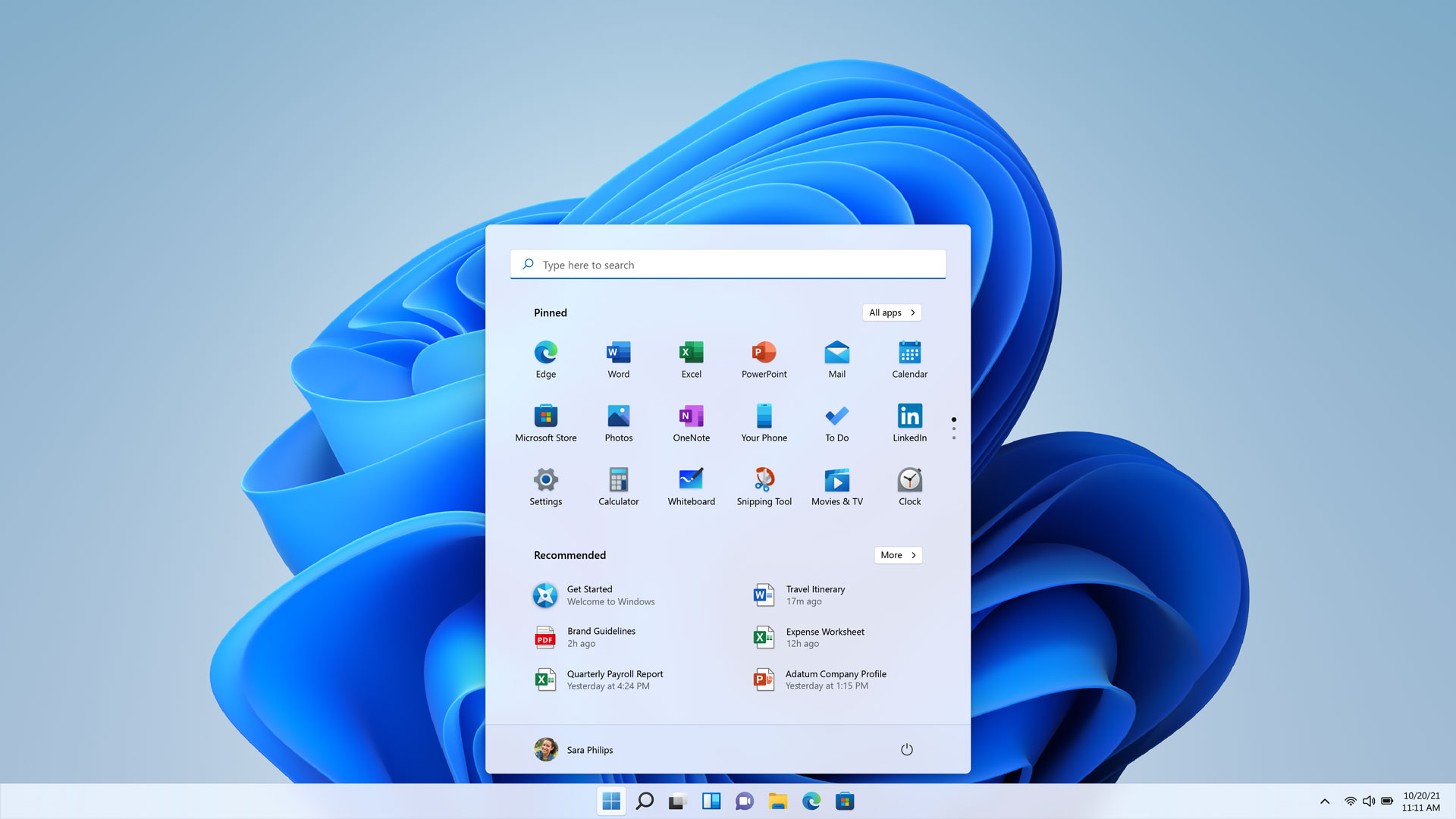
If your Windows PC feels busy rather than useful, adding another app is not always the answer. The better approach is to give each recurring job a clear home: tasks in a task manager, reference material in notes, files in a searchable system, and distractions behind a deliberate block.
This practical shortlist covers free Windows productivity apps that are useful in 2026 for readers in the USA, UK and Europe. It includes native utilities, open-source programs and cross-platform services. “Free” does not always mean every feature is free, so each recommendation includes the important limit to check before you move your work into it.
The best free Windows productivity apps at a glance
- Microsoft PowerToys: window layouts, quick launch, OCR and small Windows improvements.
- Microsoft To Do: simple tasks, reminders and a daily “My Day” list.
- Obsidian: local-first notes and linked knowledge management.
- LibreOffice: a no-subscription office suite for documents, spreadsheets and presentations.
- Thunderbird: free, open-source email, calendar and task management on the desktop.
- Bitwarden: password and passkey management with unlimited devices on the free account tier.
- LocalSend: private-feeling, nearby file transfers across Windows, macOS, Linux, Android and iOS.
There is no single winner for every workflow. A student may need notes and references, a remote worker may need window management and email, and a family PC may benefit most from a password manager and a simple task list. Start with the bottleneck you actually have.
1. Microsoft PowerToys: the best free Windows utility bundle
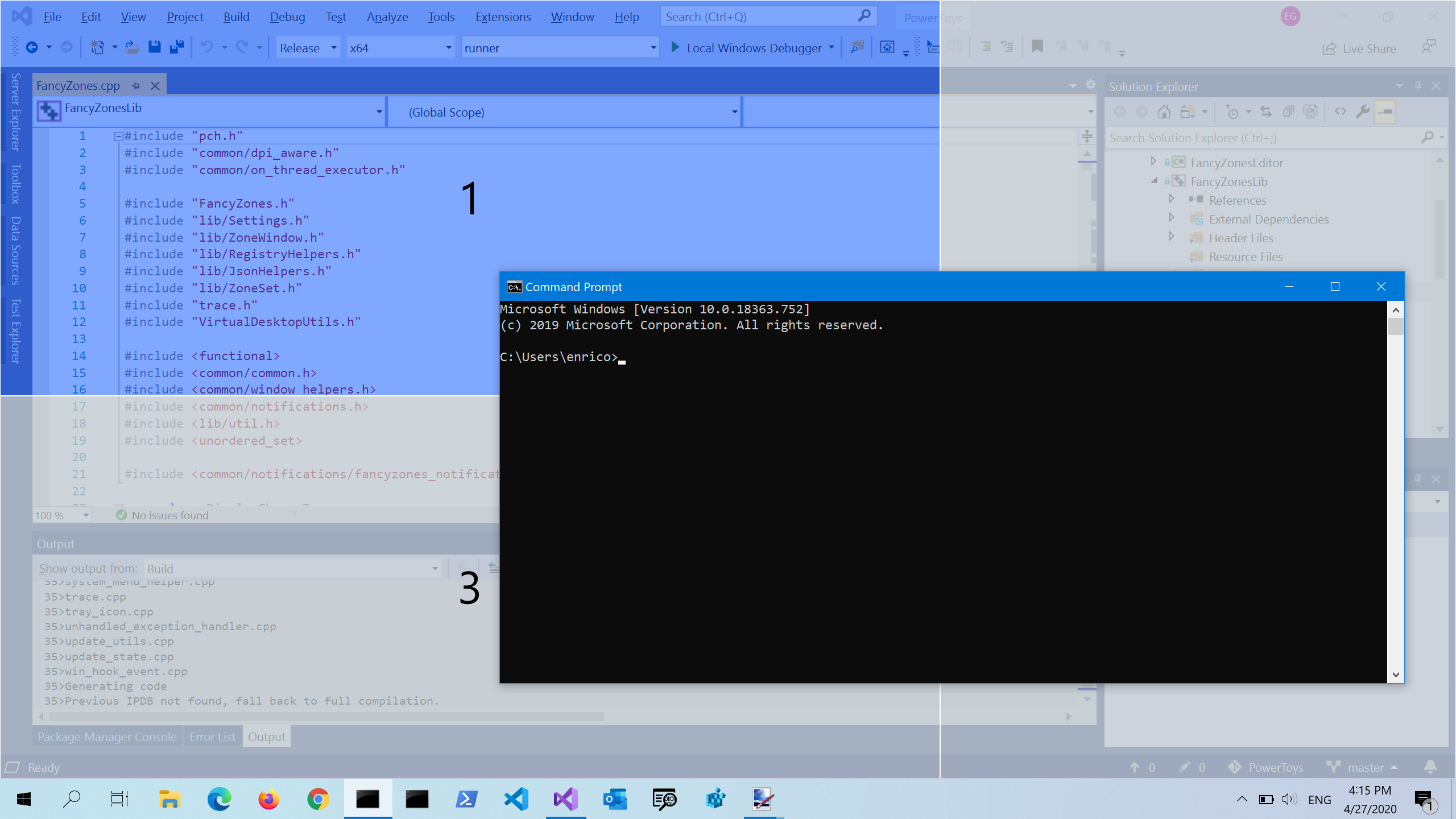
PowerToys is a free, open-source collection of Windows utilities. Microsoft’s current catalogue includes FancyZones for window layouts, PowerToys Run for launching apps, Text Extractor for copying text from the screen, PowerRename for batch renaming, Peek for file previews, Keyboard Manager and many other tools.[1]
The most useful setup for many people is straightforward:
- Install PowerToys from the Microsoft Store or the project’s GitHub release page.
- Open PowerToys Settings and enable only the utilities you understand.
- Create a two- or three-column FancyZones layout for your monitor.
- Turn on PowerToys Run and learn its
Alt+Spaceshortcut. - Use Text Extractor when a PDF, image or inaccessible window contains text you need to copy.
PowerToys supports Windows 11 and Windows 10 version 2004 (20H1, build 19041) or newer on x64 or ARM64 processors.[2] It is powerful, but it is not a replacement for basic Windows settings. Some features also require familiarity with permissions, shortcuts or regular expressions.
2. Microsoft To Do: the easiest free task manager
Microsoft To Do is a good fit if you want a dependable list rather than a full project-management system. Microsoft says the app is free and syncs lists across the web, Windows, iOS and Android.[3] Its My Day view helps turn a large backlog into a short daily plan.
A useful starting structure is one list for work, one for personal tasks and one for recurring errands. Add a due date only when a date matters. Otherwise, a task list can become a collection of artificial deadlines. Each morning, move the two or three tasks that genuinely matter into My Day.
The caveat is scope. To Do is built for personal task capture and reminders. It is not the right choice if you need dependencies, workload views, detailed team permissions or a shared project board. It also requires a Microsoft account for sync, so consider that when choosing an app for a shared household or work machine.
3. Obsidian: local-first notes for projects and research
Obsidian stores notes locally in a folder called a vault and connects them with links. That makes it useful for research, meeting notes, study material and long-lived reference information. Obsidian’s pricing page says the app is free without limits and does not require sign-up; Sync and Publish are optional paid services.[4]
To keep a vault usable, create a small number of folders and rely on links and search rather than a deep filing tree. For example, make a note for a project, link to the meeting notes that informed it, and add a short “next action” at the bottom. Back up the vault with your normal file-backup system before experimenting with plugins.
Obsidian’s free app does not automatically provide the same cross-device sync experience as a paid service. You can use your own sync method, but that adds setup and potential conflict problems. Plugins are another strength, yet every plugin increases maintenance and trust considerations. For a team that needs simultaneous editing and comments, a collaborative web workspace may be a better fit.
4. LibreOffice: a free office suite without a Microsoft 365 subscription
LibreOffice provides Writer, Calc, Impress and other desktop tools for people who need to create documents, spreadsheets and presentations without a recurring office subscription. The official download page lists Windows downloads and identifies LibreOffice 26.8 as the latest stable release shown on the page accessed for this guide.[5]
Install it from the official site, then open a sample document before moving important work. Writer and Calc handle many common Microsoft Office formats, but complex layouts, macros, fonts and advanced spreadsheet features can behave differently between suites. If a client or employer requires exact Microsoft 365 compatibility, test the final file in the software used by the recipient.
LibreOffice is particularly practical for offline work and personal documents. It is less convenient when your workflow depends on real-time co-editing, SharePoint or a company’s Microsoft 365 permissions. Keep the original file format when possible, and export a PDF when the appearance matters more than future editing.
5. Thunderbird: a free desktop home for email and calendars
Mozilla Thunderbird combines email, calendars, contacts and tasks in one desktop application. Its official desktop page describes multiple-account support, an ad-free experience, calendar and task features, and open-source licensing.[6]
Thunderbird is useful when browser tabs are getting in the way or when you need several accounts in one inbox. Add accounts one at a time, leave messages on the server unless you understand local-only storage, and use folders or tags for messages that require action. A calendar reminder is more useful when it represents a real appointment, not every email you receive.
Desktop email has trade-offs. You must protect the computer and configure account security correctly, and some providers require modern authentication or app-specific setup. Thunderbird is not a hosted mailbox: it is a client that connects to your existing email accounts. Check your provider’s IMAP, SMTP and calendar support before migrating a critical workflow.
6. Bitwarden: free password management across devices
A password manager is a productivity tool because it removes repeated resets and makes unique passwords practical. Bitwarden’s pricing page lists unlimited devices and unlimited passwords, browser, mobile and desktop apps, passkey management, encrypted export and free sharing with another user among the features included in every account.[7]
Install the Windows app and browser extension from Bitwarden’s official download route. Create one long account password that you can remember, turn on two-step login, and save the recovery information somewhere safe. Then replace reused passwords gradually, beginning with email, banking and account-recovery addresses.
The free tier does not remove all security responsibility. A password manager can protect stored credentials, but it cannot prevent phishing if you approve a malicious login. Check the domain before using autofill, keep the app updated and retain an encrypted export only where you can protect it. Families and teams should check the current sharing and organisation-plan details before assuming the personal free account covers everyone.
7. LocalSend: fast nearby file transfers without cloud storage
LocalSend is a free, open-source, cross-platform tool for sending files between nearby devices. Its official site describes sharing without the internet, and its download page provides Windows installation routes including WinGet, Chocolatey and Scoop.[8]
For a quick transfer, install LocalSend on both devices, connect them to the same local network, select the receiving device and confirm the transfer. It is useful for moving photos from a phone to a PC, sending a presentation to another laptop or transferring a file without creating another cloud account.
Treat it as a local-network transfer tool, not a backup system. Both devices need to be available, and network isolation or firewall settings can prevent discovery. Confirm the recipient name before accepting a sensitive file. For remote collaboration or long-term access, use a service designed for cloud storage and sharing instead.
How to choose the right free Windows apps
Choose by friction, not by download count. If you repeatedly rearrange windows, start with PowerToys. If tasks disappear from memory, use To Do. If your notes are scattered across documents, test Obsidian. If you need conventional office files offline, try LibreOffice. Thunderbird fits an account-heavy inbox, while Bitwarden addresses unsafe password reuse. LocalSend is the answer to a specific transfer problem rather than a general storage need.
Avoid installing all seven at once. Pick one app for the problem that costs you the most time, use it for a week, and define a small workflow. For example, use PowerToys FancyZones with To Do’s My Day, or use Obsidian for project notes while leaving email in Thunderbird. Too many overlapping apps create duplicate reminders and uncertain “source of truth” decisions.
For current 2026 software, verify the download page and release notes immediately before installation. App interfaces, supported Windows builds, free-plan limits and optional services can change. The links in this guide are the authoritative places to re-check those details.
Frequently asked questions
Are these Windows productivity apps really free?
The core applications listed here are free to download or use under the conditions described by their official pages. Optional services, commercial support, cloud sync, advanced collaboration and organisation features may cost extra. Read the current plan page before committing business data.
Which free Windows productivity app should I install first?
Install the one that addresses a repeated problem. PowerToys is the broadest Windows-specific utility bundle; To Do is the simplest starting point for tasks. If your main issue is passwords or file transfers, Bitwarden or LocalSend may deliver a more immediate benefit.
Do these apps work on Windows 11?
Yes, the listed apps provide Windows support, but exact requirements differ. PowerToys explicitly supports Windows 11 and supported Windows 10 builds on x64 or ARM64.[2] Check each official download page for your architecture, Windows version and any account requirement.
Is Obsidian free for commercial work?
Obsidian’s license page says the app is free for personal, commercial and non-profit use, while its pricing page presents Sync and Publish as optional services.[4] Organisations should still review the current commercial-support information and their own procurement requirements.
Can I replace Microsoft 365 with LibreOffice?
For many personal documents, spreadsheets and presentations, yes. It is not a guaranteed one-for-one replacement for Microsoft 365 collaboration, advanced Excel features, macros or SharePoint workflows. Test representative files before switching a work process.
A clean app setup works best with a healthy system. Our guides to troubleshooting Windows 11 and freeing disk space safely cover the built-in checks before you install more tools.
Sources
What's Your Reaction?
 Like
0
Like
0
 Dislike
0
Dislike
0
 Love
0
Love
0
 Funny
0
Funny
0
 Angry
0
Angry
0
 Sad
0
Sad
0
 Wow
0
Wow
0