












































How to Free Up Disk Space in Windows 11 Safely
Running out of space in Windows 11? Use Storage Sense, Cleanup recommendations, Disk Cleanup and safe file-moving checks to reclaim storage without deleting important data.
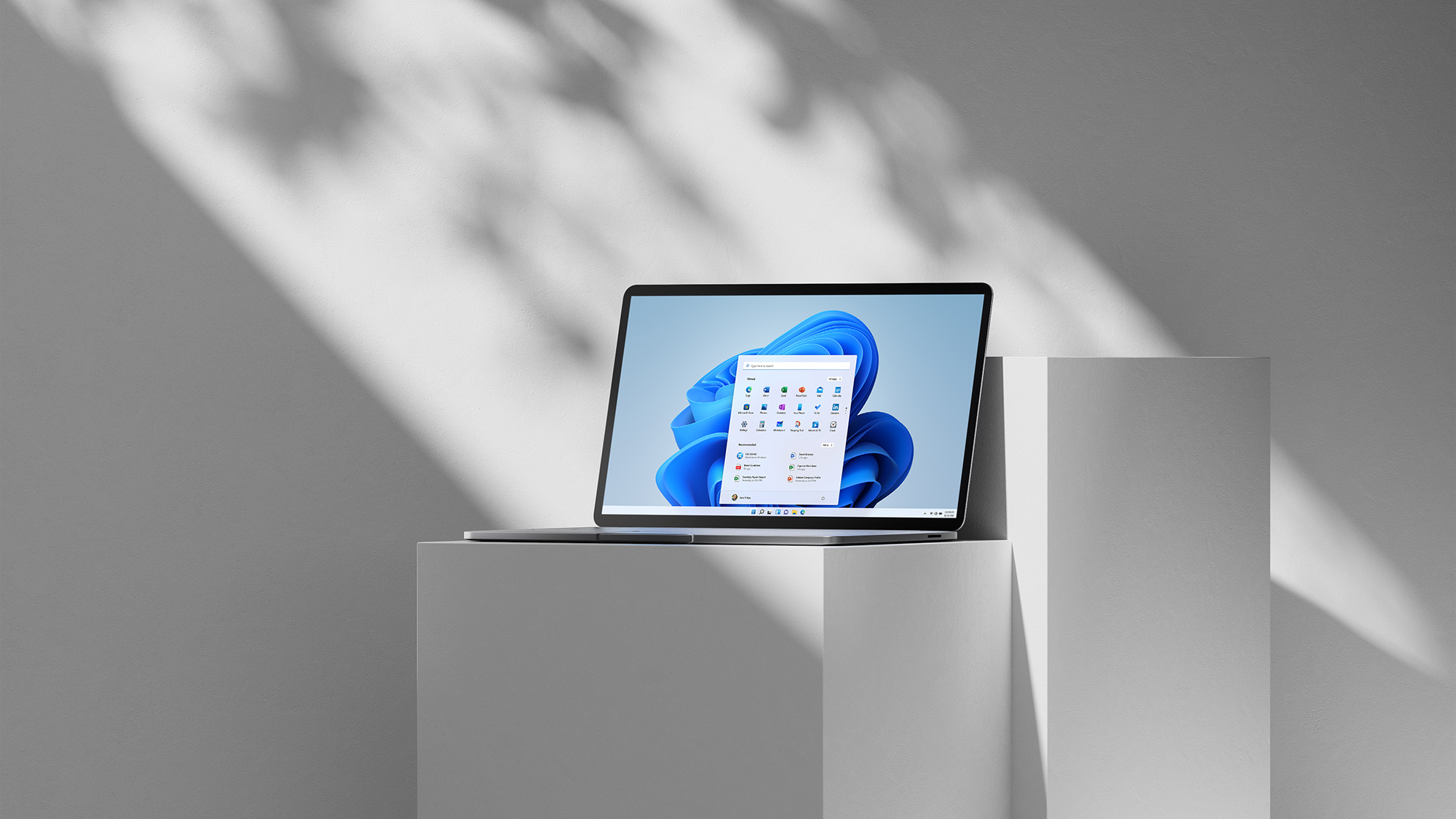
Inline image option (use only if the image is useful in the body): Modern Windows laptop — alt: “Laptop showing an application menu while checking Windows storage.”
A nearly full system drive can make Windows 11 feel sluggish, prevent apps from updating and stop Windows Update from installing. The safest response is not to delete random folders. Start with Windows’ own storage tools, review every suggested category, and only then look for large personal files you recognise.
This guide is written for Windows 11 users in the USA, UK and Europe. Menu names can vary slightly by Windows 11 release, language and manufacturer, but the underlying process is the same. Microsoft’s current guidance recommends checking available space, using Storage Sense or Cleanup recommendations, moving personal files, and using external storage when an update needs more room.[1]
Before you delete anything: check what is full
Open File Explorer, select This PC, and look at the capacity bar under Devices and drives. Note whether the problem is the usual system drive, normally C:, or a different internal/external drive. Storage Sense works on the system drive only; other drives are managed through Settings > System > Storage > Advanced storage settings > Storage used on other drives.[2]
If the drive is close to full, pause large downloads, game installations and video exports. If the computer contains important work, photos or school files, make a backup before making manual changes. A USB drive, another internal drive or a trusted cloud service can work, but confirm that copied files open from the backup before removing the originals.
The safest first step: Windows 11 Cleanup recommendations
Cleanup recommendations are useful because Windows groups potential removals instead of asking you to hunt through system folders.
- Open Start > Settings > System > Storage.
- Select Cleanup recommendations. Windows may show Temporary files, Large or unused files, Files synced to the cloud and Unused apps.
- Expand each category and read the file names, location and estimated space.
- Select only items you understand, then choose Clean up for that section.
- Wait for the scan and cleanup to finish before repeating the process.
Do not treat every suggested item as disposable. Review Downloads carefully: installers, tax documents, exported photos and project files often live there. Similarly, an unused app may still contain saved data or settings that you want to preserve. Uninstall apps through Settings > Apps > Installed apps rather than deleting their folders manually.
If you upgraded Windows recently, Cleanup recommendations may list Previous Windows installation(s). Removing it deletes the Windows.old folder and the ability to roll back to the previous Windows version; Microsoft says this cannot be undone.[1] Keep it until you are confident the current installation works and you no longer need the rollback option.
Turn on Storage Sense for ongoing maintenance
Storage Sense is Windows 11’s built-in automatic cleanup feature. Go to Settings > System > Storage and switch Storage Sense on. Its default behaviour is designed to clean unnecessary temporary data when storage is low, but the exact schedule and categories are configurable.[2]
Select Storage Sense to review the settings before enabling automation. Pay particular attention to:
- Recycle Bin: choose how long deleted items remain before Windows removes them.
- Downloads: leave automatic deletion off unless you are comfortable with Windows removing files that have not been opened for the selected period.
- Locally available cloud content: inactive OneDrive files can be made online-only to remove the local copy while keeping the cloud copy available.
- Run Storage Sense: select a schedule that suits your usage, then use Run Storage Sense now if your Windows build shows that option.
Storage Sense does not normally touch Downloads or cloud content unless you configure it to do so. OneDrive files marked Always keep on this device are exempt, and online-only files can be downloaded again when you have network access and enough local space.[2] Do not enable aggressive cleanup on a shared computer without telling other users; settings apply per user account.
Remove temporary files without touching personal documents
From Settings > System > Storage, select Temporary files and wait for Windows to calculate the categories. Select items such as temporary files, thumbnails or delivery-optimisation data only after checking the descriptions. If a category contains something you may need, leave it selected off and continue with lower-risk items.
Windows may show Downloads in this screen. Treat it as a personal folder, not system rubbish. Uncheck it unless you have inspected the folder separately. The same caution applies to Previous Windows installation(s), language resources and large installation files.
If Windows reports that a file is in use, do not force-delete it. Close the relevant app, restart if necessary, and let Windows handle the file through its supported cleanup screen.
Use Disk Cleanup when you need a second built-in tool
The classic Disk Cleanup utility remains useful on Windows 11, especially for system files.
- Search Start for Disk Cleanup and open it.
- Select the system drive, usually C:.
- Review the list of file categories and their descriptions.
- Select Clean up system files if you need to inspect Windows Update leftovers or other system categories.
- Recheck the selections, then choose OK > Delete Files.
Disk Cleanup can expose more system-file categories after a second scan. That does not mean every category should be selected automatically. Avoid deleting recovery-related data unless you understand what it is and have a working recovery plan. A cleanup tool should reclaim space, not remove the only route back from a failed update.
Find large personal files safely
After Windows’ own recommendations, investigate the folders where large personal files commonly accumulate: Downloads, Videos, Pictures, Music, Documents and desktop folders. In File Explorer, open a folder, switch to View > Details, and sort by Size. Microsoft specifically recommends this approach before deleting or moving personal files.[1]
Use a simple three-way decision for each large item:
- Keep locally: files you use often or need offline.
- Move or archive: completed projects, old videos and photos you still want.
- Delete: files you recognise and no longer need.
If you move files to USB or another drive, open several of them from the new location before deleting the originals. Keep at least one backup of irreplaceable photos, documents and recordings. Emptying the Recycle Bin is a separate step: files there still occupy disk space until Windows removes them.[1]
Reduce OneDrive storage without deleting cloud files
If OneDrive is using a large amount of local storage, use Files On-Demand rather than deleting files from the cloud. Files set to online-only show a cloud icon and download when opened. A file marked as always available locally uses disk space, so right-click files or folders you rarely need offline and choose the option to free local space if available.
Check the icon and sync status before changing anything. Deleting a synchronised file can delete it from OneDrive and other synced devices, while making it online-only keeps the cloud copy. Microsoft says Storage Sense can make inactive cloud content online-only and restore local availability later when there is free space and network connectivity.[2]
Uninstall apps and games you no longer use
Open Settings > Apps > Installed apps, sort by size where the current Windows build offers that control, and remove software you recognise. Large games, creative applications and development tools can occupy much more space than temporary files.
Before uninstalling, check whether the app stores projects, save files or libraries in a custom folder. For game launchers, use the launcher’s own uninstall or move-library option where possible. Do not remove folders under C:\Program Files or C:\ProgramData manually just because they look large; that can leave broken registrations and incomplete uninstallations.
If Windows Update needs more space
The amount of space required varies by device and update. Microsoft says feature updates may typically need 6–11 GB or more, while quality updates may need 2–3 GB or more; the actual requirement depends on the update path, optional features, languages, drivers and installed content.[3] Treat those figures as Microsoft’s guidance, not a universal free-space guarantee. For related Windows update context, see Innopark IT’s report on Windows emergency updates and AMD GPU issues.
If cleanup is not enough, Windows Update may offer Fix issues and allow an external storage device with at least 10 GB of free space to help complete the update. Back up important files first and follow the on-screen instructions.[3] You do not need to empty the entire drive; you need enough room for the specific update and its temporary working files.
Optional: use a disk-space visualiser
A visualiser can help when Windows’ categories do not explain where the space went. TreeSize Free is advertised by its developer for private, non-commercial use on Windows desktop systems; it is not the same as a universal free commercial licence or Windows Server entitlement.[4] Download it only from the developer and use it to identify folders, not as permission to delete system directories.
Run a scan, note unusually large folders, then verify the contents in File Explorer. Never delete a folder simply because a visualiser colours it red or lists it as large. If you are using a work computer, check your organisation’s software and data-handling policy first.
Folders and files you should not delete casually
Avoid manually deleting files from C:\Windows, C:\Windows\System32, C:\Program Files, C:\ProgramData and hidden profile folders unless an official troubleshooting instruction specifically tells you what to remove. Do not disable the page file or hibernation file as a first-line cleanup tactic. Those files support Windows features and their size varies by device.
Also avoid registry cleaners and “one-click PC booster” tools that promise dramatic results. A cautious cleanup may recover less space than an aggressive tool, but it is less likely to remove a needed driver, app component or recovery option.
A safe maintenance routine
Once the immediate warning is gone, check Settings > System > Storage monthly. Keep a reasonable working margin rather than waiting until the capacity bar is red. Let Storage Sense handle low-risk categories, review Downloads manually, move completed media to an authenticated backup, and uninstall software you no longer use.
If space keeps disappearing, look for a growing game library, video cache, virtual machine, developer build folder, cloud-sync setting or malware. Run Windows Security if you suspect malicious software; Microsoft notes that malware can consume significant disk space by corrupting system files.[1]
Frequently asked questions
Does freeing disk space make Windows 11 faster?
It can help when the drive is nearly full, especially by reducing failed updates and giving apps room for temporary files. It is not a guaranteed fix for slow hardware, overheating or a failing drive.
Is it safe to delete temporary files in Windows 11?
Windows’ Temporary files and Cleanup recommendations screens are safer than manually deleting unrelated system folders. Review each category, leave Downloads unchecked unless inspected, and do not remove rollback files until you no longer need them.
Will Storage Sense delete my personal files?
By default, Storage Sense focuses on selected temporary data and Recycle Bin contents. It can manage Downloads and locally available cloud files only if you configure those options, so review the settings first.[2]
How much free space does Windows 11 need?
There is no single number that works for every PC or update. Update requirements depend on the update type and installed features, languages, drivers and other content.[3] Use the free-space amount shown by Windows Update for your device as the current instruction.
Should I use a third-party disk cleaner?
Usually start with Windows’ own tools. A reputable visualiser such as TreeSize Free can show where space is being used, but verify every folder before deleting anything and check the licence terms for your use.[4]
Sources
What's Your Reaction?
 Like
0
Like
0
 Dislike
0
Dislike
0
 Love
0
Love
0
 Funny
0
Funny
0
 Angry
0
Angry
0
 Sad
0
Sad
0
 Wow
0
Wow
0