







































How to Speed Up Windows 11: Practical Tips That Work
Is Windows 11 slow? Use these safe, practical fixes for startup apps, storage, updates, malware, visual effects, power mode, and hardware limits.
A Windows 11 PC that has gradually become sluggish does not always need a “PC booster” app. Slow startup, delayed app launches, stuttering video and a busy fan usually point to a specific bottleneck: too many programs starting with Windows, a nearly full drive, an update or driver problem, malware, insufficient memory, or aging hardware.
The steps below focus on built-in Windows tools and changes you can reverse. Try them in order, restart when asked, and change one group of settings at a time so you can tell what helped. Microsoft also warns that older hardware may not see a major improvement from software fixes alone. [1]
1. Find the bottleneck before changing settings
Press Ctrl + Shift + Esc to open Task Manager. On Processes, sort by CPU, Memory, and Disk while the computer feels slow. Then open Performance and watch the graphs while you reproduce the problem.
- High Memory use with constant swapping often means too many apps or browser tabs are open, or the PC needs more RAM.
- High Disk use during startup can point to updates, cloud-sync activity, antivirus scanning, or a slow drive.
- High CPU use from one unfamiliar process deserves investigation before you close it.
Do not end Windows processes just because their names look technical. Close only an app you recognize and are not using. If the same process returns after every reboot, identify the associated program and update, repair, or uninstall that program instead.
2. Install Windows and optional driver updates
Updates can include bug fixes, compatibility improvements and performance fixes. Go to Start > Settings > Windows Update > Check for updates, install available updates, and restart if Windows requests it. Microsoft also lists optional driver updates under Windows Update > Advanced options > Optional updates. [1]
Use optional drivers selectively. A graphics, chipset, storage or network driver from the PC maker may be more appropriate than a generic package, especially on a laptop. Create a restore point or confirm that your important files are backed up before a major driver change. If the slowdown began immediately after an update, check the manufacturer’s support page and Windows Update history before trying random “driver updater” utilities.
3. Disable unnecessary startup apps
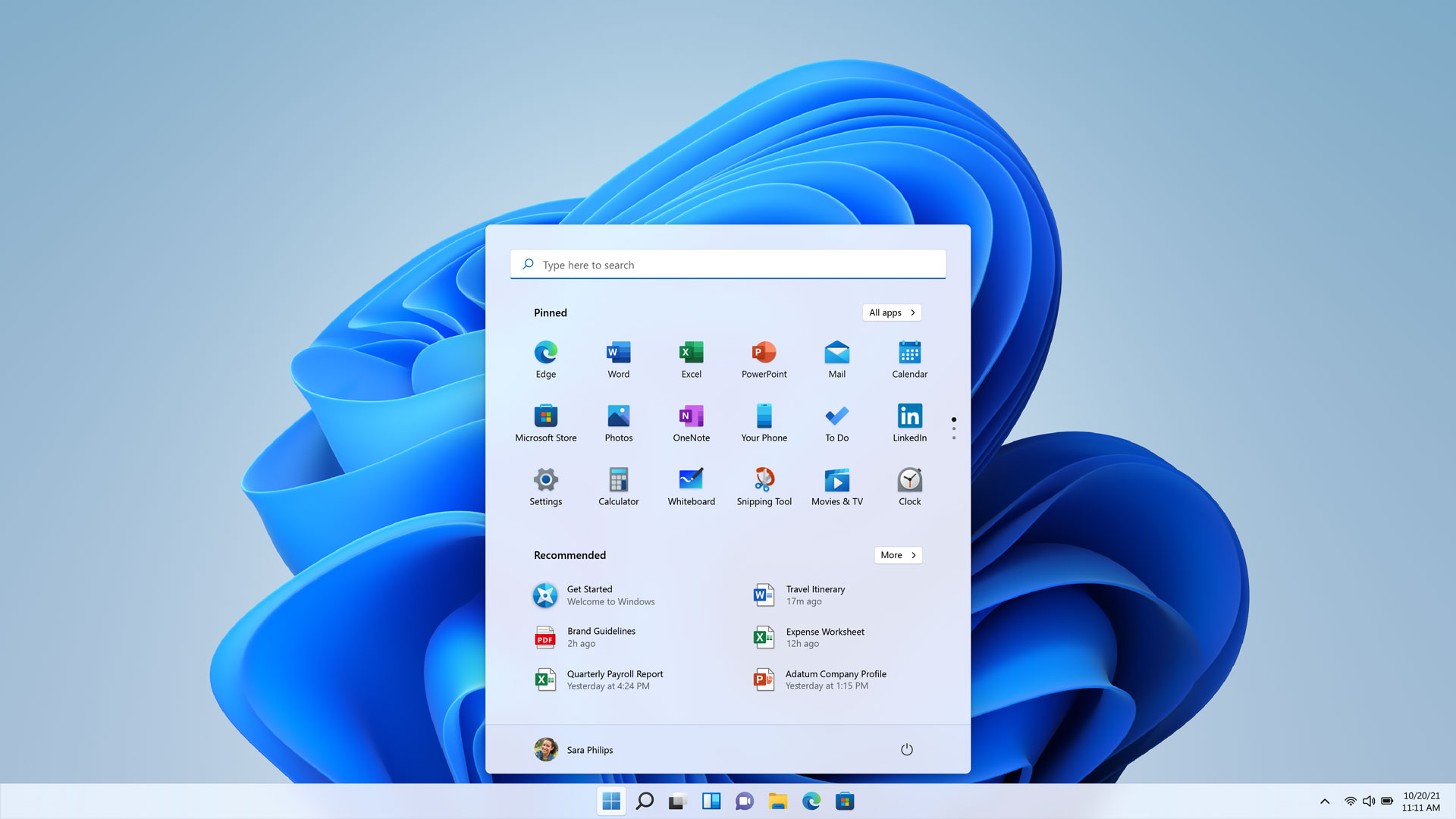
Programs that launch every time you sign in make booting slower and continue consuming memory in the background. In Windows 11, go to Start > Settings > Apps > Startup and switch off apps you do not need immediately. You can also right-click Start > Task Manager > Startup apps to see each app’s startup impact. [2]
Good candidates are launchers, meeting tools, game clients and updaters that you prefer to open manually. Keep security software, touchpad or hotkey utilities, audio controls and hardware-management tools unless you know what they do. Disabling startup does not uninstall an app; it only stops automatic launch, so you can turn it back on if something you rely on stops working.
4. Free up storage without deleting personal files
A nearly full system drive leaves Windows and applications less room for temporary files, updates and caching. Open Settings > System > Storage to see what is using space. Review Temporary files, but read the descriptions carefully before removing anything. Storage Sense can automate safe cleanup, and Microsoft also documents the classic Disk Cleanup tool. [1]
Start with temporary files, old update cleanup and the Recycle Bin. Move large videos, installers and photo libraries to an external drive or a trusted cloud service only after confirming the files are backed up. Do not delete unknown folders in C:\Windows, Program Files or AppData by hand.
Uninstall software you no longer use from Settings > Apps > Installed apps. Removing unused applications can recover space and reduce background activity, but do not remove hardware drivers or work-managed security tools simply because their names are unfamiliar. [1]
5. Reduce background activity selectively
Some apps continue working when you are not actively using them. For supported applications, open Settings > Apps > Installed apps, select the three-dot menu, choose Advanced options, and set Background app permissions to Never when available. [1]
This is most useful for apps that sync, check for content or send notifications you do not need. Avoid disabling background behavior for tools that must sync files, receive calls, manage peripherals or provide security alerts. A small reduction in background activity is helpful, but it is not a replacement for adding RAM or replacing a failing drive.
6. Scan for malware before installing a “speed booster”
Unexpected slowness, high CPU use, browser redirects, unknown startup entries or unusual network activity can be signs of unwanted software. Run Start > Settings > Privacy & security > Windows Security > Virus & threat protection > Quick scan. Microsoft includes malware scanning in its performance troubleshooting sequence because malicious software can consume CPU and disk resources. [1]
If the quick scan finds something, follow Windows Security’s remediation instructions and restart. For persistent symptoms, use a full scan or Microsoft Defender Offline when offered. Do not run several real-time antivirus products together: they can conflict and consume more resources. Be cautious with free “registry cleaners” and “RAM optimizers”; they often add startup tasks without fixing the underlying problem.
7. Choose a performance-friendly visual profile
Windows visual effects make the interface smoother, but they can use noticeable resources on older integrated graphics or low-memory systems. Search for Adjust the appearance and performance of Windows, open it, and on Visual Effects choose Adjust for best performance. You can then re-enable effects you care about, such as smooth edges of screen fonts. [1]
This change is more likely to improve responsiveness on an older PC than on a recent system with an SSD and adequate RAM. It will not make a slow website, game server or internet connection faster.
8. Use Best performance power mode when plugged in
For a laptop connected to mains power, open Settings > System > Power & battery > Power mode and choose Best performance when you need maximum responsiveness. Microsoft notes that this mode can use more electricity, shorten battery life and make a laptop run warmer. [1]
Use Balanced for everyday work and battery life. If the computer becomes hot or noisy, switch back and check airflow, dust and fan operation rather than leaving a high-performance mode enabled permanently.
9. Optimize the drive safely
Search for Defragment and Optimize Drives, select the relevant drive and choose Optimize. Windows handles the operation according to the drive type; do not manually run old-fashioned defragmentation commands on an SSD or use third-party “defrag” tools. Microsoft includes drive optimization among its recommended performance checks. [1]
If a hard-disk drive is consistently the bottleneck, moving Windows to a compatible SSD is usually a more meaningful upgrade than repeatedly cleaning files. Check the device maker’s instructions and back up your data before replacing storage.
10. Cut browser load and background sync
A browser with dozens of tabs, extensions and web apps can consume more memory than Windows itself. Close tabs you no longer need, remove extensions you do not recognize, and use the browser’s built-in task manager if available to find a runaway page.
Pause large cloud-sync jobs while gaming or editing video, but do not delete synced folders as a “speed fix.” If a sync client is constantly busy, check for a stuck file, duplicate conflict or low storage rather than simply disabling protection.
11. Restart instead of leaving the PC in a bad state
Sleep is convenient, but a restart clears temporary states and completes some updates. Close unused apps and browser tabs, then choose Start > Power > Restart. Microsoft lists restarting as a basic step when performance does not improve after closing unused work. [1]
If the PC is slow only immediately after sign-in, wait a few minutes and check Task Manager: Windows Update, indexing, antivirus scans and cloud synchronization may be finishing legitimate work. If it remains slow for hours, investigate the process rather than repeatedly rebooting.
12. Know when settings cannot solve the problem
Windows 11’s official minimum requirements include a 1 GHz-or-faster, two-core processor, 4 GB of RAM, 64 GB of storage, UEFI Secure Boot capability, TPM 2.0 and a DirectX 12-compatible graphics processor. [3] Those are installation requirements, not a promise of a fast experience. Modern multitasking, creative apps and games can need substantially more.
If Task Manager shows memory pressure during normal work, a RAM upgrade may help if the laptop supports it. If Disk remains at 100% with a mechanical hard drive, an SSD upgrade is often the best improvement. If CPU usage is maxed out in the apps you actually need, reducing startup items will not create extra processing power.
Back up files before hardware work. Check the exact model, upgrade limits, drive interface and warranty conditions; compatibility varies by device. Windows 11 support and feature behavior can also change through future updates, so verify current requirements on Microsoft’s page before buying parts. [3]
A safe 15-minute Windows 11 speed-up checklist
- Restart and reproduce the slowdown.
- Use Task Manager to identify CPU, memory or disk pressure.
- Install Windows updates and review optional drivers.
- Disable only unnecessary high-impact startup apps.
- Remove temporary files and unused applications.
- Run a Windows Security quick scan.
- Test visual effects and power mode changes one at a time.
- If the bottleneck remains, investigate RAM, storage health, heat or failing hardware.
If the slowdown comes with crashes, update failures or missing devices, start with our Windows 11 troubleshooting guide to isolate the fault before changing performance settings.
FAQs
Will disabling all startup apps make Windows 11 faster?
It can shorten startup and reduce background load, but do not disable security, input, audio or hardware utilities blindly. Disable individual apps, test, and re-enable anything your workflow needs.
Is a registry cleaner or PC booster worth installing?
Usually not for this problem. Windows already provides Task Manager, Storage Sense, Disk Cleanup, Windows Security and drive optimization. Third-party cleaners can add advertisements, startup tasks or risky registry changes. Diagnose the bottleneck first.
Should I set Windows 11 to Best performance all the time?
No. Use it when plugged in and when you need extra responsiveness. Balanced mode normally offers a better compromise for battery life, heat and fan noise. [1]
Does clearing the Windows cache double performance?
No. Removing temporary files can recover space, and clearing a stuck cache may fix a specific problem, but it is not a guaranteed speed boost. Avoid deleting folders or browser data without understanding what will be removed.
When should I reset or reinstall Windows 11?
Consider a reset only after backing up files and trying diagnosis, updates, malware scans and app cleanup. A reset can remove software clutter, but it will not repair failing hardware and may remove applications, settings or personal data depending on the option selected.
Sources
What's Your Reaction?
 Like
0
Like
0
 Dislike
0
Dislike
0
 Love
0
Love
0
 Funny
0
Funny
0
 Angry
0
Angry
0
 Sad
0
Sad
0
 Wow
0
Wow
0