






































How to Speed Up a Slow Windows PC: 12 Fixes That Actually Work
Is your Windows PC taking forever to start and open apps? These 12 proven fixes — from disabling startup programs to switching to an SSD — will make it feel fast again, without buying a new computer.
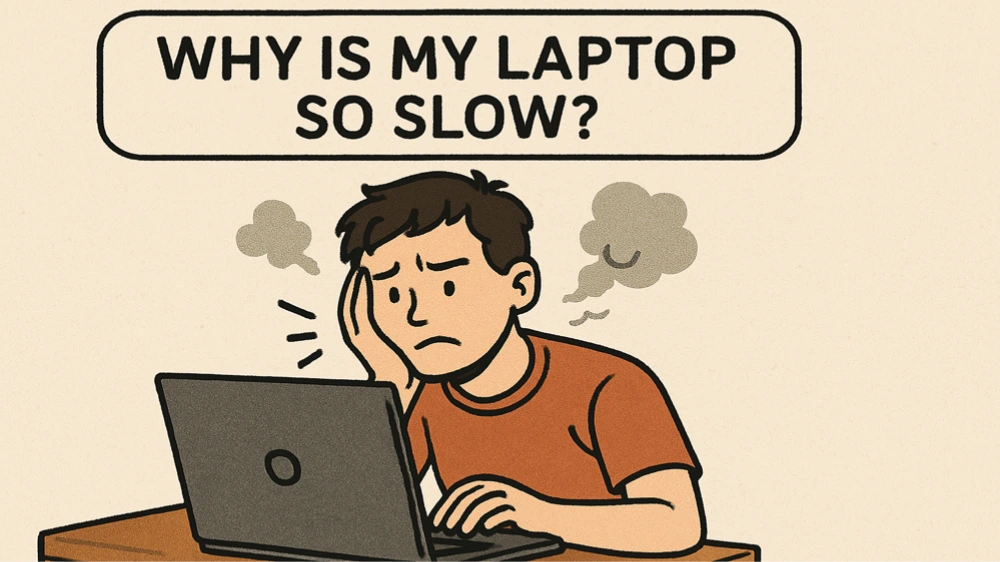
How to Speed Up a Slow Windows PC: 12 Fixes That Actually Work
Is your Windows PC taking forever to start and open apps? These 12 proven fixes — from disabling startup programs to switching to an SSD — will make it feel fast again, without buying a new computer.
A slow PC is usually not broken — it is just overloaded. Too many programs starting at boot, a nearly full hard drive, an old mechanical disk, or a browser with fifty tabs can all make even a decent computer crawl. Work through these fixes in order, starting with the free ones.
1. Restart your PC
It sounds too simple, but a restart clears temporary files, ends stuck processes and frees up memory. If you have not restarted in weeks, do it now — many people only put their PC to sleep, and Windows accumulates clutter over time.
2. Disable startup programs
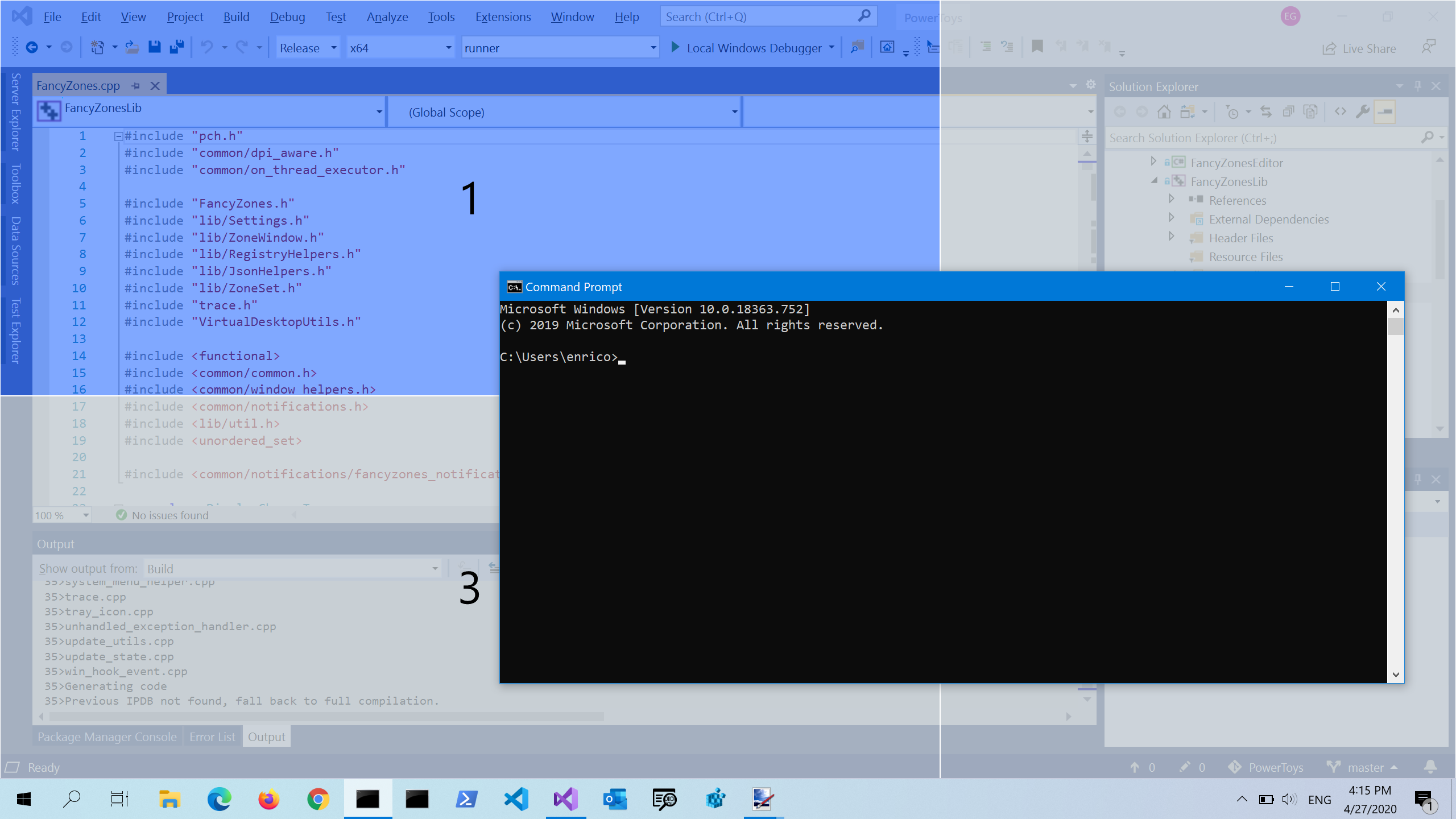
Many apps set themselves to launch at startup, slowing boot to a crawl. Open Task Manager (Ctrl + Shift + Esc), go to the Startup apps tab, and disable anything you do not need immediately after login. Keep your antivirus enabled; disable chat apps, updaters and anything else you can open manually.
3. Uninstall programs you do not use
Go to Settings, then Apps, then Installed apps, and remove software you never open. Old games, toolbars, trial software and duplicate programs waste disk space and sometimes run in the background.
4. Free up disk space
Windows slows down when the main drive is almost full. Use Settings, then System, then Storage, and turn on Storage Sense to automatically delete temporary files and empty the Recycle Bin. A good rule is to keep at least 15 to 20 percent of your drive free.
5. Check for malware
Malware and adware are a common cause of sudden slowdowns. Run a full scan with Windows Security (built into Windows) and, if you suspect something, a second opinion with a free scanner like Malwarebytes.
6. Update Windows and your drivers
Windows updates often include performance fixes, and outdated graphics or chipset drivers can cause stuttering. Check Settings, then Windows Update, and install pending updates. For graphics drivers, get the latest version from Nvidia, AMD or Intel directly.
7. Turn off visual effects
Animations and transparency look nice but cost performance on older machines. Search for "Adjust the appearance and performance of Windows", choose "Adjust for best performance", and Windows will disable the heavy effects.
8. Close browser tabs and extensions
Chrome and Edge with dozens of open tabs can eat many gigabytes of RAM. Close tabs you are not using, remove extensions you do not recognize, and consider using your browser's built-in tab sleeping feature. A bloated browser is the number one reason many PCs feel slow.
9. Check what is using your resources
Open Task Manager and sort by CPU, Memory and Disk. If one process is constantly at 100% disk or CPU, that is your culprit — search its name online before ending it, so you do not kill something important.
10. Switch to an SSD — the single biggest upgrade
If your PC still uses a mechanical hard drive (HDD), replacing it with a solid-state drive (SSD) is the single most dramatic speed upgrade possible. Boot times drop from minutes to seconds, and apps open almost instantly. A 500GB SATA SSD is affordable and fits most laptops and desktops.
11. Add more RAM if you have less than 8GB
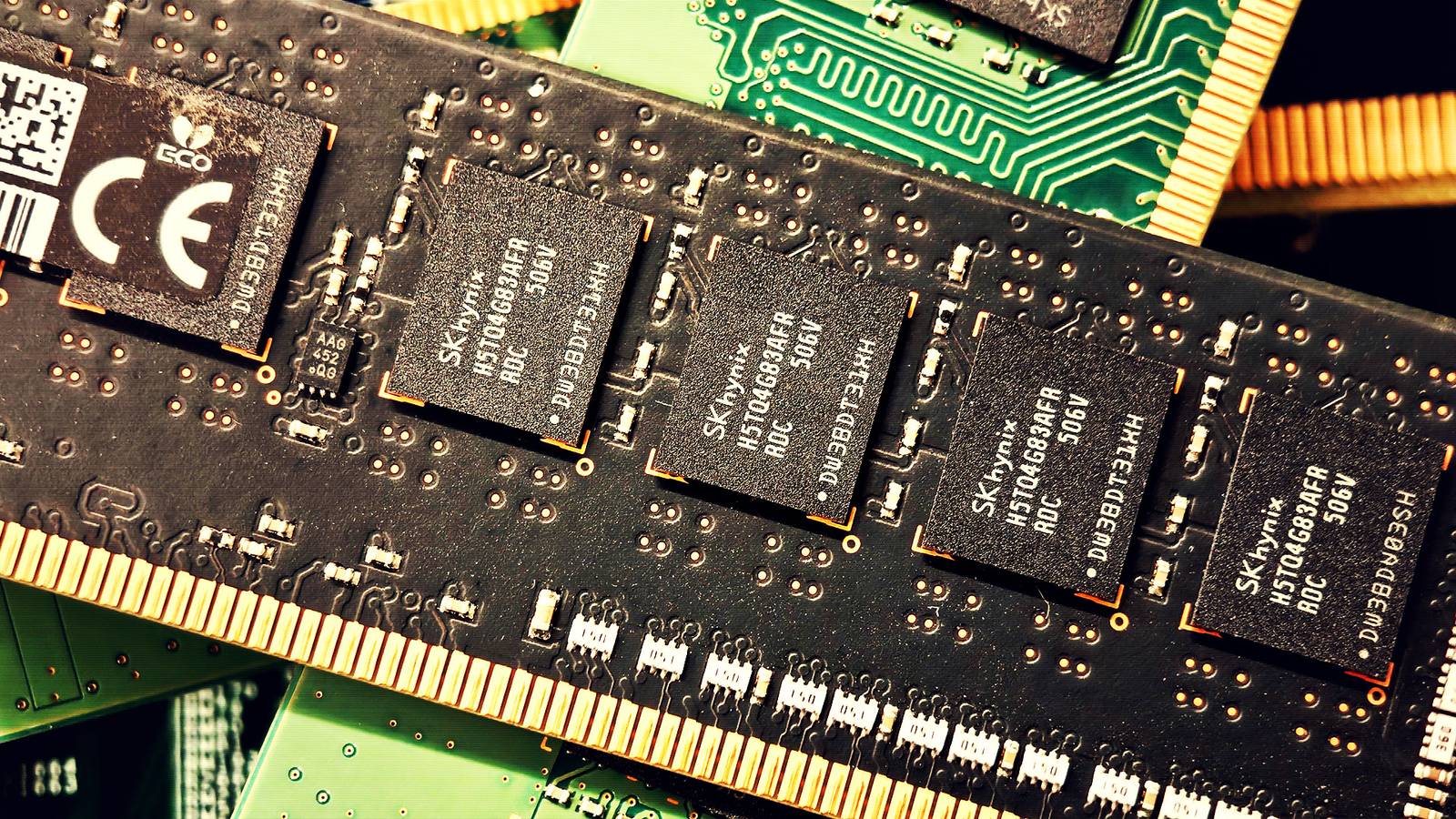
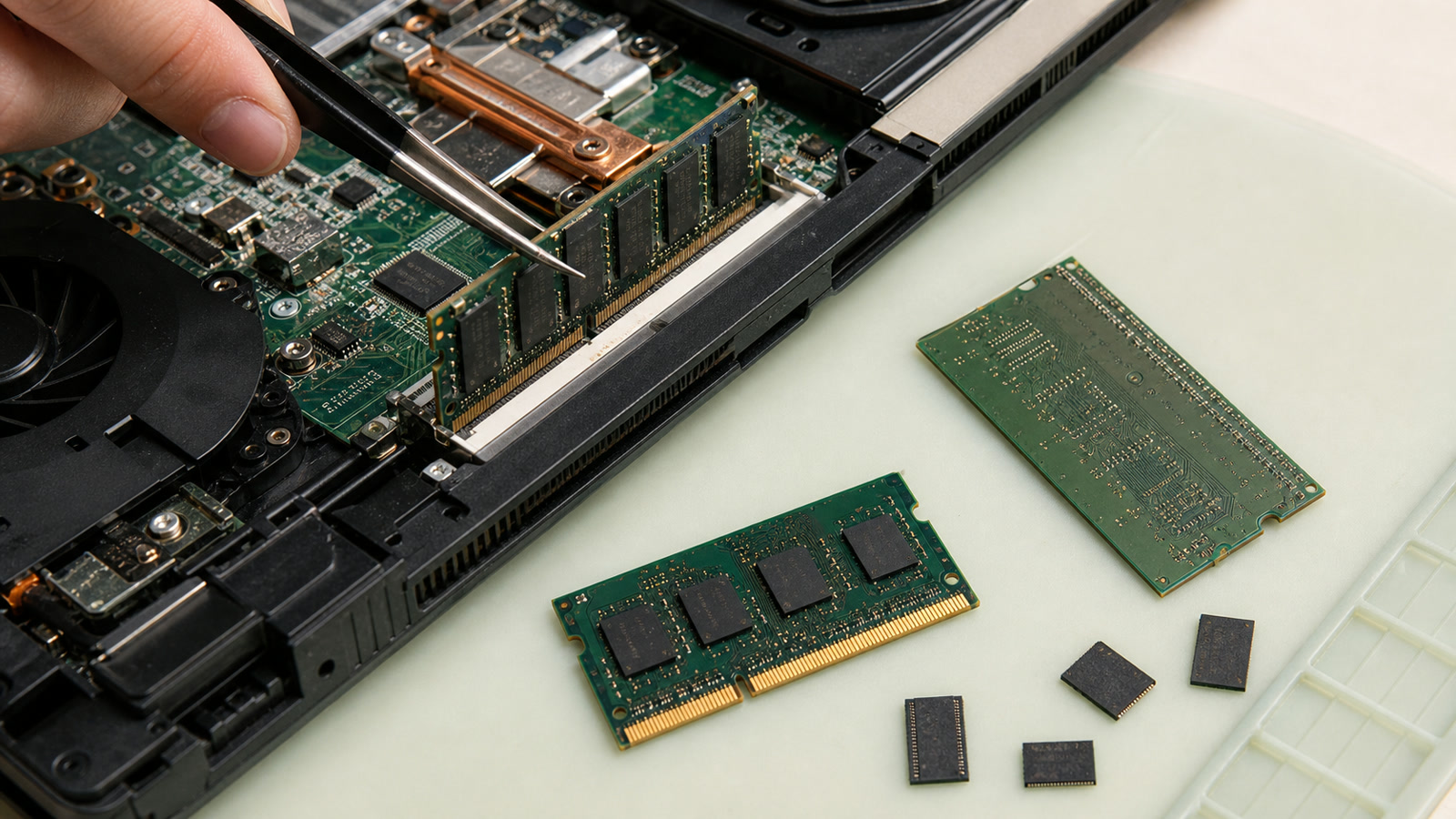
With 4GB of RAM, modern Windows and a browser will constantly swap data to disk, which is painfully slow. 8GB is the practical minimum in 2026, and 16GB is comfortable for multitasking. Check how much RAM you have in Task Manager, under Performance, then Memory.
12. When nothing else works: reset Windows
If years of installs have left Windows itself sluggish, use Settings, then System, then Recovery, then Reset this PC. Choose "Keep my files" to reinstall Windows while preserving your personal files — but back up first anyway. A fresh Windows install makes most old PCs feel new again.
Sources
What's Your Reaction?
 Like
0
 Dislike
0
 Love
0
 Funny
0
 Angry
0
 Sad
0
 Wow
0