
















































How to Speed Up a Slow Android Phone: 10 Fixes That Work
Is your Android phone lagging, freezing or taking forever to open apps? These 10 proven fixes — from clearing cache to a factory reset — will make it feel fast again, no new phone required.
How to Speed Up a Slow Android Phone: 10 Fixes That Work
Is your Android phone lagging, freezing or taking forever to open apps? These 10 proven fixes — from clearing cache to a factory reset — will make it feel fast again, no new phone required.
Android phones slow down for the same reasons computers do: too many apps, too little free storage, background processes and old software. The good news is that most of it is fixable in a few minutes, and you should try the free fixes before thinking about a replacement.
1. Restart your phone
Restarting clears temporary files, ends stuck processes and frees RAM. If you have not restarted in weeks, do it now — it is the simplest fix and it often helps immediately.
2. Free up storage
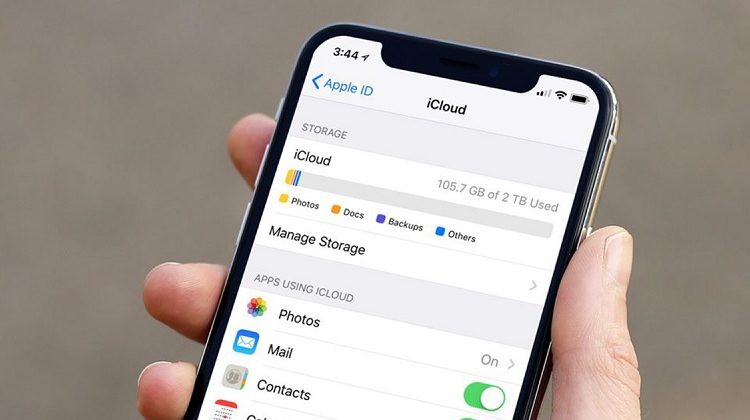
Android needs free space to work smoothly. When storage is nearly full, the system cannot cache files properly and everything slows down. Aim to keep at least 10 to 15 percent of your storage free: delete unused apps, back up photos to Google Photos and use the Files by Google app to remove junk.
3. Clear app cache
Cached data helps apps load faster, but it can grow to gigabytes and become corrupted. Go to Settings, then Apps, pick a heavy app, then Storage, and tap Clear Cache. Do this for browsers, social media and shopping apps. Avoid "Clear Storage" unless you want to log in again.
4. Uninstall apps you do not use
Every app you install takes space and many run in the background. Go to Settings, then Apps, sort by size or last used, and uninstall anything you have not opened in months. Lite versions of apps (like Facebook Lite or Google Go) use fewer resources on older phones.
5. Update your software
Software updates often include performance fixes and security patches. Go to Settings, then System, then Software update, and install anything pending. Also update your apps in the Play Store — an outdated app can cause lag and crashes.
6. Turn off animations
Animations make Android feel polished, but they also make it feel slower. Enable Developer Options (tap the Build Number in Settings, then About Phone, seven times), then set Window animation scale, Transition animation scale and Animator duration scale to 0.5x — or off entirely. The phone will feel noticeably snappier.
7. Remove widgets and live wallpapers
Widgets and live wallpapers constantly refresh in the background and use memory. Remove widgets you never look at and switch to a static wallpaper. The home screen will be simpler and faster.
8. Use a lighter launcher
Some phone makers add heavy custom launchers. A lightweight launcher like Nova Launcher or the stock Google launcher can make an older phone feel faster. If your phone is very old, also consider switching to lighter browsers like Chrome Lite mode or Firefox.
9. Check for a bad app or malware
If the slowdown started suddenly, a recently installed app or malware could be the cause. Check Settings, then Battery, to see which apps use the most power, and uninstall anything suspicious. Run a scan with Google Play Protect or a trusted security app.
10. Factory reset — the last resort
If nothing else works, back up your photos, contacts and files, then do a factory reset (Settings, then System, then Reset options, then Erase all data). The phone will be exactly as it was out of the box, and in most cases it feels new again. Only do this after a full backup.
Sources
What's Your Reaction?
 Like
0
 Dislike
0
 Love
0
 Funny
0
 Angry
0
 Sad
0
 Wow
0