
























































How to Back Up Your Phone: Android and iPhone Backup Guide
Lost, stolen or broken phone — would your photos survive? This guide shows how to back up an Android phone and an iPhone properly, so you never lose your memories, contacts or chats again.

How to Back Up Your Phone: Android and iPhone Backup Guide
Lost, stolen or broken phone — would your photos survive? This guide shows how to back up an Android phone and an iPhone properly, so you never lose your memories, contacts or chats again.
Most people only think about backups after losing something precious. A backup takes minutes to set up and then runs automatically — there is no reason to risk years of photos, contacts and chats. Here is how to do it right on both platforms.
Back up an Android phone
Google backup
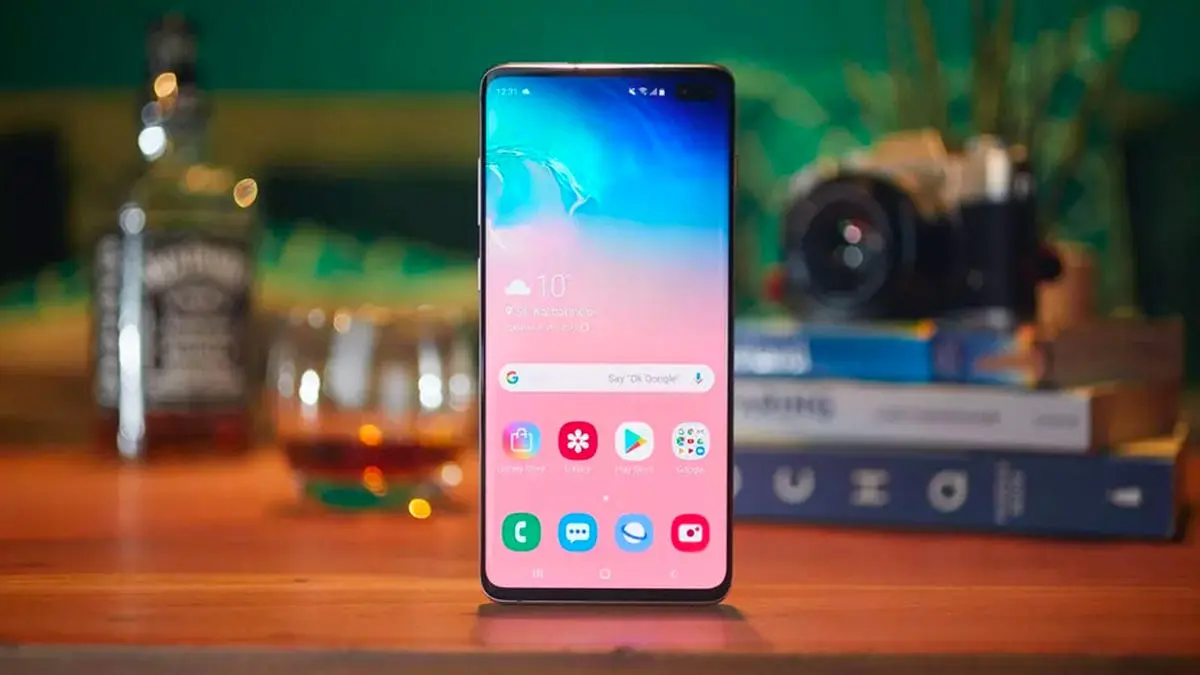
Go to Settings, then Google, then Backup, and turn on "Back up by Google One". This saves your app data, call history, contacts, settings, SMS messages and photos (if Google Photos backup is on) to your Google account. It runs automatically when the phone is charging and on Wi-Fi. You can check the last backup time on the same screen.
Google Photos
Open Google Photos, tap your profile picture, then Photos settings, then Backup, and turn it on. Choose "Storage saver" quality to save space — the quality is still excellent for viewing and sharing. Wait for the initial backup to finish before deleting any photos from the phone.
WhatsApp chats
WhatsApp does not back up automatically by default on Android. In WhatsApp, go to Settings, then Chats, then Chat backup, and set it to back up to Google Drive — daily is safest. Tap "Back up" once to create a backup immediately, and make sure "Include videos" is on if you want videos saved too.
Back up an iPhone
iCloud backup
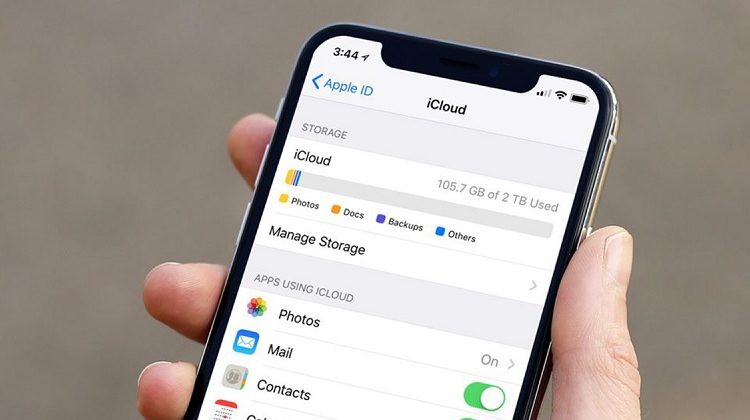
Go to Settings, tap your name at the top, then iCloud, then iCloud Backup, and turn it on. The phone backs up automatically when it is locked, charging and on Wi-Fi. The free iCloud plan only includes 5GB, so most people need a paid plan (starting at 50GB) for a full backup including photos.
iCloud Photos
Go to Settings, then Photos, and turn on iCloud Photos. With "Optimize iPhone Storage" selected, full-resolution photos live in iCloud and smaller versions stay on the phone — this both backs up your photos and frees up space.
Back up to a computer
If you do not want to pay for iCloud, connect the iPhone to a computer with a cable. On a Mac, use Finder; on Windows, use the Apple Devices app or iTunes. Select the phone, choose "Back up all of the data on your iPhone to this Mac/PC", and click Back Up Now. Do this regularly — it only helps if it is recent.
WhatsApp chats on iPhone
In WhatsApp, go to Settings, then Chats, then Chat Backup, and set up automatic backups to iCloud. Tap "Back Up Now" to create one immediately.
What should a good backup include?
A complete backup covers photos and videos, contacts, messages, WhatsApp chats, app data, call history and settings. Check your backup now and then: open the backup settings and confirm the last backup date is recent. A backup that silently stopped months ago is almost as bad as no backup at all.
Two copies are better than one
For photos especially, keep two copies: one in the cloud (Google Photos or iCloud) and one somewhere else — a computer, an external hard drive, or a second cloud service. Cloud services are reliable, but accounts can be locked or deleted, and a second copy costs almost nothing.
Sources
What's Your Reaction?
 Like
0
 Dislike
0
 Love
0
 Funny
0
 Angry
0
 Sad
0
 Wow
0