


















































eSIM Explained: How to Activate, Transfer and Manage Your eSIM in 2026
An eSIM replaces the plastic SIM card with a digital profile downloaded to your phone. This guide explains what an eSIM is, which phones support it, how to activate one on iPhone and Android, how to move it to a new phone, and what to do when it stops working.

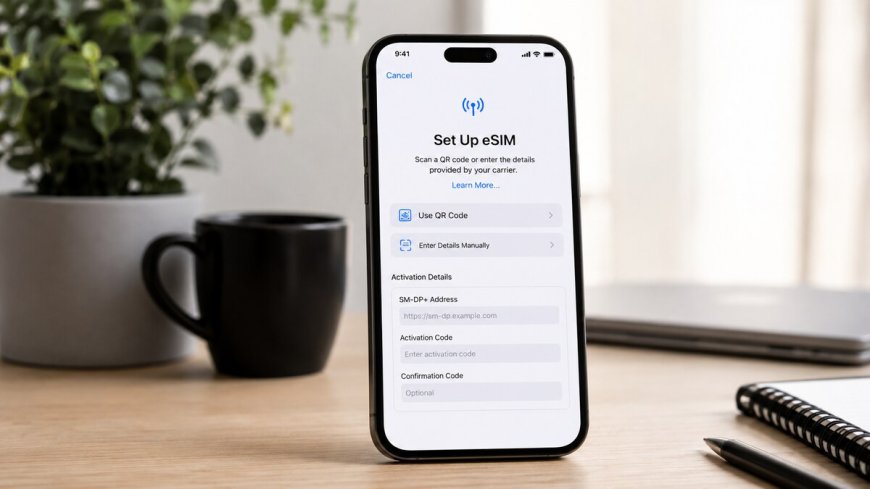
eSIM Explained: How to Activate, Transfer and Manage Your eSIM in 2026
The little plastic SIM card has been part of mobile phones for more than three decades. Its replacement is already in your pocket: an eSIM is a SIM that lives as software inside the phone, and your mobile plan is downloaded onto it instead of slotted in. If you have bought a phone in the last few years, there is a good chance it supports one. Here is what an eSIM actually is, how to set one up, and how to move it when you change phones.
What is an eSIM?
An eSIM — embedded SIM — is a small chip soldered into the phone that does the same job as a removable SIM card: it identifies you to the mobile network. The difference is that nothing is inserted. Your carrier sends a digital profile to that chip, usually as a QR code, an activation link, or a direct push from the carrier itself, and the phone downloads and stores it.
Apple describes it as an industry-standard digital SIM built into the iPhone, and most modern Android phones use the same standard. A phone can hold several eSIM profiles at once — Apple says an iPhone can store eight or more — though only one or two can be active for calls and data at a time, depending on the model.
The shift is now visible in the hardware itself. iPhones sold in the United States since the iPhone 14 have no SIM tray at all, and the iPhone 17 range is eSIM-only in a dozen countries, including the United States, Canada and Japan. European models still ship with a tray alongside eSIM support. Most flagship Android phones from Samsung, Google and others have supported eSIM for several years, and it is spreading into mid-range models too.
Which phones support eSIM?
On iPhone, every model from the iPhone XS, XS Max and XR onwards supports eSIM. On Android, support varies by model and region, so the quickest check is to dial *#06# on the phone: if an EID number appears next to the IMEI, the phone has an eSIM chip. You can also search Settings for "eSIM" or "Add SIM" — if the option exists, the phone supports it.
Two other things matter before you start. First, the phone must be unlocked — a phone tied to one carrier may refuse another carrier's eSIM. Second, your carrier has to offer eSIM. Most large carriers do now, but some smaller providers still do not, so it is worth confirming before you buy a plan.
How to activate an eSIM
Activation takes a few minutes and needs a Wi-Fi connection, because the profile is downloaded over the internet. Your carrier gives you one of three things: a QR code, an activation link, or a direct carrier activation that needs no code at all.
On iPhone
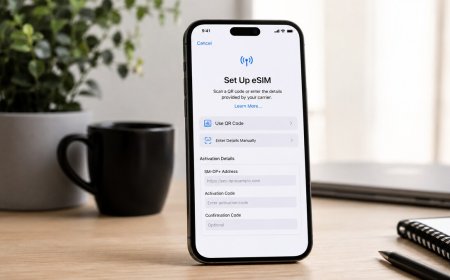
Go to Settings, then Cellular (called Mobile Service in some countries), and tap Add eSIM. From there, scan the QR code your carrier sent you — on iOS 17.4 or later you can also touch and hold a QR code image in Mail or Safari and tap Add eSIM — or choose Enter Details Manually and type in the SM-DP+ address and activation code the carrier provided. Then tap Continue and wait for the profile to download. A new line appears under Cellular.
If your carrier supports eSIM Carrier Activation, there may be nothing to scan at all. When the carrier registers your phone, a notification saying "Carrier Cellular Plan Ready to Be Installed" appears; tap it, tap Continue, and the plan installs itself. If the new plan replaces a physical SIM, remove that SIM and restart the phone.
On Android
The path depends on the maker. On a Google Pixel, go to Settings, then Network & internet, then SIMs, and tap Add eSIM. On a Samsung Galaxy, go to Settings, then Connections, then SIM manager, and tap Add eSIM. Other Android phones put the option in the network or SIM settings under a similar name. Scan the carrier's QR code, or enter the activation details manually if the carrier gave you those instead.
After the profile downloads, choose what the line is for — calls, messages, mobile data, or all three — and give it a label, such as Work or Travel, so you can tell it apart from your other lines later.
How to transfer an eSIM to a new phone
This is the part that trips people up, because an eSIM cannot be pulled out and moved like a card. The good news is that the built-in transfer tools have improved a lot, and there is always a fallback.
iPhone to iPhone
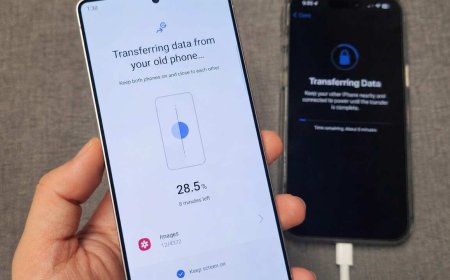
Apple's eSIM Quick Transfer moves your number from your old iPhone to your new one without contacting the carrier, provided the carrier supports it. Both phones need to be on iOS 18.4 or later, signed in to the same Apple Account, unlocked, and with Bluetooth on. You can do it during the new phone's setup, when it asks about transferring your number, or afterwards in Settings, under Cellular, then Set Up Cellular or Add eSIM, choosing the number to transfer or tapping Transfer From Nearby iPhone. On the old phone, tap Transfer to confirm, enter the verification code shown on the new phone if asked, and wait for the plan to activate. With iOS 26 or later, you can move more than one number at once. Once the new phone's plan is active, the old phone's line stops working, so make a test call to confirm.
Android to Android
Newer Pixel and Samsung phones have a similar built-in transfer. Start the move during the new phone's setup, or from the SIM settings on the new phone, and follow the on-screen steps. Support depends on the carrier and the phone maker, so if the option does not appear, ask the carrier for a fresh eSIM instead.
Between iPhone and Android
Moving an eSIM across platforms used to mean getting a new QR code from the carrier. Since iOS 26, some carriers support a direct transfer. On a Pixel, go to Settings, then Network & internet, then SIMs, then Add SIM, and choose Transfer a SIM from another phone, then iPhone; the Pixel shows a QR code, which you scan with the iPhone's camera, then pick the number and confirm with a double-click of the iPhone's side button. On a Samsung Galaxy, the same flow starts in Settings, then Connections, then SIM manager, then Add eSIM, and Transfer SIM from iPhone. Going the other way, the iPhone shows the QR code and the Android phone scans it. If the scan fails, the iPhone offers a session ID and pairing code instead, which you type into the Android phone. If your carrier is not on Apple's supported list for this, the fallback is the same as ever: request a new eSIM from the carrier, usually free, in its app or on its website.
One rule covers every method: do not delete the eSIM from your old phone until the new one is working. Deleting it first can leave you with no service on either phone while you wait for a replacement code.
Using two numbers and travel eSIMs
An eSIM makes dual-SIM use simple. You can keep a physical SIM for your main number and add an eSIM for a second line, or run two eSIMs side by side. In Settings you choose which line handles calls, which handles messages, and which one provides mobile data — handy for separating work and personal numbers, or for keeping your home number active for calls while a local plan handles data abroad.
Travel is where eSIMs shine. Travel providers sell data-only plans for a country or region that you buy online, install at home over Wi-Fi, and switch on when you land. Install before you travel, but check when the plan's clock starts: many plans begin counting days at first connection, so activating too early wastes part of the allowance. Turn on data roaming for the travel eSIM when you arrive, and keep your home line switched off for data so you are not charged roaming rates by mistake.
One warning applies to travel eSIMs in particular: most are tied to a single device. If you change phones mid-trip, you may not be able to move the plan, so check the provider's policy before you buy.
When an eSIM stops working
Most eSIM problems have a short list of causes. Check that the phone is not locked to a carrier, that the QR code or activation code is still valid — many codes are single-use — that you have a stable internet connection during installation, and then restart the phone. If a line disappears after a software update, look in the SIM settings before assuming it is gone: the profile is usually still there, just switched off.
Keep your QR code or activation details somewhere safe, but treat them like a password. Anyone with the code may be able to install your number on their own phone. If your phone is lost or stolen, contact your carrier as soon as possible so it can block the eSIM and issue a replacement — the profile cannot be removed from a phone you no longer have.
And if none of the built-in transfers work, the carrier is the answer. A new eSIM by QR code, app or link works on almost any phone, and it is the method carriers fall back on themselves.
Is it worth switching?
For most people, the honest answer is yes — with one reservation. Activation is quicker than waiting for a SIM in the post, switching carriers no longer means handling a tiny piece of plastic, and travel data is far cheaper than roaming. The trade-off is that moving between phones takes a deliberate step instead of a card swap, and a handful of smaller carriers still do not support eSIM at all. If your carrier supports it and your phone has the chip, there is little reason to keep the tray.
Sources
What's Your Reaction?
 Like
0
 Dislike
0
 Love
0
 Funny
0
 Angry
0
 Sad
0
 Wow
0