
































How to Transfer Data to a New Phone: Android, iPhone and Switching Between Them
Moving to a new phone does not have to mean losing your photos, contacts, messages and apps. This guide explains how to transfer data to a new phone on Android and iPhone — and how to switch between them — using the official free tools, a cable, or a backup, plus what does not transfer and what to check afterwards.

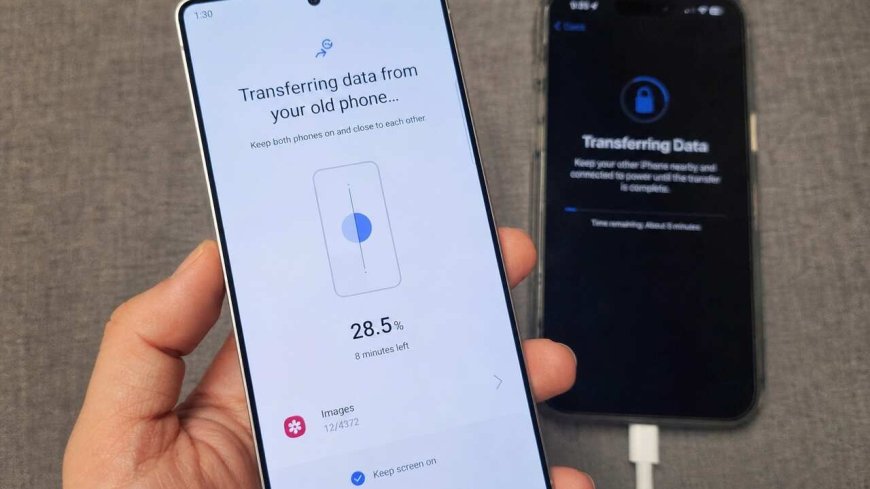
How to Transfer Data to a New Phone: Android, iPhone and Switching Between Them
Unboxing a new phone is the easy part. The part most people dread is the move itself: years of photos, contacts, message threads, saved passwords and apps, all sitting on the old handset. The good news is that the official transfer tools from Apple, Google and Samsung have quietly become very capable, and in most cases the whole move takes under an hour. This guide covers every direction — Android to Android, iPhone to iPhone, and switching between the two — so you can pick the method that matches your phones and get it right the first time.
Before you start: a five-minute checklist
A transfer fails far more often because of preparation than because of the tool. Before you begin, charge both phones, connect both to Wi-Fi, and make sure the new phone has enough free storage for everything coming across. Back up the old phone first — a fresh backup is your safety net if anything goes wrong, and our guide to backing up your phone walks through it for Android and iPhone. Update both phones to the latest software available, sign in to the same Google or Apple account you plan to use, and keep both handsets close together and plugged in until the transfer finishes. Finally, if you use two-factor authentication apps, move those separately and confirm they work on the new phone before you wipe the old one.
Android to Android: the easiest move of all
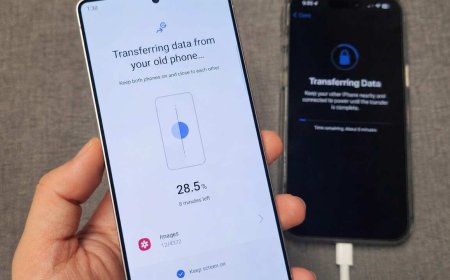
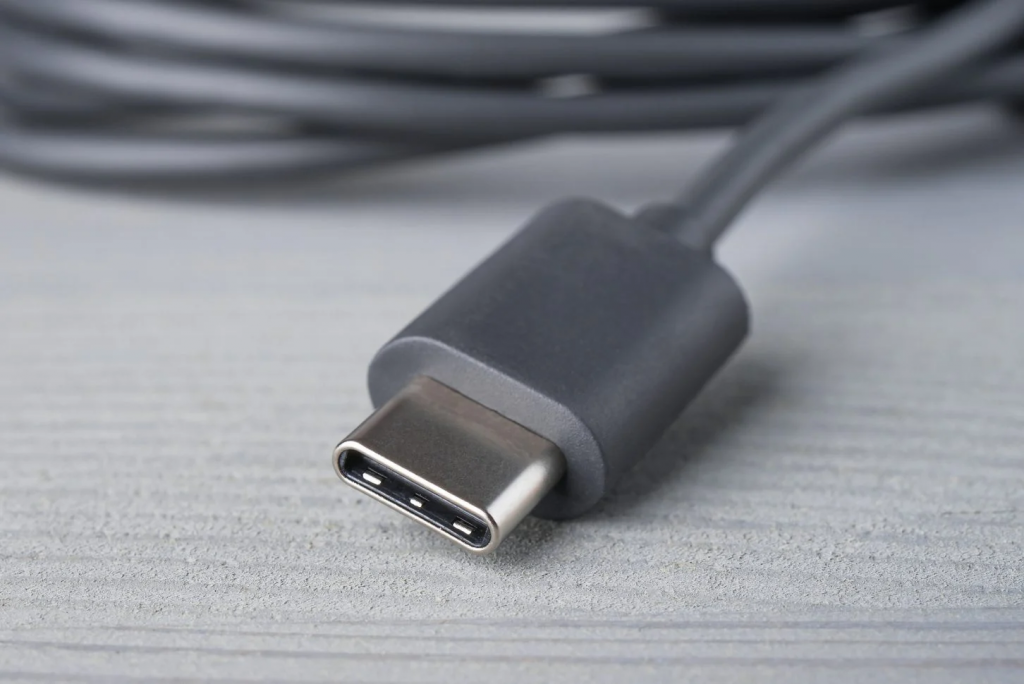
Moving between two Android phones is the smoothest transfer there is, because Google's own backup and restore system does most of the work. When you switch on the new phone, choose "Copy apps and data" during setup, connect the two phones with a USB-C cable or over Wi-Fi, and sign in with your Google account. Contacts, photos, apps, settings and SMS messages come across, and a cable connection is the fastest option when you have a large photo library.
Samsung owners get an extra option: Smart Switch, which moves contacts, messages, photos, apps and even some app data, wirelessly, by cable, or through a computer. It is the most thorough route if you are moving to or from a Galaxy phone, though a transfer of a full library can take one to three hours. Either way, the rule is the same — do the transfer during the new phone's initial setup rather than afterwards, when your options narrow.
iPhone to iPhone: Quick Start does the heavy lifting
Apple's Quick Start is the simplest transfer in this guide. Hold your old iPhone next to the new one and both devices walk you through a direct wireless transfer that moves photos, apps, settings and saved passwords. It is the method Apple recommends first, and for most people it is the only one they will ever need.
The alternatives are just as reliable. Restoring from an iCloud backup — made in Settings under your name, then iCloud, then iCloud Backup — reproduces your old setup on the new phone, while a computer backup through Finder or iTunes does the same thing without depending on cloud storage. Whichever route you choose, the transfer copies almost everything; paid apps and content tied to another account are the usual exceptions.
Android to iPhone: Move to iOS, and a newer app-free option
Switching from Android to iPhone means using Apple's Move to iOS app, and it only works during the new iPhone's setup — if you have already finished setting the phone up, you will need to erase it and start again, or move your content manually instead. On the iPhone, reach the "Transfer Your Apps & Data" screen, tap "From Android", and install Move to iOS on the Android phone from the Google Play Store (the iPhone shows a QR code that takes you straight to the download). The iPhone then displays a six- or ten-digit code; enter it on the Android phone, pick the data you want to move — contacts, message history, photos and videos, calendars, bookmarks, mail accounts and, notably, WhatsApp messages and media — and keep both phones nearby and plugged in until the progress bar completes.
There is now a second way in. On compatible Android phones running Android 17 or later, Apple supports transferring data to an iPhone without installing the Move to iOS app at all, and a direct USB-C cable connection between the two phones makes the transfer faster. Music, books and PDFs still have to be moved manually, and Android apps do not become working iPhone apps — you will need to download their iPhone versions from the App Store and sign in again.
iPhone to Android: the reverse journey
Going the other way, Google's Switch to Android app and Samsung's Smart Switch handle the move. Connect the phones by cable for the best results, and contacts, photos, calendar entries and basic settings transfer across. What stays behind is the mirror image of the Android-to-iPhone case: your iMessage history does not come across, iOS apps have no Android equivalent to transfer into, and data stored in Apple's keychain does not move. Sign in to Google services on the new phone for mail, contacts, calendars and cloud photos, then move local files separately — and remember to turn off iMessage on the old iPhone, or messages from other iPhone users may keep going to the old handset.
WhatsApp, banking apps and everything that needs special care
A few categories of data refuse to follow the standard tools. WhatsApp chats can move between Android and iPhone, but only through the official transfer flows — Move to iOS handles Android-to-iPhone, while the reverse uses WhatsApp's own chat transfer — so do not wipe the old phone before confirming the chats have arrived. Banking apps, authenticator apps and password managers should be set up fresh on the new phone and verified before the old one is erased. Paid apps never transfer across platforms; you will need to buy the iPhone or Android version again. And if your new phone is already fully set up and you do not want to factory reset it, the practical answer is usually the manual route: sign in to your cloud accounts, let photos and contacts sync down, and move local files by cable.
After the transfer: the checks that save you later
When the progress bar finishes, do not wipe the old phone yet. Open your photo gallery and confirm the count roughly matches, send a test message, make a test call, and check that contacts, calendar events and your most important apps are all present and signed in. Open WhatsApp and confirm recent chats are there. Check that your bank and authenticator apps work. Only then, once everything is verified on the new phone, should you erase the old one — and if you plan to sell or trade it in, a factory reset after the check is what protects your data.
Which method should you use?
For most people the answer is the tool made for their exact move: Google's setup copy or Smart Switch between Android phones, Quick Start or an iCloud restore between iPhones, and Move to iOS — or the newer app-free transfer on Android 17 — when switching to iPhone. The official tools are free, they cover the data most people actually care about, and they run during setup, when the phone is expecting them. A cable beats Wi-Fi when you have a large library, and a fresh backup before you start is the one step that makes every other step safe.
Sources
What's Your Reaction?
 Like
0
 Dislike
0
 Love
0
 Funny
0
 Angry
0
 Sad
0
 Wow
0