








































Two-Factor Authentication (2FA) Explained: The Complete Guide to Protecting Every Account
A password alone is not enough anymore. Two-factor authentication adds a second lock to your accounts — here is how it works, which method is safest, and how to turn it on everywhere.

Two-Factor Authentication (2FA) Explained: The Complete Guide to Protecting Every Account
A password alone is not enough anymore. Two-factor authentication adds a second lock to your accounts — here is how it works, which method is safest, and how to turn it on everywhere.
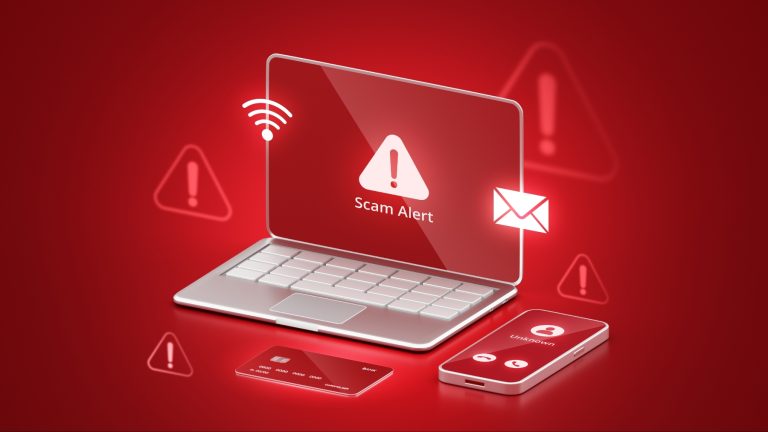
Passwords leak every day — in data breaches, phishing emails and reused credentials. Two-factor authentication (2FA) is the single most effective defence against account theft: even if someone knows your password, they still cannot get in without the second factor.
What is two-factor authentication?
Two-factor authentication means proving your identity in two different ways: something you know (your password) and something you have (your phone, a security key, or a code). When you log in with 2FA turned on, you enter your password and then a second check — usually a six-digit code that changes every 30 seconds, a prompt on your phone, or a tap on a security key.
Which 2FA method is safest?
Not all second factors are equal. From strongest to weakest:
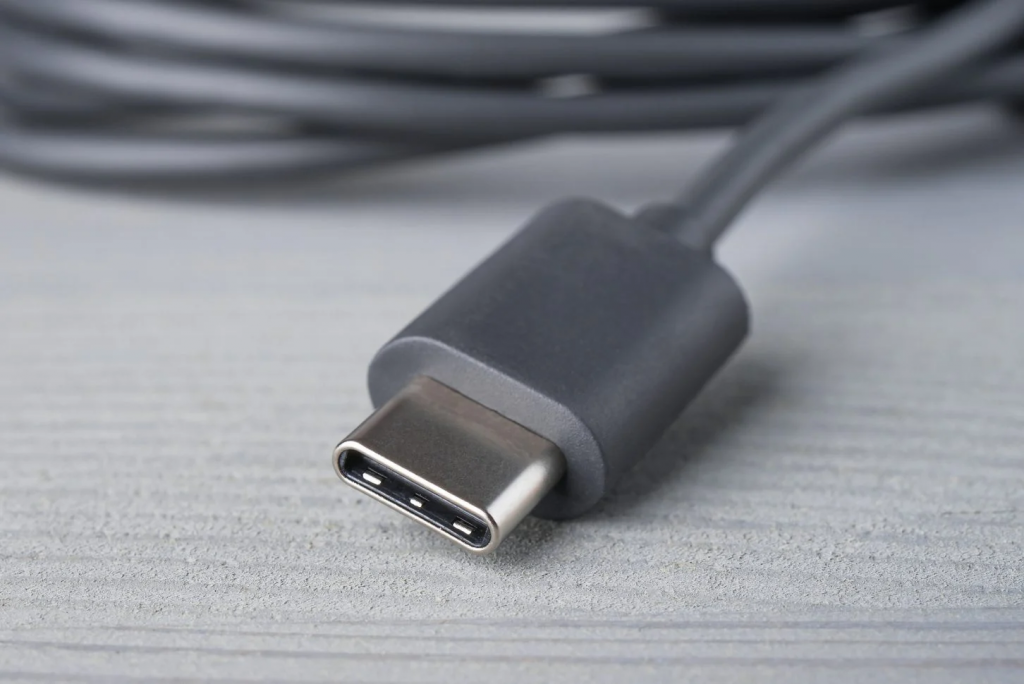
Security keys (strongest): A small USB or NFC device like a YubiKey. You plug it in or tap it to log in. It cannot be phished — the key only works on the real site — so it is the gold standard. Best for your email, password manager and most important accounts.
Authenticator apps: Apps like Google Authenticator, Microsoft Authenticator or Authy generate six-digit codes that change every 30 seconds. They work offline, they cannot be intercepted like SMS, and they are free. This is the best choice for most people.
Push notifications: The service sends a prompt to your phone — tap "Yes, it's me" to approve the login. Convenient, but beware of "MFA fatigue" attacks, where attackers spam you with prompts hoping you tap approve by mistake. Never approve a login you did not start.
SMS codes (weakest, but still better than nothing): A code sent by text message. It protects against most attacks, but SMS can be intercepted through SIM swapping. Use it only when no better option exists.
How to turn on 2FA
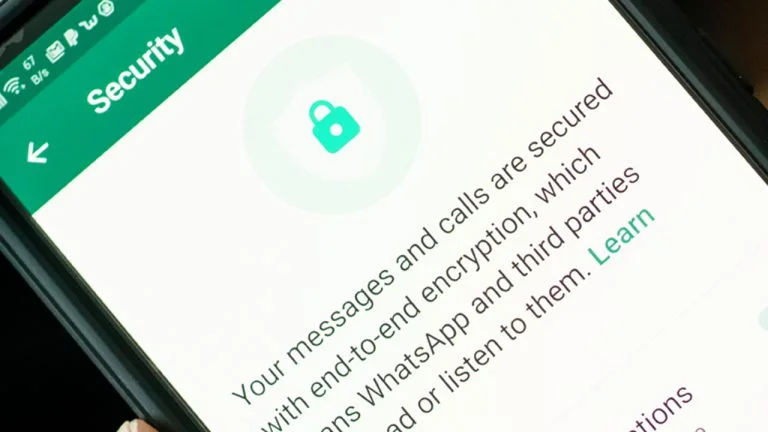
Start with your most important accounts, in this order: your email (it can reset everything else), your password manager, your bank and payment apps, and your social media. In each app, go to Settings, then Security or Privacy, and look for "Two-factor authentication", "Two-step verification" or "Login verification". Choose the authenticator-app option if it is offered, scan the QR code with your authenticator app, and enter the code to confirm.
Save your backup codes
When you turn on 2FA, most services give you backup or recovery codes — one-time codes you can use if you lose your phone. Print them or store them somewhere safe, separate from your phone. Without them, losing your phone can lock you out of your own accounts for days.
What about passkeys?
Passkeys are the newer, stronger replacement for passwords plus 2FA combined. A passkey is stored on your phone or computer and unlocked with your fingerprint or face — there is nothing to type, nothing to phish, and nothing to leak in a breach. Google, Apple and Microsoft all support passkeys now. Where a service offers passkeys, use them; keep 2FA on everywhere else.
What to do if you lose your phone
First, do not panic — your backup codes are your way back in. If your authenticator app was backed up to the cloud, install it on your new phone and restore it. If not, use the backup codes to log in, then turn 2FA off and on again to set it up fresh. This is also why your email account's 2FA matters most: with email access, you can reset almost anything.
Sources
What's Your Reaction?
 Like
0
 Dislike
0
 Love
0
 Funny
0
 Angry
0
 Sad
0
 Wow
0