
























































How to Secure Your WhatsApp Account: 10 Settings to Change Right Now
WhatsApp holds your private chats, photos and contacts — and it is a favourite target for hackers. These 10 settings, from two-step verification to disappearing messages, will lock it down in minutes.
How to Secure Your WhatsApp Account: 10 Settings to Change Right Now
WhatsApp holds your private chats, photos and contacts — and it is a favourite target for hackers. These 10 settings, from two-step verification to disappearing messages, will lock it down in minutes.
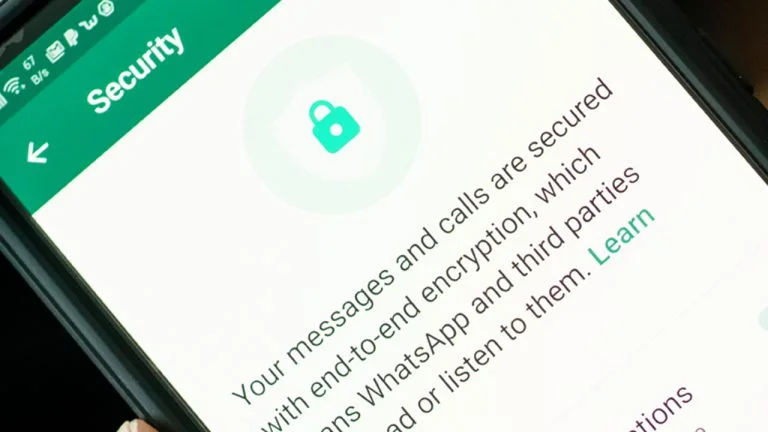
WhatsApp messages are protected by end-to-end encryption, which means no one — not even WhatsApp — can read them in transit. But encryption does not help if someone takes over your account, reads your unlocked phone, or tricks you into giving away a verification code. These settings close those gaps.
1. Turn on two-step verification
This is the single most important setting. Go to Settings, then Account, then Two-step verification, and set a six-digit PIN. WhatsApp will ask for this PIN when your number is registered on a new phone — so even if a hacker gets your SMS verification code, they cannot take over your account without the PIN. Add a recovery email address too, in case you forget it.
2. Never share your verification code
When you install WhatsApp, it sends a six-digit code by SMS. That code is the key to your account. WhatsApp will never ask you for it — not by message, call or email. If anyone asks for your code, even someone pretending to be WhatsApp support or a friend, it is a scam. Do not share it, ever.
3. Lock WhatsApp with your fingerprint or face
Go to Settings, then Privacy, then App lock, and turn on fingerprint or face lock. Now WhatsApp requires your biometric to open, so nobody can read your chats if they borrow or steal your unlocked phone.
4. Control who sees your profile photo, status and last seen
In Settings, then Privacy, you can set who sees your profile photo, About, status and Last Seen — everyone, your contacts, or nobody. Set Last Seen and your profile photo to "My Contacts" at minimum. Scammers harvest profile photos from public accounts to impersonate people.
5. Turn off auto-download of media
In Settings, then Storage and Data, turn off automatic downloading of photos and videos — especially in group chats. Auto-downloaded media can fill your storage and, in rare cases, carry malicious files. Download only what you choose to.
6. Use disappearing messages for sensitive chats
For private conversations, turn on disappearing messages (open the chat, tap the contact name, then Disappearing messages) so messages delete themselves after 24 hours, 7 days or 90 days. It limits what anyone can find later if your phone is compromised.
7. Check your linked devices
Go to Settings, then Linked Devices. This shows every computer and browser logged into your WhatsApp. If you see a device you do not recognise, log it out immediately — it means someone may have access to your chats.
8. Be careful with groups
Anyone can add you to a group. In Settings, then Privacy, then Groups, change "Who can add me to groups" from Everyone to My Contacts. This stops strangers from adding you to spam or scam groups.
9. Do not click suspicious links
WhatsApp is full of scam messages: fake job offers, prize wins, and links that promise free gifts. Never click a link from an unknown number, and never download files from people you do not know. If a friend sends something odd, check with them on another channel first — their account may have been hacked.
10. Keep WhatsApp updated
Updates fix security holes. Turn on automatic app updates, and install WhatsApp updates as soon as they appear. An old version of WhatsApp is an open door for attackers.
Sources
What's Your Reaction?
 Like
0
 Dislike
0
 Love
0
 Funny
0
 Angry
0
 Sad
0
 Wow
0