



























































How to Fix Slow Wi-Fi at Home: Router Placement, Dead Zones and Real Speed Fixes
Slow Wi-Fi at home is usually fixable without spending anything. This guide walks through the checks that actually matter — a two-minute speed test to find where the problem lives, router placement, the right Wi-Fi band, channel congestion, background apps eating bandwidth, and when a mesh system or a call to your ISP is the real answer.

How to Fix Slow Wi-Fi at Home: Router Placement, Dead Zones and Real Speed Fixes
Slow Wi-Fi has a way of turning an ordinary evening into a frustrating one. Videos buffer, calls freeze, and pages crawl — and the fix is rarely the one the internet tells you to buy first. In most homes the problem is not the broadband plan at all. It is where the router sits, which band your devices are using, or one hungry app quietly eating the connection in the background.
This guide works through the fixes in the order that actually solves the problem, starting with a two-minute test that tells you where the slowdown lives. Work through them one at a time and test after each change, so you know which one made the difference.
First, find out where the slowdown lives
Before changing anything, run a speed test — on a site like Speedtest.net or Fast.com — standing a few feet from the router. Write the number down. Then walk to the room where the connection feels slow and test again. The comparison tells you almost everything:
- Slow everywhere, even next to the router. The problem is your internet line or the router itself. Head for the restart and firmware sections, and test with a cable if you can.
- Fast next to the router, slow in the far room. The signal is the problem, not your internet. Router placement and the band sections below will fix most of these cases.
- Slow on one device but fast on the others. That device is the problem — an old phone, a tired network adapter, or background apps eating its bandwidth.
That two-minute test saves you from trying random fixes. It tells you exactly where to look.
Restart the modem and router properly
This single step fixes more home Wi-Fi problems than anything else, because it clears stale connections, cached routes and memory leaks in the router's firmware. Done properly, it takes about three minutes:
- Unplug the power from the modem — the box your internet provider gave you, where the wall line comes in.
- Unplug the power from the router — the box that broadcasts your Wi-Fi. If it is one combined unit, just unplug that.
- Wait a full 60 seconds. Do not skip this; the capacitors inside need time to discharge fully.
- Plug the modem back in first. Wait until its lights are steady and it shows online, usually one to two minutes.
- Plug the router back in and give it another minute to fully boot and reconnect to the modem.
Run the speed test again. If the numbers are back to normal, you are done — and a restart once a month is a reasonable habit.
Move the router before you buy anything
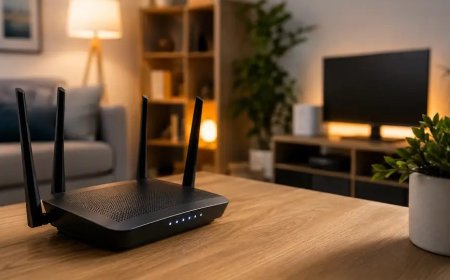
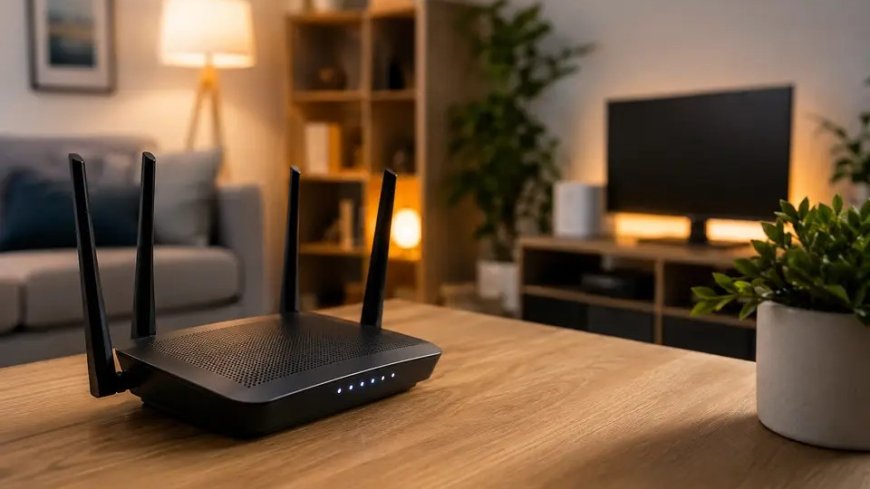
Router placement is the single biggest free fix there is. Wi-Fi is radio, and radio signals weaken with distance and with everything they pass through. A router in a corner behind the TV, inside a cabinet, or on the floor is fighting the whole house.
Put the router as close to the centre of your home as you can, out in the open, at about waist to chest height — a shelf beats the floor. Keep it away from thick concrete walls, metal cabinets, fish tanks and mirrors, all of which block or bounce the signal. And keep it away from things that interfere with it: microwave ovens, baby monitors and cordless phone bases all operate on the 2.4 GHz band and fight your Wi-Fi for it.
If your router has external antennas, point one straight up and one sideways. That simple change spreads the signal across both the horizontal and vertical planes of your home, which matters more than it sounds in a two-storey house.
Moving the router to the hallway between the two rooms that matter most often fixes the bedroom dead zone outright — no new hardware required.
Use the right band: 2.4 GHz or 5 GHz
Most modern routers broadcast on more than one band, and picking the wrong one is one of the most common reasons Wi-Fi feels slow:
- 2.4 GHz: slower and more crowded, but reaches further and passes through walls better. Best for smart home gadgets and devices two rooms away.
- 5 GHz: much faster and less congested, but fades quickly through walls and floors. Best for phones, laptops and TVs in the same room as the router or one room over.
- 6 GHz: the fastest and cleanest band, available on Wi-Fi 6E and Wi-Fi 7 routers, but with the shortest range. Only newer devices can use it.
If your router shows separate network names for each band, connect video calls, gaming and 4K streaming to 5 GHz, and leave 2.4 GHz for the gadgets that need range. If your router merges the bands into one network name, it should steer devices itself — but it does not always choose well, and splitting the bands into two names is worth trying if speeds stay low.
One thing worth knowing: 5 GHz Wi-Fi has nothing to do with 5G mobile data. They are different technologies that happen to share a number.
Change the channel and update the firmware
Wi-Fi channels are like lanes on a road. In an apartment block, ten routers can sit on the same channel and slow each other down. Your router usually picks a channel on its own, but it does not always pick a quiet one.
Log into the router's admin page — usually by typing 192.168.1.1 or 192.168.0.1 into a browser — and look for the wireless settings. On 2.4 GHz, stick to channels 1, 6 or 11, the only three that do not overlap with each other. A free Wi-Fi analyser app on your phone can show which channels are crowded in your building. Change one thing at a time: change the channel, test, then update the firmware, then test again.
Firmware updates matter more than most people think. They fix performance problems as well as security holes, and an update is often the reason a router that has been slow for months suddenly behaves again. Check for updates in the router's app or admin page.
Check who else is on your network
Open the connected-devices list in the router admin panel and look at what is actually attached. Every connected device takes a slice of bandwidth and router processing power, and a home in 2026 can easily have twenty or thirty of them — phones, laptops, smart TVs, cameras, speakers and thermostats all competing for the same connection.
If you see a device you do not recognise, change the Wi-Fi password and set a strong admin password while you are there. Then disconnect the devices nobody is using, and pause the background traffic that eats bandwidth: cloud backups, app updates and video uploads all run quietly and take whatever they can get. Pause cloud sync while you are on a call, and set phones and computers to update apps overnight.
Wire what does not move
A device that never moves does not need Wi-Fi. Run an Ethernet cable to the TV, the desktop PC or the games console, and it gets the full speed of the line with lower latency and zero interference — and it takes load off the Wi-Fi for everyone else. A standard Cat5e cable handles speeds up to 1 Gbps and is fine for most households.
If the cable test from the first section shows full speed over Ethernet while Wi-Fi stays slow, the line is fine and the problem really is the wireless side. That is useful to know before calling your provider.
When to consider new equipment
Only after the steps above should you think about spending money — and then, buy for the actual problem:
- Router more than five or six years old? A newer one will be faster and handle more devices at once. Wi-Fi 6 is a sensible minimum today; Wi-Fi 6E and Wi-Fi 7 add the 6 GHz band.
- Large home, or thick walls? A mesh system — several units working as one network — covers dead zones far better than a single more powerful router.
- Slow even over a cable, right next to the modem? That points at the line or the plan, not the router. Call your provider with your speed-test results in hand.
An extender is the cheapest option for one dead room, but it usually halves the speed it repeats, so a mesh node is the better buy if you can stretch to it.
When to call your ISP
If the cable test still shows speeds well below what you pay for, at a quiet time of day, after a proper restart, the fault is upstream. Call your provider, tell them the wired test result, and ask them to check the line. If the plan itself is the bottleneck — a household of heavy streamers and gamers on a basic package — an upgrade may be the honest answer, but only after you have proved the Wi-Fi side is not the problem.
Quick checklist
- Speed test next to the router, then in the slow room.
- Restart the modem and router properly — 60 seconds unplugged.
- Move the router central, raised and in the open.
- Put fast devices on 5 GHz, distant gadgets on 2.4 GHz.
- Change to a quiet channel and update the firmware.
- Find and tame the devices and apps eating bandwidth.
- Wire the devices that never move.
- Upgrade to mesh only if the steps above are not enough.
Sources
- TechEngage — How to Increase Your Internet Speed: 12 Proven Fixes 2026
- Carlocey — How to Fix Slow Wi-Fi: 12 Proven Fixes (2026 Guide)
- Online-Tech-Tips — How to Boost and Increase Your Internet Speed in 2026
- WootWP — How to Fix Slow WiFi at Home: 9 Proven Free Fixes
- Digi.Tech — How to fix slow Wi-Fi, step by step
What's Your Reaction?
 Like
0
 Dislike
0
 Love
0
 Funny
0
 Angry
0
 Sad
0
 Wow
0