

























































How to Tell If Your Phone Is Hacked: Warning Signs, Checks and Fixes for Android and iPhone
A hot phone or a fast-draining battery alone rarely means you have been hacked. This guide explains the warning signs that actually matter, the built-in checks for Android and iPhone that confirm a problem, and the steps to take back control — in the right order.

How to Tell If Your Phone Is Hacked: Warning Signs, Checks and Fixes for Android and iPhone
Your phone feels warm, the battery dies by lunchtime and a strange pop-up just flashed across the screen. It is natural to wonder whether someone has broken in. The honest answer is that most of those symptoms, on their own, have innocent explanations: an ageing battery, a buggy update, a demanding app. A hacked phone usually leaves sharper evidence — a message you never sent, a login code you never asked for, an app you never installed. This guide explains how to tell the difference, how to check your phone with the tools already built into Android and iOS, and what to do if the signs point to a real compromise.
Mobile attacks are not rare. Kaspersky reported that attacks on phones surged 52% in 2023, reaching 33.8 million incidents, and that an average of 2.8 million attacks hit phones every month in 2024. Most of them arrive through malicious apps, phishing messages and fake websites rather than through some invisible break-in — which is good news, because it means the checks below actually work.
The signs that matter most
Not every warning sign carries the same weight. Treat the first group as a call to act now; the second group means investigate today; the third, on its own, is usually nothing to panic about.
Act now: strong evidence of a compromise
A two-factor code or password-reset email you did not request. Somebody has your password, or is actively trying to get past your login. Check your signed-in devices immediately and change the password from a device you trust.
Messages, calls or posts you did not send. If your sent folder, call log or social accounts show activity that was not yours, your device or your account is being used without your permission. Malware can also send premium-rate texts that quietly add charges to your bill.
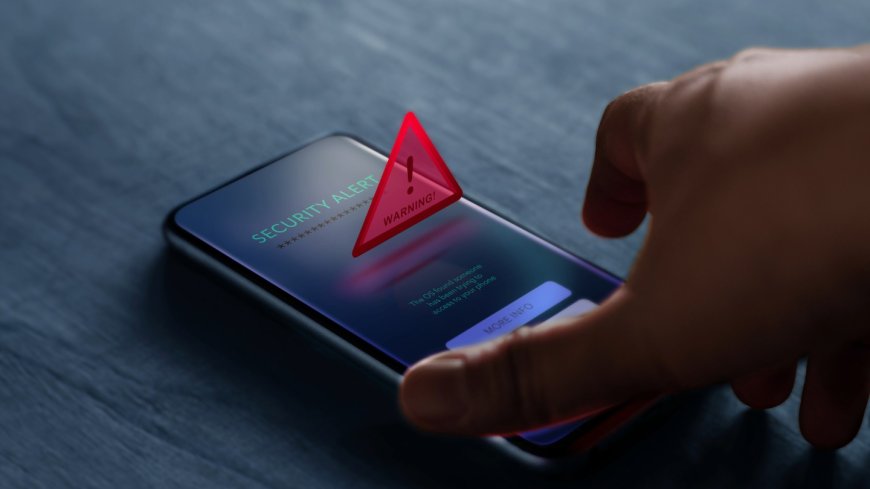
A verified security alert from Apple, Google or Play Protect. Official alerts from the operating system are worth taking seriously. Check the alert inside system settings or the official app rather than trusting a message in a browser or a text, because fake security warnings are a common scam.
A device you do not recognise signed in to your account. An unknown phone, laptop or location in your Google or Apple account's device list means someone else may be inside your account right now.
Investigate today: possible malware or tampering
Apps you do not remember installing. Spyware often hides behind bland names such as "System Service" or a generic-looking icon. If an app appears that you never downloaded, that is a major red flag. The same applies to apps that reappear after you delete them.
Settings that changed on their own. A browser home page you did not set, a new toolbar, a lock-screen setting you never touched or a home screen that has been rearranged all suggest something — or someone — has been changing your phone.
The camera or microphone indicator lights up for no reason. On iPhone, iOS shows a green dot when the camera is in use and an orange dot for the microphone. On Android, a green indicator appears in the corner when an app uses either sensor. If a light appears while you are doing nothing, check which app is using the sensor.
A sudden spike in mobile data. Spyware needs data to send your messages, photos and location to an attacker. Check data usage per app — on iPhone under Settings > Cellular, on Android under Settings > Network & Internet > Data Usage — and look for an unfamiliar app consuming far more than it should.
Charges you did not authorise. Unexplained subscriptions or premium-service charges on your phone bill can be the work of premium SMS malware.
Usually innocent on their own
Battery drain, heat and slowness. Malware running in the background does burn battery and processor power, so a phone that suddenly drains much faster or feels warm while sitting idle deserves a look. But a single hot afternoon, a phone that is three years old, or a heavy app can cause the same thing. The same goes for a flood of pop-ups, which is usually run-of-the-mill adware rather than a full compromise. What matters is the pattern: several signs together, or one sign from the strong list, is when you should act.
Background noise on calls. Odd echoes or static are usually network problems, not proof of eavesdropping. Do not rely on it as evidence either way.
How to check an Android phone
Android has a built-in malware scanner and several places where rogue software leaves traces. Work through these in order.
1. Run a Google Play Protect scan. Open the Play Store, tap your profile icon, then Play Protect, and tap Scan. Play Protect checks installed apps for known harmful behaviour, including apps sideloaded from outside the Play Store. While you are there, make sure "Scan apps with Play Protect" is switched on.
2. Review your apps. Open Settings > Apps and scroll through the full list. Remove anything you do not recognise or no longer use. Google's own advice is to remove any app you do not need, do not trust, or did not get from Google Play.
3. Check device admin and special access. In Settings, search for "device admin apps" and "special app access". Apps holding device administrator, accessibility or notification access can read a great deal. Only apps you trust belong there — if an unknown app has those permissions, switch them off and uninstall it.
4. Look at battery and data use per app. A spike from an app you barely use is worth investigating, and it often points straight at the culprit.
5. Check your security patch level. Open Settings > Security & privacy and look at the date of the latest security update. If it is more than four to six months old, your phone has stopped receiving patches, and that gap is itself a risk. Update the system before anything else.
6. Restart in Safe Mode if a suspect app will not uninstall. Press and hold the power button, then touch and hold "Power off" and confirm Safe Mode. In Safe Mode only system apps run, so a stubborn app can usually be removed there.
7. Check call forwarding. Dial *#62# to see whether your calls are being forwarded to an unknown number. Forwarding is a classic trick for intercepting calls and verification codes.
How to check an iPhone
iPhones have no built-in virus scanner, so checking one comes down to reviewing settings and account access. The tools are already on the phone.
1. Update iOS. Go to Settings > General > Software Update and install anything waiting. Updates close the security holes spyware relies on, and Apple calls updating one of the most important things you can do.
2. Run Safety Check. On iOS 16 or later, Settings > Privacy & Security > Safety Check shows who you share location and data with and which apps have access to your information. Its Emergency Reset can stop sharing with all people and apps at once.
3. Look for unknown profiles. Check Settings > General > VPN & Device Management. On a personal iPhone this should be empty, or contain only profiles you knowingly approved. An unknown configuration profile can redirect your traffic and is a serious red flag — remove it.
4. Review the devices on your Apple Account. In Settings, tap your name at the top. Every device listed there can access your account. Remove any you do not recognise.
5. Check the App Privacy Report. Settings > Privacy & Security > App Privacy Report shows which apps have contacted which domains and when they used your camera, microphone or location. An app quietly reaching out to unfamiliar servers deserves a closer look.
6. Consider Lockdown Mode only if you are at risk. iPhone users who may be targeted — journalists, activists, public figures — can switch on Lockdown Mode under Settings > Privacy & Security. It sharply limits what the phone can do in exchange for a much smaller attack surface. For most people it is overkill; keeping iOS updated matters more.
What to do if you think your phone is hacked
If the checks above turned up something real, work in this order. A factory reset is the last step, not the first.
Stop signing in on the phone. Do not log in to banking, email or shopping accounts on a device you suspect is compromised. Wait until it is clean.
Update the phone. Install every pending system and security update first — it closes the hole the attacker used.
Delete the suspicious apps and profiles. Remove unknown apps, unknown device administrators on Android, and unknown configuration profiles on iPhone.
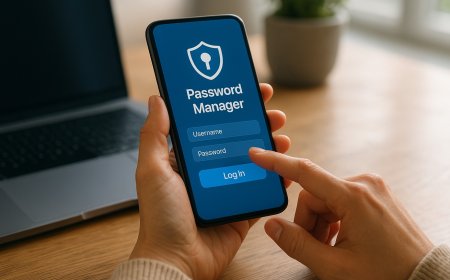
Change your passwords from a clean device. Start with your main email account, then Google or Apple, banking and social media. Use a different password for every account, and turn on two-factor authentication or switch to passkeys where they are offered.
Sign out everywhere else. In your important accounts, sign out all other sessions and remove devices you do not recognise, so an attacker who already holds a session cannot stay in after the password changes.
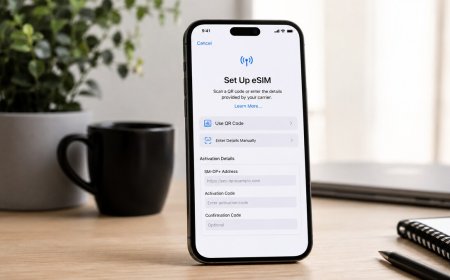
Call your carrier if the phone suddenly loses service. A phone that stops receiving calls, texts and data — or a carrier telling you the SIM was activated on another device — can mean a SIM-swap attack. Contact the carrier immediately to take the number back, and ask for a SIM PIN or port-out protection.
If problems continue, reset the phone. Back up your photos and contacts first, then do a factory reset. Do not restore apps you do not trust afterwards — reinstall only what you need from the official store.
One warning matters more than the rest: if you suspect someone close to you put monitoring software on your phone, do not remove it yet. The US Federal Trade Commission warns that removing stalkerware can alert the person who installed it and put you in danger. Contact a support service from a device that person cannot reach first — in the US, the National Domestic Violence Hotline is 1-800-799-7233 — and document what is happening before you change anything on the phone.
Staying safe afterwards
The same habits that stop most phone hacks are unglamorous but effective: install apps only from the official store, keep the operating system and apps updated, use a different password for every important account with two-factor authentication switched on, and treat unexpected security pop-ups — especially ones that ask you to call a number — as scams. Apple says pop-ups claiming your phone is infected are usually fraudulent advertisements; the FTC says never to call a phone number that appears in a pop-up. Close the page and move on.
For more on the tricks attackers use to reach your phone in the first place, see our guide How to Protect Yourself From Phishing and Online Scams, and for locking down the messaging app most people use daily, How to Secure Your WhatsApp Account: 10 Settings to Change Right Now.
Sources
- McAfee — How to Tell If Your Phone Has Been Hacked and What to Do: https://www.mcafee.com/blogs/consumer/consumer-threat-reports/how-to-tell-if-your-smartphone-has-been-hacked/
- Windscribe — How to Tell if Your Phone Is Hacked: 12 Signs: https://windscribe.com/blog/how-to-tell-if-your-phone-is-hacked/
- Beebom — How to Check If Your Phone Is Hacked (Android and iPhone): https://gadgets.beebom.com/guides/how-to-check-my-phone-is-hacked
- Guard.io — How to Tell If Your Phone Has Been Hacked (iOS & Android): https://guard.io/blog/how-to-tell-if-phone-has-been-hacked
- The Cybersecurity Guide — How to remove a virus or malware from your phone: https://thecybersecurityguide.com/guides/how-to-remove-a-virus-from-your-phone/
- Secria — How to remove a hacker from your phone, step by step: https://secria.me/blog/how-to-remove-a-hacker-from-your-phone/
- TechCrates — How to Tell If Your Phone Is Hacked (and What to Do): https://www.techcrates.com/how-to-tell-if-your-phone-is-hacked/
- Malware.news — Malware on Phone: How to Check, Scan and Remove It on iPhone and Android (2026 Guide): https://malware.news/t/malware-on-phone-how-to-check-scan-and-remove-it-on-iphone-and-android-2026-guide/127068
What's Your Reaction?
 Like
0
 Dislike
0
 Love
0
 Funny
0
 Angry
0
 Sad
0
 Wow
0