





























































How to Find a Lost or Stolen Phone: Track, Lock and Erase It on Android and iPhone
Lost your phone or had it stolen? This guide shows how to find it on a map, make it ring, lock it and erase it remotely — using Google Find Hub on Android and Apple Find My on iPhone — plus what to do if it was stolen and how to set everything up before it happens.

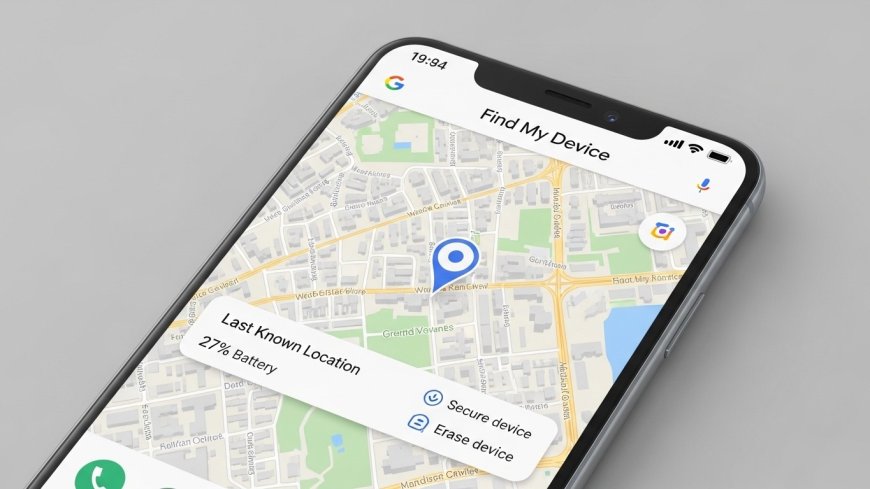
How to Find a Lost or Stolen Phone: Track, Lock and Erase It on Android and iPhone
Losing a phone is one of those small disasters that feels enormous in the moment. Your photos, messages, banking apps and two-factor codes are all in one pocket-sized box, and suddenly you have no idea where that box is. The good news is that both Android and iPhone come with free, built-in tools that can put your phone on a map, make it ring even on silent, lock it so nobody else can use it, and wipe it if it is truly gone. You do not need a paid tracking app. You just need to know where to look, and to act quickly.
This guide walks through the steps in the order that matters most: first the quick checks that find most phones, then the map tools for Android and iPhone, then what to do when the phone was stolen rather than simply misplaced, and finally the five-minute setup that makes all of this work if it ever happens to you.
What to do first
Before you open any app, do three quick things. Most lost phones turn up in the first few minutes, and these checks cost nothing.
First, call your own number from another phone. If the handset is down the side of the sofa or still in the car, you will hear it. Second, retrace your last steps and check the obvious places — coat pockets, the car seat, the bag you just put down. Third, borrow a computer, tablet or a friend's phone and open the finder service for your phone. On Android that is Google Find Hub at android.com/find; on iPhone it is Apple Find My at icloud.com/find. Sign in with the same account that is on the missing phone, and you will see it on a map if it can be reached.
Time matters here. A phone's battery keeps draining, and a thief may switch it off or take out the SIM. So locate it first, and decide what to do next from what the map shows.
How to find a lost Android phone with Google Find Hub
Google's finder service used to be called Find My Device. In May 2025 Google renamed it Find Hub, and it now covers phones, tablets, watches, earbuds and Bluetooth trackers in one place. On most Android phones it is turned on automatically as soon as you sign in with a Google account, so there is usually nothing to install.
To use it, open a browser on any device and go to android.com/find, or open the Find Hub app on another Android phone. Sign in with the Google account that is on the missing phone, pick the phone from the list of devices, and its location appears on a map — the current location if it is online, or the last known location if it is not. If the phone is within about 10 metres, a "Find nearby" option can guide you closer, with a shape that fills in as you approach.
Once the phone shows up, you get three actions. Use them in the order that fits the situation. Play Sound rings the phone at full volume for five minutes, even if it is set to silent or vibrate — press the power button to stop it once you have found it. This is the right choice when the map says the phone is at home or nearby. Secure Device, also shown as Mark as lost, locks the screen with your PIN, pattern or password and signs the phone out of your Google account. You can add a short message and a callback number to the lock screen, so an honest finder can reach you. Erase Device is the last resort: it wipes the phone back to factory settings and removes your data. If you find the phone afterwards, you will need your Google account password to use it again.
Find Hub also runs a crowdsourced finding network. If your phone is offline or switched off, nearby Android devices can pick up its encrypted Bluetooth signal and report its location, on supported models. That means it is still worth checking the map even when the phone looks unreachable.
There is one more shortcut worth knowing. If you cannot sign in to your Google account — for example because your two-step verification codes go to the missing phone — Android's Remote Lock can lock the screen using only your phone number. Go to android.com/lock in any browser, enter the phone number and complete the security checks, and the phone locks.
Samsung Galaxy owners have a second option as well: Samsung's SmartThings Find service, which can locate, lock and erase Galaxy phones and works alongside Google's tool.
How to find a lost iPhone with Apple Find My
Apple's Find My is built into every iPhone and is switched on by default for most users. To use it, open the Find My app on another Apple device — an iPhone, iPad or Mac — or go to icloud.com/find in any web browser and sign in with the same Apple Account that is on the missing iPhone. Tap Devices, choose the missing iPhone, and its current or last known location appears on the map, with the time it was last seen.
If the map shows the phone nearby, tap Play Sound. The iPhone will ring loudly even if it is on silent. If it is somewhere you cannot reach, tap Mark As Lost. This locks the iPhone with its passcode, shows your message and phone number on the screen, and suspends Apple Pay cards on the device so they cannot be used. If you are sure the phone is not coming back, tap Erase This Device to wipe it remotely. Like Android, the phone stays locked to your Apple Account afterwards, so it cannot be set up by someone else.
On iPhones running iOS 15 or later, Find My can keep showing a location for a time even after the phone is powered off or erased, using the Find My network of nearby Apple devices. So check the map even if the phone has gone dark — it may still be telling you where it is.
What to do if your phone was stolen
A stolen phone is a different situation from a misplaced one, and safety comes first. Do not use the map to go after the person who has it, and never confront anyone. A phone is replaceable; your safety is not.
Lock it straight away. Use Mark As Lost on iPhone or Secure Device on Android so the screen stays locked and your data stays out of reach. Then report it to the police and ask for a report or reference number. Give them the phone's location from the map and its IMEI number — the unique identifier for your handset, which you can find by dialling *#06# on any phone, or on the box and receipt it came in. Your carrier and your insurer may both ask for that police reference number.
Next, contact your mobile carrier and ask them to suspend your SIM or eSIM. This stops anyone using your number for calls, texts or sign-in codes, which is how a stolen phone can turn into stolen accounts. Then, from another device, change the passwords of your most important accounts — email first, then banking and social media — and check for any unfamiliar sign-ins. If the phone carried work data, tell your employer as well.
If the phone does not come back, erase it remotely. Your photos and files are only safe if you have a backup, so this is also the moment when a regular backup habit pays for itself — see our guide on how to back up your phone on Android and iPhone.
Set this up today, before you need it
None of these tools work unless they are switched on before the phone goes missing. A few minutes now can save a lot of trouble later.
On Android, open Settings, search for "Find Hub" — or "Find My Device" on older software — and make sure it is turned on. Then search for "Theft protection" and check the options there, including Theft Detection Lock, which can lock the screen automatically if it senses the phone being snatched. On iPhone, open Settings, tap your name, then Find My, and make sure Find My iPhone is on, along with the Find My network and Send Last Location options.
Then do three small things: set a strong screen lock and keep it on; write down your phone's IMEI number somewhere safe, or keep the box; and check that your photos and files are backing up. If you ever move to a new handset, our guide on how to transfer data to a new phone covers the backup side of the move. The finder tools are free and already on your phone — the only thing they need from you is to be switched on.
Sources
- Google Support — Find, secure, or erase a lost Android device
- GadgetSteps — How to Find a Lost or Stolen Phone (Android and iPhone)
- TechMaish — How to Locate a Lost or Stolen Phone (2026)
- Android Central — Find My Device: What it is and how to use it to find your phone
- Asurion — How to use Find Hub (Find My Device) on Android
What's Your Reaction?
 Like
0
 Dislike
0
 Love
0
 Funny
0
 Angry
0
 Sad
0
 Wow
0