




















































App Permissions Explained: What Your Apps Can Access — and How to Take Control
Every app on your phone asks for access to something — your location, camera, microphone, contacts or photos. This guide explains what each app permission really means on Android and iPhone, which ones are the riskiest, and how to audit and revoke them in about ten minutes.

App Permissions Explained: What Your Apps Can Access — and How to Take Control
Open almost any app for the first time and it asks you something: can it use your location, your camera, your microphone, your contacts? Most of us tap "Allow" just to get past the prompt and never think about it again. Months later, a weather app knows where you sleep, a game has your contact list, and a shopping app is listening for a reason nobody can explain.
App permissions are the deal you make with every app on your phone. They decide what an app can see, hear and record. The good news is that both Android and iPhone now give you fine-grained control over that deal — and changing your mind later takes seconds. This guide explains what each permission actually means, which ones deserve a second look, and how to audit your whole phone in about ten minutes.
What Are App Permissions?
On a modern phone, apps run in a sandbox: they cannot touch your camera, microphone, location, contacts or photos unless the operating system lets them through. A permission is that gate. When an app wants access, the system asks you first, and your answer — allow, deny, or allow only this once — is stored until you change it.
Permissions come in a few flavours. Some are harmless: a note-taking app asking for storage, or a browser asking for notifications. Others open a direct line to your private life. The key question is always the same — does this app need this access to do the job you installed it for? A maps app needs your location. A torch app does not.
The Permissions That Matter Most
Location
Location is the most valuable permission on your phone, because it reveals where you live, where you work, and where you go. Both platforms let you choose how much to give: precise location, an approximate area, only while the app is open, or never. On iPhone, the approximate option covers roughly a 25 square kilometre area — plenty for a weather app, useless for turn-by-turn navigation. The safest default is "while using the app", and "always" should be reserved for navigation and find-my-device tools.
Camera and Microphone
These two sensors can watch and listen, so they deserve the strictest treatment. A camera or video app obviously needs the camera; a voice recorder needs the microphone. A game, a coupon app or a news reader does not. Both Android and iPhone show an indicator when the camera or microphone is active — a green or orange dot — so if you see one while doing nothing that needs it, something is worth checking.
Contacts
Contacts permission hands an app your entire address book — names, numbers and email addresses of people who never agreed to share them. Messaging and calling apps have a legitimate case for it. Social and utility apps usually do not. On iPhone you can also share only selected contacts instead of the whole list.
Photos and Files
Photo access used to be all or nothing. Now both platforms let you share only selected photos with an app, or a single photo at a time. An app that insists on full access to your gallery when it only needs one picture to upload is asking for more than it needs.
Tracking
On iPhone, App Tracking Transparency controls whether an app may follow you across other companies' apps and websites to build an advertising profile. You can turn tracking off per app, or stop apps from asking altogether. On Android, the equivalent control lives in the advertising settings, where you can delete your advertising ID.
Red Flags: When an App Asks for Too Much
A few patterns should always make you pause. A flashlight, wallpaper or calculator app asking for contacts, location or the microphone has no good reason to. A free game asking for SMS access is a classic warning sign — SMS permission can be used to read verification codes. And any app that refuses to work at all unless you grant an unrelated permission is trying to pressure you into a bad deal; check whether a different app does the same job with less access.
The other red flag is volume. An app with ten permissions, most of them unrelated to what it does, is a data-collection exercise dressed up as a tool. Uninstalling it is usually the cleanest answer.
How to Check and Change Permissions on Android
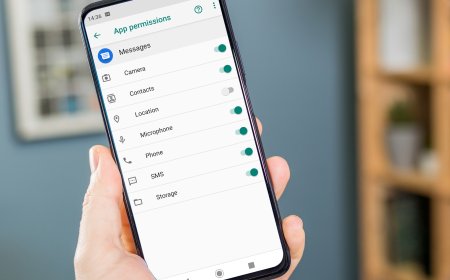
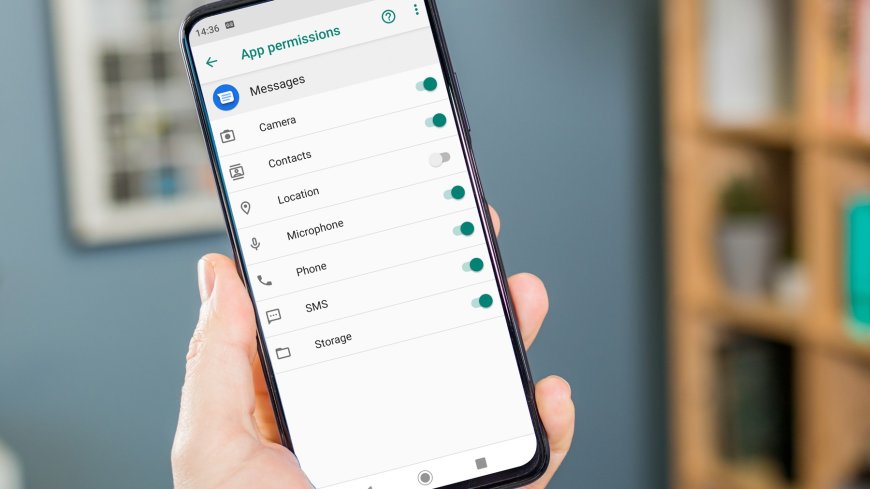
Android gives you two ways in: per app, or per permission. To change one app, open Settings, tap Apps, choose the app, then tap Permissions. You will see everything it can access and everything it has been denied. Tap any permission to change it.
For location, camera and microphone you get more than a yes or no. The options are Allow all the time (location only), Allow only while using the app, Ask every time, and Don't allow. When an app asks for the first time, you will also see Only this time, which grants temporary access that ends shortly after you leave the app.
To review by permission type instead, go to Settings, then Security and privacy, then Permission manager — on some phones this sits under More privacy settings. Tap a permission, such as Location, to see every app that holds it, and change any that look wrong.
Two built-in tools make the audit easier. The Privacy Dashboard, under Settings > Privacy, shows which apps used sensitive permissions in the last 24 hours, so you can spot anything accessing the camera or microphone when it should not be. And under each app's settings, turning on Pause app activity if unused automatically removes permissions from apps you have not opened in a while.
How to Check and Change Permissions on iPhone
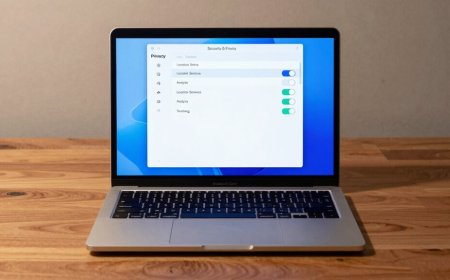
On iPhone, the central place is Settings > Privacy & Security. Every category — Location Services, Tracking, Contacts, Camera, Microphone, Photos and more — shows which apps hold access. Tap a category, then tap an app to change it.
For location, tap Location Services and choose per app: Never, Ask Next Time Or When I Share, While Using the App, or Always. Each app also has a Precise Location switch — turn it off and the app gets only your approximate area. For camera, microphone and other categories, the choice is a simple on or off toggle.
You can also change permissions per app: open Settings, go to Apps, tap the app's name, and adjust the permissions listed there. And under Settings > Privacy & Security > Tracking, you can switch off tracking for individual apps — or turn off Allow Apps to Request to Track so apps stop asking entirely.
The most useful audit tool on iPhone is the App Privacy Report, at the bottom of the Privacy & Security screen. It shows how often your apps accessed location, photos, camera, microphone and contacts over the last seven days, and which web domains they contacted. If an app you barely use accessed your location forty times this week, that is the first thing to revoke.
The Ten-Minute Permission Audit
Set a timer and work in this order. First, open the permission manager on Android or Privacy & Security on iPhone and go through the three big ones — microphone, camera and location. Revoke anything that does not need the access for its core job. Second, check contacts and photos, and switch photo access to selected photos where you can. Third, open your full app list and delete anything you have not used in months; an app you do not have cannot leak data. Finally, turn on the auto-revoke setting on Android, or check the App Privacy Report on iPhone once a month to catch anything that has crept back.
What Happens When You Revoke a Permission?
Usually, nothing dramatic. The app will ask again the next time it needs that access, and you can decide then. Some features will stop working until you restore the permission — navigation without location is the obvious example — but that is the trade working as intended. If an app breaks completely after you deny an unrelated permission, that tells you something about the app, and finding an alternative is often the right move.
Permissions are not a one-time decision made in a hurry during setup. They are a setting you own, and revisiting them every few months is one of the simplest, highest-impact privacy habits on a phone. The apps you trust will keep working. The ones you do not will stop watching.
For more on keeping your phone secure, see our guides on how to protect yourself from phishing and online scams and how to tell if your phone is hacked.
Sources
- Google Android Help — Change app permissions on your Android phone: https://support.google.com/android/answer/9431959
- Proton VPN — How to change app permissions on Android: https://protonvpn.com/blog/how-to-change-app-permissions-android
- AppleInsider — How to manage privacy settings in iOS 26: https://appleinsider.com/inside/iphone/tips/how-to-manage-your-privacy-on-iphone-and-ipad
- Techietory — iPhone Privacy Settings: A Complete 2026 Checklist: https://techietory.com/iphone-privacy-settings-checklist/
- AcademyCon — Checking App Permissions: Which Access Is Needed: https://academycon.de/en/ratgeber/checking-app-permissions/
What's Your Reaction?
 Like
0
 Dislike
0
 Love
0
 Funny
0
 Angry
0
 Sad
0
 Wow
0