




































Bluetooth Not Working? 9 Fixes for Pairing Problems on Android and iPhone
Bluetooth won't connect, keeps dropping, or won't find your earbuds at all? These nine fixes solve most pairing problems on Android and iPhone, from forgetting a stale pairing to clearing the Bluetooth cache and resetting network settings.

Bluetooth Not Working? 9 Fixes for Pairing Problems on Android and iPhone
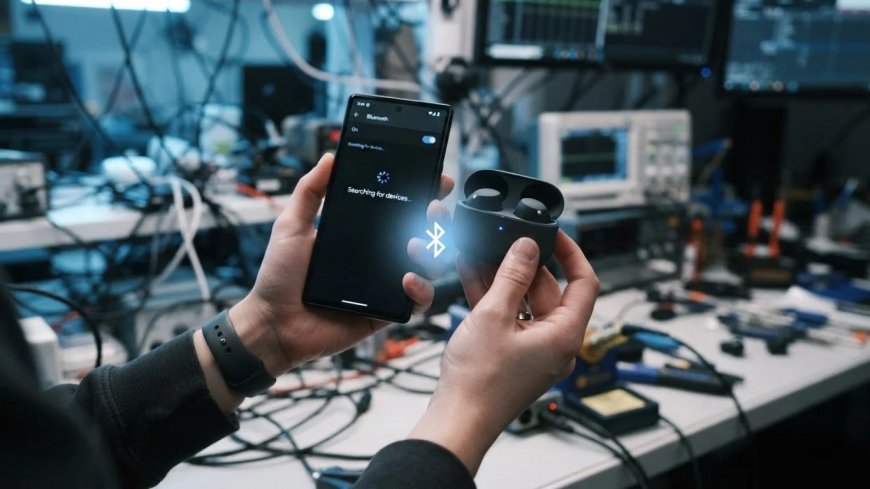
Bluetooth is supposed to be the easy part. You open the case, the earbuds appear, and the music starts. So when a phone refuses to find a speaker, drops a headset mid-call, or pairs and then plays nothing at all, it feels absurdly broken for a technology that has been around for more than two decades.
The good news is that most Bluetooth failures have a small number of causes, and most of them are fixed in under five minutes. The usual culprits are a stale pairing record, an accessory that is still connected to another device, a frozen Bluetooth service, or simple radio interference. Work through the fixes below in order, testing the connection after each one. There is no need to jump to a factory reset when a restart and a re-pair will do.
First, work out what is actually failing
"Bluetooth won't connect" can mean several different things, and the fix depends on which one you have. Is the accessory missing from the list entirely? Does it appear but refuse to pair? Does it connect and then disconnect after a few seconds? Or does it connect fine, but no sound comes through?
A device that never appears is usually not in pairing mode, out of range, or still claimed by another phone. A device that connects and then drops is often a battery-saver or interference problem. A device that connects with no sound is usually an audio-routing issue, not a pairing failure at all. Keep your symptom in mind as you work down the list.
1. Check the basics: power, distance and pairing mode
Start with the unglamorous checks, because they solve more cases than anything else. Make sure the accessory is switched on and charged — a nearly empty earbud case or speaker can enter a restricted state that refuses new connections. Keep the phone and the accessory close together, within a metre or so, while pairing, and remove obvious obstructions such as bags, walls and metal objects.
Then confirm the accessory is actually in pairing, or discovery, mode. Switching Bluetooth on on the phone does not make an accessory discoverable. Most earbuds and speakers need a button held for three to five seconds until a light flashes; some enter pairing mode automatically when the case lid opens. Check the manual if you are unsure — the button sequence varies by brand.
Finally, check that the accessory is not already connected to something else. Bluetooth accessories usually connect to one host at a time, so if your earbuds are still linked to your laptop or tablet, your phone will never see them. Turn Bluetooth off on the other devices, or unpair the accessory from them, and try again.
2. Toggle Bluetooth off and on, then restart both devices
Turn Bluetooth off in Settings, wait a full ten seconds so the radio powers down completely, then turn it back on. On iPhone, open Settings, then Bluetooth. On a Samsung phone, it is Settings, then Connections, then Bluetooth. On a Pixel, it is Settings, then Connected devices.
If the toggle does not help, restart both devices — the phone and the accessory. Powering down flushes temporary memory and forces the Bluetooth service to launch fresh. For a car, that means turning the engine or infotainment system off and on. This simple step clears the frozen background service that sits behind a surprising number of pairing failures.
3. Forget the device and pair it again
This is the single most effective fix, and the one to try before anything more drastic. A saved pairing can go stale: when a phone updates its operating system, or an accessory pairs with a second device, the security keys the two devices share no longer match, and the connection fails silently.
On iPhone, go to Settings, then Bluetooth, tap the information button beside the accessory, and choose Forget This Device. On Samsung, go to Settings, then Connections, then Bluetooth, tap the gear icon beside the device, and tap Unpair. On Pixel, go to Settings, then Connected devices, then Saved devices, tap the settings icon beside the device, and tap Forget. Then put the accessory back into pairing mode and pair it again from scratch. If it asks for a code and you do not have one, try 0000 or 1234, or check the accessory's manual.
If the accessory also keeps its own list of paired phones — many cars and speakers do — remove your phone from that list too, so both sides start clean.
4. Clear the Bluetooth cache on Android
Android caches Bluetooth connection data to speed up reconnection, and a corrupt cache entry can block new pairing attempts. Go to Settings, then Apps, show system apps, find Bluetooth in the list, then tap Storage and Clear Cache. Do not tap Clear Data — that would wipe all pairings. Restart the phone afterwards.
iOS does not expose a Bluetooth cache setting. The equivalent is to toggle Bluetooth off and restart the iPhone, which clears the cached Bluetooth state on boot.
5. Check audio output if it connects but stays silent
A device can be connected while the sound goes somewhere else entirely. On Android, a paired accessory can have separate Media audio and Phone audio controls, so music or calls can stay routed to the phone speaker even while the device shows as connected. Open the Bluetooth device settings and make sure both are enabled. On iPhone, check the media output selector in Control Center and raise the volume — a connected headset with the volume at zero looks identical to a broken one.
6. Move away from interference
Bluetooth shares the 2.4 GHz band with Wi-Fi routers, microwaves and a crowd of other wireless gadgets. A phone sitting next to a router, or a microwave running in the next room, can drown out a weak Bluetooth signal and cause drops or failed pairings. Move at least a few metres away from the router and try again. If the problem only happens in one room, interference is the likely cause, not the phone. Our guide to fixing slow Wi-Fi at home covers the same crowded-radio problem from the Wi-Fi side.
7. Check permissions and companion apps
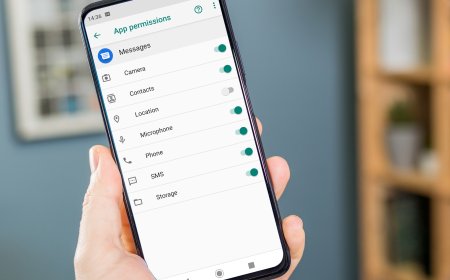
Some accessories need a companion app, and that app needs Bluetooth permission to work. On iPhone, open Settings, then Privacy and Security, then Bluetooth, and allow access for the app. On Android, check the app's permissions in Settings, then Apps, and make sure Bluetooth access is granted. If the accessory's app was denied permission during setup, the accessory may pair but never function properly.
8. Update the software and firmware
Check for a phone software update in Settings, and check for a firmware update for the accessory in its companion app. Manufacturers regularly ship fixes for Bluetooth stability, and an accessory running old firmware against a phone on a new operating system is a common mismatch. Update both, restart both, and try pairing again.
9. Reset network settings — the last resort
If nothing above works, reset the network settings. This wipes saved Wi-Fi networks and passwords, Bluetooth pairings and other wireless settings, so treat it as a last step before a repair shop, not a first one. On iPhone, go to Settings, then General, then Transfer or Reset iPhone, then Reset, and choose Reset Network Settings. On Android, the option sits under Settings, then System, then Reset options, then Reset Wi-Fi, mobile and Bluetooth, though the exact path varies by manufacturer. After the reset, pair the accessory again from scratch.
When it is probably hardware
If the phone fails with every accessory, and the accessories all work fine with another phone, the problem is on the phone's side — most likely its Bluetooth radio or antenna. If one accessory fails with every phone, the accessory is the problem. That quick cross-test is the fastest way to decide which device needs repair. A Bluetooth toggle that stays greyed out, or a phone that cannot see any device at all after a network reset, also points to hardware, and a service centre is the next step.
For most people, though, the fix is far simpler: forget the device, restart the phone, and pair again. Bluetooth is a fiddly protocol held together by saved keys and cached state, and a clean handshake usually brings it back.
Sources
What's Your Reaction?
 Like
0
 Dislike
0
 Love
0
 Funny
0
 Angry
0
 Sad
0
 Wow
0