























































How to Improve Weak Mobile Signal and Slow Mobile Data on Your Phone
Weak signal bars and slow mobile data usually come down to a handful of fixable causes: where you are standing, a stale connection, one wrong setting, or your carrier slowing you down. This guide walks through the quick fixes first, then the iPhone and Android settings that actually help, and finally how to tell whether the problem is your phone, your plan, or your carrier's coverage.

How to Improve Weak Mobile Signal and Slow Mobile Data on Your Phone
One bar of signal, a web page that never finishes loading, a call that drops halfway through a sentence — most of us have been there, and the instinct is to blame the phone. Sometimes the phone is at fault. More often, though, the problem is where you are standing, a connection that has gone stale, a single setting quietly working against you, or your carrier slowing your data down after you have used up your high-speed allowance. The good news is that most of these causes have a fix that takes less than two minutes, and the ones that do not can at least be identified quickly, so you stop guessing and start fixing the right thing.
This guide starts with the fastest checks, then moves to the iPhone and Android settings that genuinely help, and finishes with how to work out whether the fault lies with your phone, your plan, or your carrier's coverage.
Why Your Signal Is Weak in the First Place
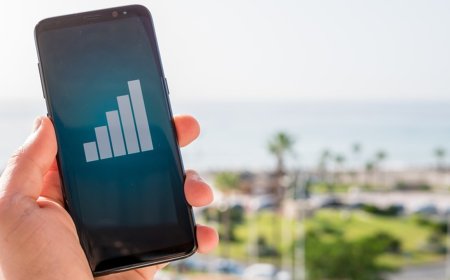
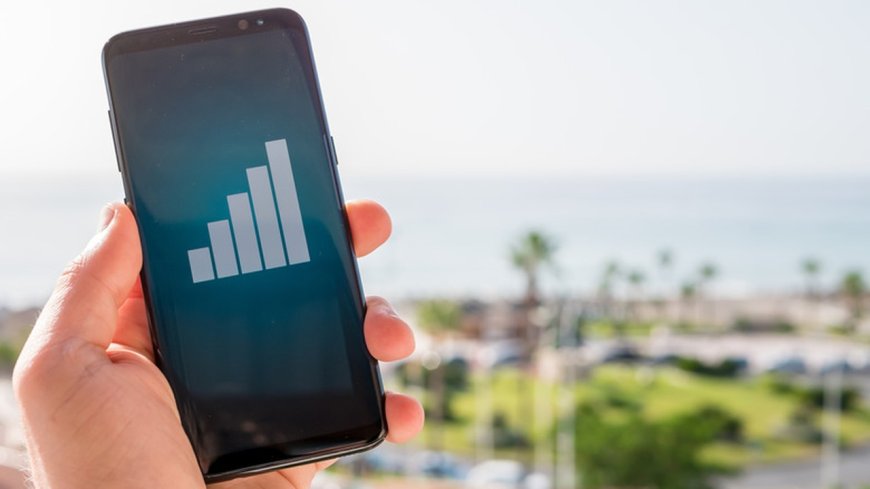
Signal bars are a rough summary, not a measurement. Your phone is really reporting how well it can hear the nearest cell tower — and how well the tower can hear it back. When that link is poor, a few usual suspects are responsible. Distance and terrain matter: the further you are from a tower, the weaker the signal. So do the materials around you — thick concrete, metal roofing, energy-efficient window glass and underground rooms all block radio waves far more than a wooden wall does. Then there is congestion. A tower serving a stadium, a busy station or a packed neighbourhood at rush hour can show full bars and still deliver slow data, because the sector is overloaded. Data slows first; calls and texts only suffer when congestion gets severe.
Two other causes hide inside the phone itself. A connection can go stale — the phone stays attached to a distant or overloaded tower instead of switching to a better one — and a setting or a SIM issue can quietly kneecap service. Finally, there is your plan: many carriers slow speeds once you pass a high-speed data allowance, even on plans marketed as unlimited. Knowing which of these fits your situation decides which fix will actually work.
Quick Fixes That Take Under Two Minutes
Try these first, in order. Each one isolates a common failure point, and together they solve a surprising share of weak-signal complaints.
Move somewhere the signal can reach you
Walk outside, or at least to a window, and try again. If the bars jump and pages load faster, the building is the problem, not your carrier. Height helps too — a second floor or a balcony usually picks up a stronger signal than a ground-floor room, because there are fewer obstructions between the phone and the tower. If you use your phone as a hotspot, this matters even more: put the hotspot phone by the window and connect your laptop from deeper inside over Wi-Fi.
Toggle Airplane Mode for 10 to 15 seconds
Switching Airplane Mode on and off forces the phone to drop its connection and re-register with the network from scratch. It clears a stale tower attachment and is the single fastest fix for a connection that was fine yesterday and poor today. Wait a few moments after turning it off for the bars to settle before testing again.
Restart the phone
A restart resets the modem, clears temporary radio glitches and stops misbehaving background processes. If the bars come back after a restart and then fade again, that pattern itself is a clue — the phone is probably clinging to a weak tower or a weak 5G layer.
Take the case off and check the battery
Thick metal cases, and some heavy rugged cases, can measurably weaken reception. Slip the case off for a minute and compare. A very low battery can also push some phones into power-saving behaviour that limits radio performance, so check that too before moving on.
Check the obvious settings
Make sure mobile data is actually on, that you have not switched on a data limit that cuts data off, and that data roaming matches your plan if you are travelling. Turn your VPN off temporarily as well — a VPN adds latency, and on a marginal connection that extra delay can make sessions fail sooner.
iPhone Settings That Can Improve Your Signal
iPhones prioritise 5G by default, which is usually right — but not in every location. If your phone keeps holding onto a weak 5G signal while a solid LTE signal is available, forcing LTE can make calls steadier and pages load more reliably. Go to Settings, then Cellular, then Cellular Data Options, then Voice and Data, and choose LTE. You can switch back to 5G Auto whenever you are in an area with good 5G coverage.
Wi-Fi Calling is the cleanest fix when you have stable internet but poor cellular coverage at home or at work. It routes calls and texts through your Wi-Fi connection, and the phone switches to it automatically when cellular coverage is weak. Turn it on under Settings, then Cellular, then Wi-Fi Calling — your carrier needs to support it, and most major carriers do.
Two more settings are worth knowing. Low Data Mode, under Settings, then Cellular, then Cellular Data Options, cuts background traffic from apps that constantly send and receive data, which can stabilise a connection in a congested area. And if connectivity changed suddenly for no clear reason, resetting network settings forces a clean start: go to Settings, then General, then Transfer or Reset iPhone, then Reset, then Reset Network Settings. It does not delete photos or contacts, but it will erase saved Wi-Fi networks and passwords, Bluetooth pairings and VPN configurations, so treat it as a later step rather than a first one. Finally, check for a carrier settings update by opening Settings, then General, then About — if an update is available, a prompt appears.
Android Settings That Can Improve Your Signal
Android phones offer the same levers, though the exact menu names vary by manufacturer. If your phone keeps holding a weak 5G signal, force a steadier radio mode: look under Settings, then Network and Internet, then Mobile Network, then Preferred Network Type, and choose LTE or 4G for a few hours to compare call drops and loading times. Switch back when coverage improves.
Wi-Fi Calling is usually found under Settings, then Connections, then Wi-Fi Calling, or under Settings, then Network and Internet, then Calls and SMS, depending on the brand. As on iPhone, it routes calls over Wi-Fi when the cellular signal is poor, and your carrier must support it.
Android also has a network settings reset, generally under Settings, then System, then Reset Options, then Reset Wi-Fi, Mobile and Bluetooth — again with the same warning that saved networks and pairings will be erased. Before that, check for a system update and a carrier settings update, reseat a physical SIM if you use one — power off, remove the SIM, reinsert it, power on — and try manually selecting your carrier instead of Automatic under network selection. A phone that has been told explicitly which network to use sometimes holds a steadier connection than one left to choose for itself.
How to Tell What Is Actually Wrong
Before spending money on hardware or changing carriers, spend five minutes diagnosing. The pattern of the failure usually names the cause.
First, check the real signal strength, not the bars. On Android, look under Settings, then About Phone, then SIM Status for the signal strength in dBm; on iPhone, the Field Test mode shows the same figure. Around minus 70 dBm is strong, around minus 100 dBm is weak, and around minus 110 dBm or worse usually drops calls and data. If the number is poor everywhere you go, the phone or SIM is suspect; if it is poor only in one building, the building is the problem.
Next, test another device on the same carrier in the same spot. If it is slow too, the issue is the network, not your phone. Try a different location — even a few feet can change reception — and check whether the problem is app-specific by loading a different website or app. Compare Wi-Fi and mobile data: if speeds are normal on Wi-Fi but slow on mobile data, the issue is carrier-related. And check your data usage against your plan. On iPhone, go to Settings, then Cellular, and look at usage under Current Period; on Android, go to Settings, then Network and Internet, then Internet, and tap the gear icon next to your carrier name. If you have passed your high-speed allowance, slower speeds are expected until the next billing cycle, and no setting on the phone will fix that.
When Nothing on the Phone Helps
If the diagnosis points at coverage rather than the device, the fixes move outside the phone. A signal booster — a small indoor antenna paired with an amplifier — can lift a weak outdoor signal into a usable indoor one, and it is the standard answer for homes and offices in marginal coverage areas. In rural or remote spots, an external antenna or a dedicated 4G or 5G router placed by a window often does more than any phone setting can. And if the coverage map shows your carrier simply does not serve your area well while a rival does, switching carriers is the honest fix: no setting creates a signal where none exists.
One last check before any of that: ask your carrier whether there is a known outage or maintenance in your area, and whether your plan includes the network features — 5G access, Wi-Fi Calling, roaming — that you are trying to use. A surprising number of weak-signal mysteries turn out to be a plan detail or a temporary tower fault, and both are fixed with a phone call rather than a new phone.
Sources
- Boost Mobile — The Best Phone Settings to Improve Service
- 5Gstore — How to Get a Better Signal: Fix Weak Cell Service Fast
- MobileOS — How to Fix Slow Internet on Phone Despite Full Signal
Related reading on Innopark IT: How to Fix Slow Wi-Fi at Home: Router Placement, Dead Zones and Speed Fixes and eSIM Explained: How to Activate, Transfer and Manage an eSIM in 2026.
What's Your Reaction?
 Like
0
 Dislike
0
 Love
0
 Funny
0
 Angry
0
 Sad
0
 Wow
0