


























































Cut Your Screen Time on Android and iPhone: 7 Built-In Tools That Actually Work
Your phone already has everything you need to cut screen time — no paid app required. This guide shows how to use iPhone Screen Time and Android Digital Wellbeing to set app limits, schedule downtime, tame notifications and build habits that stick, step by step on both platforms.

Cut Your Screen Time on Android and iPhone: 7 Built-In Tools That Actually Work
Most of us pick up our phones far more often than we think — and the hours quietly add up. The good news is that you do not need to buy a detox app or delete everything you enjoy. Both Apple and Google already build serious screen-time controls into every phone. Used in the right order, they can cut daily use by a third or more without breaking the things you genuinely need your phone for.
This guide walks through the tools step by step, first on iPhone and then on Android, and finishes with the small habits that make the limits actually stick.
Step 1: See Your Real Numbers Before You Change Anything
Before setting a single limit, spend a few days looking at the truth. Both platforms already track every minute you spend in each app, how often you unlock the phone, and how many notifications you receive.
On an iPhone, open Settings > Screen Time and tap See All App & Website Activity. On Android, open Settings > Digital Wellbeing & parental controls and tap the dashboard chart. Look at your daily average and, more importantly, your top three apps. For most people, one or two apps — usually a social feed or short-video app — account for most of the wasted time. That is where your limits should go first.
Step 2: Cap the Worst Apps on iPhone With Screen Time
Apple's Screen Time has lived in Settings since iOS 12, and it remains the most complete set of controls on an iPhone. Here is how to set a limit that holds:
Open Settings > Screen Time. If you have never used it, tap Turn On Screen Time and choose This is My iPhone. Then tap App Limits, choose Add Limit, pick a category such as Social or a single app like Instagram or TikTok, and set a daily time. A gentle cut works better than a cliff: if you currently spend two hours a day in an app, start with 90 minutes and tighten it later.
Two settings make the limit far harder to ignore. Turn on Block at End of Limit so the app actually stops instead of offering a polite reminder you can dismiss. Then scroll down and tap Lock Screen Time Settings to set a four-digit passcode — one you will not hand to your late-night self. Note that on iOS 27, released in September 2026, Apple renamed these menus: App Limits became Time Allowances and Downtime became Screen Time Schedule, but the controls work the same way.
Step 3: Schedule Downtime So Evenings Belong to You
App limits cap individual apps; Downtime caps the whole phone. In Screen Time > Downtime, set a schedule — for example 21:30 to 07:00 — during which only the apps you explicitly allow stay reachable. Use Always Allowed to keep Phone, Messages, Maps and any medical app available, and leave social apps off that list. The point is not punishment: with calls and messages still working, you lose nothing essential, but the endless scroll simply is not there at bedtime.
Step 4: Set App Timers on Android With Digital Wellbeing
Google's version of the same idea is called Digital Wellbeing, and it works on Pixel, Samsung Galaxy, Motorola and most other Android phones. Open Settings > Digital Wellbeing & parental controls, tap the dashboard, find your biggest time-sink, and tap the hourglass or timer icon next to it to set a daily limit. When the time runs out, the app closes and its icon greys out until midnight.
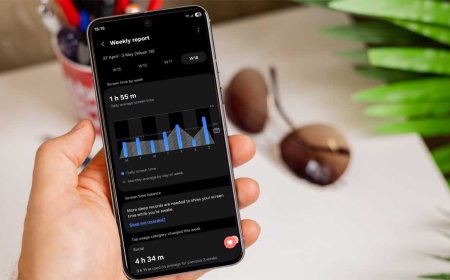
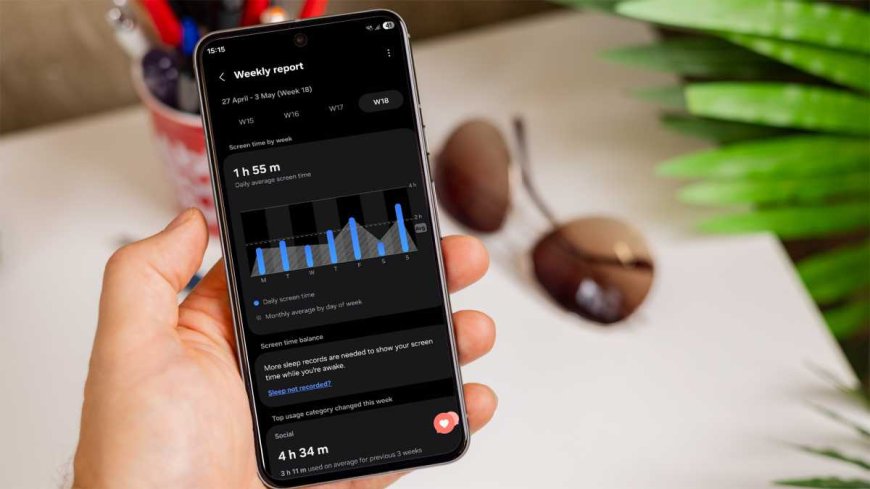
On newer Android versions the same controls sit under App timers in the Digital Wellbeing menu. Samsung phones add a Screen time goal and a weekly report in the same place. If your phone's maker buried the menus, search Settings for "timer" or "wellbeing" — the tools are usually there under a slightly different name.
Step 5: Use Focus Mode and Bedtime Mode to Protect Your Day
Android's Focus mode pauses the apps you choose during work blocks, silencing them and their notifications until you switch it off — and you can set a schedule so it starts automatically. Bedtime mode, in the same Digital Wellbeing menu, turns on greyscale and Do Not Disturb on a schedule or while the phone charges, so the screen stops rewarding you with colour late at night.
On iPhone, the equivalent is Focus: create a Work or Sleep focus that allows notifications only from chosen people and apps, and schedule it to switch on automatically. Combined with Downtime, it turns the phone into a tool again during the hours you choose.
Step 6: Make the Phone Boring — Notifications, Home Screen and Greyscale
Limits work best when the phone stops pulling you in the first place. Turn off non-human notifications — likes, streaks, shopping deals, breaking-news blasts — and keep only calls, messages from favourites, calendar, banking and delivery alerts. Move social apps off your first home screen into a folder on page two, so opening them takes a deliberate choice instead of a reflex.
Then try greyscale. Colour is part of what makes feeds addictive, and a black-and-white screen makes scrolling noticeably less appealing. On iPhone, go to Settings > Accessibility > Display & Text Size > Color Filters > Grayscale, and set it as an Accessibility Shortcut so a triple-click of the side button toggles it. On Android, greyscale usually comes with Bedtime mode inside Digital Wellbeing.
Step 7: Change the Environment and Review Weekly
The strongest habit of all is physical: charge the phone outside the bedroom and use a cheap alarm clock instead. Protect the first hour after waking and the last hour before sleep, and keep the phone out of reach during meals and family time.
Finally, review the numbers every Sunday. Open Screen Time or Digital Wellbeing, note your top three time-sinks, and adjust one limit — not ten. Small, steady tightening beats a dramatic detox that collapses by Wednesday. Most people who follow this sequence see a real drop within two weeks, and the phone slowly returns to being something you use on purpose rather than something that uses you.
Related reading: if your phone also dies too early in the day, see our guide on how to make your smartphone battery last longer.
Sources
- GeekUpdated — How to reduce screen time for free on iPhone and Android
- Do It Today — How to Check and Reduce Your Screen Time
- Digital Citizen — How to Reduce Screen Time (Ultimate Guide)
- TechEngage — Limit Screen Time on iPhone and Android
- PauseGadget — How to Check and Limit Screen Time on iPhone and Android
What's Your Reaction?
 Like
0
 Dislike
0
 Love
0
 Funny
0
 Angry
0
 Sad
0
 Wow
0