




































































How to Clear Cache on Android and iPhone: Free Up Space Without Losing Your Data
Cached files quietly eat up storage and can make apps misbehave. This guide shows how to clear cache on Android and iPhone — app by app, in Safari and Chrome, and the safe way to free space without signing out of anything.

How to Clear Cache on Android and iPhone: Free Up Space Without Losing Your Data
Every app on your phone keeps a stash of temporary files — thumbnails, pieces of web pages, bits of video — so it can load faster next time. That stash is the cache, and it is useful right up until it is not. Left alone for months, it can swell into gigabytes of dead weight, make an app crash or show stale content, and leave you staring at a "storage full" warning when you try to take a photo. The good news is that clearing it is safe, quick, and — on Android at least — takes about thirty seconds per app. Here is how it works on both platforms, and the one button you should never tap by accident.
What clearing the cache actually does
A cache holds copies of things your phone has already downloaded. Clear it and the app simply downloads those bits again the next time it needs them, so it may open a touch more slowly once. What clearing the cache does not do is delete your photos, messages, contacts, saved passwords, or logins. That is the job of a different button — "Clear data" on Android, or deleting the app on iPhone — and the two are easy to confuse because they sit on the same screen. Google puts it plainly: clearing the cache removes temporary data, while clearing storage permanently deletes all of the app's data and returns it to the state it was in when first installed. Samsung's advice is the same: clearing data resets the app to its factory defaults and removes your personal settings inside it. So the rule of thumb is simple. Start with Clear cache. Reach for Clear data only if the app still misbehaves after that, and only once you are sure you can sign back in.
How to clear app cache on Android
Android gives you a proper cache button for every app, and the path is nearly identical on every phone made in the last few years. Menu names vary slightly between brands, but you are always looking for the app's storage page.
On a Pixel or stock Android phone
Open Settings, tap Apps, then See all apps. Pick the app that is misbehaving or hogging space, tap Storage and cache, and tap Clear cache. That is all there is to it — your account and settings stay exactly where they were.
On a Samsung Galaxy phone
Open Settings and tap Apps, then select the app (or search for it). Tap Storage, then Clear cache. Samsung says there is no need to uninstall the app or reset the phone to fix one that has stopped responding — clearing the cache is the first thing to try. If you do decide to clear data instead, Samsung asks you to confirm by tapping Delete, and warns you to note down your accounts first so you can sign back in.
The shortcut from the home screen
On most Android phones you can skip Settings entirely. Long-press the app icon on your home screen, tap the small i icon to open App info, then go to Storage and cache and tap Clear cache. It is the fastest way to deal with a single troublesome app.
Clearing cache for the browser
Browser cache lives separately from app cache. In Chrome on Android, tap the three-dot menu, go to History, then Clear browsing data, tick Cached images and files, choose a time range, and tap Clear data. Leave the cookies box unticked if you do not want to be signed out of every website.
Freeing space in bulk
If the goal is storage rather than fixing one app, most Android phones have a built-in cleaner. Samsung's Device Care (Settings, then Device Care, then Storage, then Clean now) sweeps cached and temporary files in one pass. Google's Files by Google app does the same on any Android phone, and its Clean suggestions are a good way to spot which apps are holding the most cache. One app to leave alone: Google Play Services. It is a core system component used for account syncing and notifications, and clearing its cache can cause more trouble than it solves.
Wiping the cache partition
There is also a system-level option, wiping the cache partition from the phone's recovery menu. Power the phone off, then hold the volume and power buttons together until the recovery menu appears — the exact combination varies by brand, and on Samsung the phone usually needs to be connected to a computer by cable first. Use the volume keys to reach Wipe cache partition and the power button to select it. This removes system-level temporary files without touching your personal data, and it is worth trying if the phone feels sluggish after a major update. It is an advanced step, though, and for most people the per-app method is enough.
How to clear cache on iPhone
Apple does things differently. The iPhone has no single button that clears every app's cache, and most apps have no cache option at all. Instead you clear the browser cache from Settings, use the cache controls inside the few apps that offer them, and offload or reinstall the rest. It takes a little longer, but nothing here will delete your photos or messages.
Clear the Safari cache
This is the cache most iPhone owners need to clear. On recent iPhones, open Settings, scroll down to Apps, tap Safari, then tap Clear History and Website Data. Choose a timeframe — last hour, today, today and yesterday, or all history — and tap Clear History. Be aware that this also clears your browsing history and cookies, so you will be signed out of websites in Safari. Your bookmarks, favourites, and passwords saved in iCloud Keychain are not affected.
If you want to keep your history and only clear the cached files and cookies, there is a quieter option. In the same Safari settings screen, scroll to the bottom and tap Advanced, then Website Data. Tap Remove All Website Data and confirm. From that same screen you can delete a single website instead: find it in the list, swipe left, and tap Delete. On iPhones running iOS 17 or earlier there is no Apps list in Settings — the same options live directly under Settings, then Safari.
Clear the Chrome cache on iPhone
Clearing Safari's cache does nothing for Chrome, and vice versa, so clear each browser you actually use. Open Chrome, tap the three-dot menu in the bottom-right corner, tap Delete browsing data, set the time range to All time for a full clear, make sure Cached images and files is selected, and confirm.
Clear cache inside individual apps
A handful of popular apps have their own cache controls. In TikTok, go to your profile, open the menu, tap Settings and privacy, then Free up space, and tap Clear on the cache row. In WhatsApp, go to Settings, then Storage and Data, then Manage storage, where you can delete cached files chat by chat. Other apps offer similar options buried in their settings menus — it is always worth a quick look before taking the heavier route below.
Offload or delete the app
For apps with no built-in cache option, such as Instagram, YouTube, or Facebook, iOS offers two tools under Settings, then General, then iPhone Storage. Tap the app and you will see both. Offload App removes the app itself but keeps its documents and data, so when you reinstall it from the App Store your settings come back — it frees some space, but not a great deal, because the cached files often sit with the data that is kept. Delete App removes the app and everything it stored, cache included, and a fresh install starts clean. Deleting is the only way to fully clear an app's cache on iPhone, so make sure anything you care about is backed up or synced to the cloud first.
System cache and the humble restart
There is no direct way to clear the iPhone's system cache from within iOS. What does help is a restart: press and hold the side button with either volume button until the power-off slider appears, switch the phone off, wait a few seconds, and turn it back on. It flushes small temporary files from memory and can clear up minor glitches — a small, free habit worth trying before anything more drastic.
What not to do
Two cautions are worth keeping in mind. First, do not install third-party "cleaner" or "booster" apps to do this job. Most are little more than advertising wrapped around permissions they do not need, and the built-in tools on both platforms already do the work properly. Second, do not confuse cache with data. Clearing an app's data or deleting it outright will sign you out and wipe its local settings, so check that you know your passwords — or have them saved in a password manager — before you go that far.
When clearing the cache is worth doing
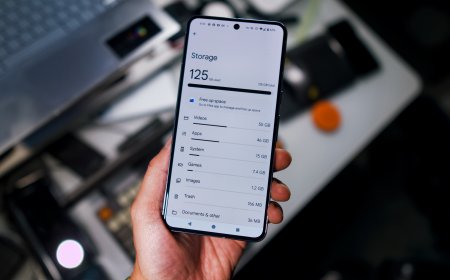
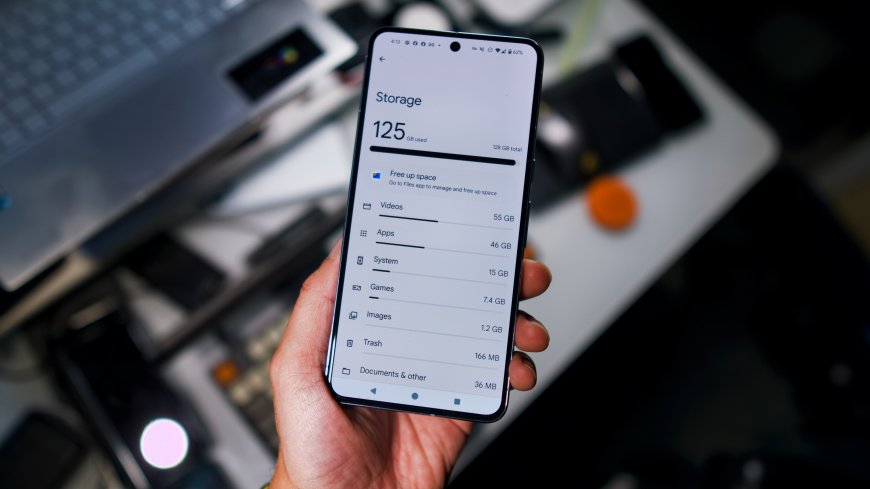
Cache is not the enemy; it exists to make your phone faster. The system manages it on its own, and Android will even reclaim cached space automatically when storage runs low. Reach for the cache button when an app crashes, shows old content, refuses to load, or is taking up an unreasonable amount of space — the Storage screens on both platforms show you exactly which apps are the worst offenders. A quick clear every few months for the heaviest apps, and after a big software update, is plenty. If the phone is still slow after that, the problem is usually something else: an aging battery, a nearly full drive, or an app that simply needs updating.
Sources
- The Droid Guy — How To Clear App Cache And Data On Android (2026)
- Trio — Clear App Cache on Android: One Device or a Fleet
- Android Authority — How to clear cache on your Android device
- Mac Observer — How to Clear Cache on iPhone (Safari and Apps)
- Avira — How to clear the cache on your iPhone
- Proton — How to clear cache on iPhone and free up storage space
What's Your Reaction?
 Like
0
 Dislike
0
 Love
0
 Funny
0
 Angry
0
 Sad
0
 Wow
0