
































































How to Check Battery Health on Android and iPhone
Your phone's battery health tells you how much charge it can still hold compared with when it was new. Here is where to find that number on iPhone, Samsung Galaxy, Google Pixel and other Android phones, what maximum capacity and cycle count actually mean, and when a battery replacement is worth it.

How to Check Battery Health on Android and iPhone
A phone that used to last all day and now dies by dinner time is rarely a mystery. Batteries wear out with use, and every phone keeps a record of that wear — you just have to know where to look. On an iPhone the number is a percentage called Maximum Capacity. On Android it depends on the brand, but Samsung, Google and most other makers all give you a way to check, either in Settings or through a diagnostics app.
This guide covers where to find the reading on the phones people actually own, what the two numbers that matter really mean, and the point at which a new battery makes more sense than a new phone.
How to check battery health on an iPhone
Apple puts the reading in the same place on every iPhone running iOS 11.3 or later, but the screen looks slightly different depending on the model.
iPhone 15 and later
- Open the Settings app.
- Tap Battery.
- Tap Battery Health.
- Read the Maximum Capacity percentage. On this screen you will also see the Cycle Count, the battery's manufacture date and the date it was first used.
If Apple thinks the battery needs replacing, that recommendation appears on this screen too.
iPhone 14 and earlier
- Open the Settings app.
- Tap Battery.
- Tap Battery Health & Charging.
- Read the Maximum Capacity percentage, then read the Peak Performance Capability message underneath it. That line tells you whether the battery can still deliver full power, or whether iOS has started managing performance to stop unexpected shutdowns.
Older iPhones do not show a cycle count in Settings, so Maximum Capacity is the number to watch. The same screen holds the Optimized Battery Charging switch, which reduces the time the phone spends sitting fully charged.
How to check battery health on a Google Pixel
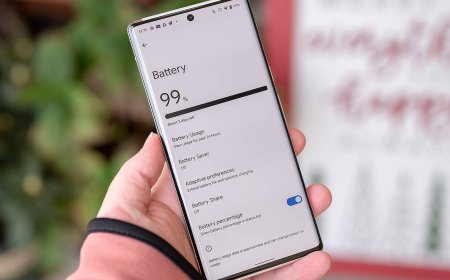
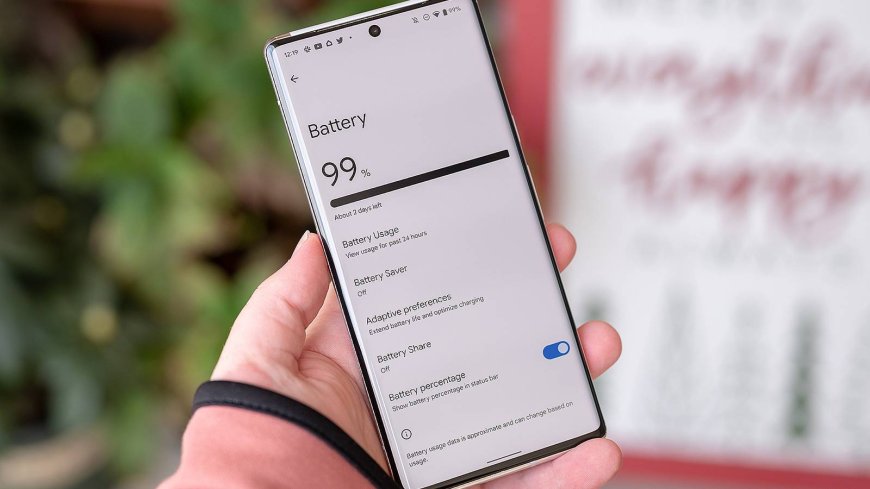
Pixel phones are the most straightforward Android devices for this. On a Pixel 8a and newer models, open Settings > Battery > Battery health. The screen shows an estimated maximum capacity and an overall status, and on some models the cycle count appears under Settings > About phone > Battery information, along with the battery's manufacture date.
Older Pixels do not show a capacity figure in Settings. If yours is one of them, a reputable battery app such as AccuBattery can estimate real capacity by measuring charges over a week or two — it is slower, but it is the best option when the phone hides the number.
How to check battery health on a Samsung Galaxy
Samsung's most reliable built-in check lives in the Samsung Members app, which comes preinstalled on most Galaxy phones:
- Open the Samsung Members app.
- Tap Support (on some versions it reads Get help).
- Choose Phone diagnostics, then Battery status.
- The test reports the battery's condition — for example Normal or Weak — and on many models its life and capacity too. Samsung suggests visiting a service centre if the result says the battery is bad.
Some recent Galaxy models running newer versions of One UI also show battery information directly in Settings, though the menu names vary by model and software version. If your phone has it, look under Settings > Battery first.
How to check battery health on other Android phones
Android has no single battery health screen, because every maker does it differently. The order to try is always the same:
- Look in Settings > Battery first. Newer phones increasingly expose a health figure, sometimes under a Battery health or Battery information sub-page.
- Try the maker's own support or diagnostics app. Xiaomi, OnePlus, Oppo, Honor and Motorola each handle this differently, and several include a built-in hardware test.
- Use a trusted third-party app as a last resort. AccuBattery estimates capacity from real charging sessions over a week or two.
One old tip is worth ignoring: dialling the hidden testing code *#*#4636#*#* used to open a battery menu, but on most modern Android versions it shows little or nothing useful, so do not rely on it.
What the numbers mean
Two figures matter, and they measure different things.
Maximum capacity
Maximum Capacity is the size of your battery's tank today, measured against the tank it had when it left the factory. At 100 percent you have the full capacity the phone was built with; at 85 percent the tank is smaller, so the same day of messages, maps and photos runs you dry sooner. The figure is an estimate the phone works out as you use it, not a reading off a meter, so it can move by a point or two after a full charge and discharge.
Cycle count
A charge cycle is counted when you have used an amount equal to 100 percent of the battery's capacity — not each time you plug in. Using half the battery one day and half the next, with a recharge in between, adds up to one cycle.
Apple designs iPhone 15 and later batteries to keep 80 percent of their original capacity after 1,000 complete charge cycles under ideal conditions. iPhone 14 and earlier were originally rated for 500 cycles at the same 80 percent mark, and Apple later revised the iPhone 14 family's rating to 1,000 cycles as well. Google says Pixel 8a and later phones are designed to hold up to 80 percent for around 1,000 cycles, and earlier Pixels from the Pixel 3 onward for around 800.
When should you replace the battery?
As a rough guide, 90 percent and above is effectively like new, 85 to 89 percent is normal for a phone one to two years old, and 80 to 84 percent means noticeably shorter runtime — time to plan for a replacement. Below 80 percent, Apple considers the battery consumed and iOS shows a Service message on the Battery Health screen.
The percentage is not the whole story, though. A battery at 82 percent that still gets you through the day is fine to keep, while a battery at 88 percent that swells, overheats or shuts the phone off at 30 percent needs attention now, whatever the number says. If the phone is otherwise working well, a battery replacement — usually far cheaper than a new handset, and often done the same day at an official service centre — is the better deal.
How to slow battery wear
Checking battery health will not change it, but two settings reduce the time your battery spends sitting at a full charge, which is what wears it fastest.
On iPhone 15 and later, go to Settings > Battery > Charging and set a charge limit of 80, 85, 90 or 95 percent — the phone simply stops charging there. On iPhone 14 and earlier, the same screen offers Optimized Battery Charging, which learns your routine and holds the charge at 80 percent until shortly before you usually unplug.
On Android, look for a similar option in Settings > Battery: Pixel phones call it Adaptive Charging, Samsung calls it Battery protection, and most other brands have their own version of a charge limit or an 85 percent cap. Keeping the phone out of extreme heat matters just as much — a hot car or a phone baking in sunlight ages a battery faster than any charging habit.
Sources
- LandGadget — How to check battery health on iPhone and Android
- DeviceTest — Battery Health Check: iPhone, Android, Windows & Mac
- TestYourDevice — iPhone & Android Battery Health: What It Means and When to Replace
- The Droid Guy — How To Check iPhone Battery Health (2026)
- SolveYourPhone — How to Check iPhone Battery Health
- Check A Device — iPhone Battery Health Check
What's Your Reaction?
 Like
0
 Dislike
0
 Love
0
 Funny
0
 Angry
0
 Sad
0
 Wow
0